How to Free Up Google Storage: Clean Gmail, Drive and Photos (2026 Guide)
How-To & Troubleshooting 11 min read By David Johnson
In this articleTable of contents12
Last updated: 10 October 2026
"Your storage is almost full." If that warning keeps popping up in Gmail or Google Photos, you are not alone. Every free Google account gets just 15 GB, and it is shared between Gmail, Google Drive and Google Photos – plus your Android and WhatsApp backups. Once it fills up, new emails can bounce and photo backup stops. This guide explains how to free up Google storage step by step: find what is using space, clean Gmail, Drive and Photos, use the Google One storage manager, and compare Google One India plans in rupees if you still need more room.
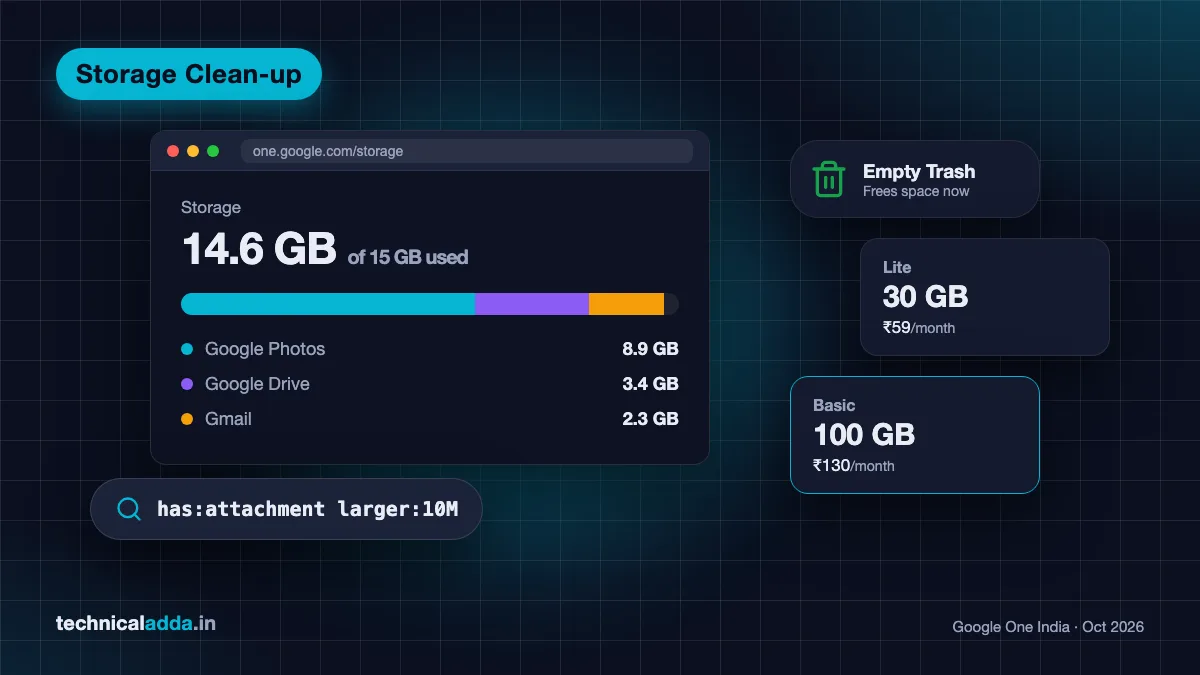
Quick answer: To free up Google storage, open one.google.com/storage to see what is using space, then delete large Gmail attachments (search
has:attachment larger:10M), empty Gmail Spam and Trash, remove large and duplicate Drive files, delete old device and WhatsApp backups, and clear large videos from Google Photos. Empty every Trash folder to free the space immediately.
How Google storage works
Before you start deleting, it helps to know what actually counts against your 15 GB:
- Gmail: All emails and attachments, including Spam and Trash.
- Google Drive: Files you own, including PDFs, videos, ZIP files, and Google Docs, Sheets and Slides created or edited after June 2021.
- Google Photos: Photos and videos backed up in Original quality or Storage saver quality (since June 2021, both count).
- Backups: Android device backups and, since 2024, WhatsApp chat backups on Android.
- Trash: Items in Gmail Trash, Drive Trash and Photos Trash still count until permanently deleted.
What does not count:
- Files in "Shared with me" that other people own.
- Photos backed up in High quality before 1 June 2021.
So the fastest wins usually come from three places: large email attachments, big videos in Photos and Drive, and forgotten backups.
Step 1: Check what is using your Google storage
- Open one.google.com/storage (opens in new tab) in a browser, or open the Google One app (or Google Drive > Menu > Storage on mobile).
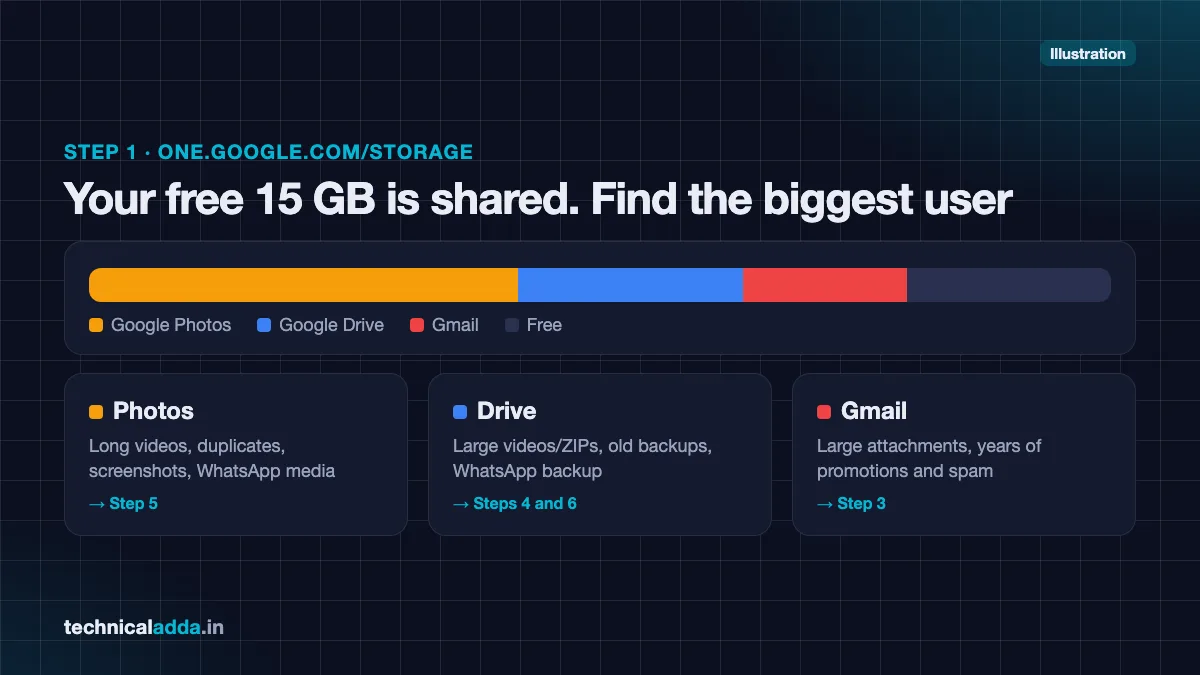
- You will see a coloured bar split into Google Drive, Gmail and Google Photos.
- Note which service uses the most. Start your clean-up there.
| If most space is in… | Most likely culprit | Jump to |
|---|---|---|
| Google Photos | Long videos, duplicates, screenshots, WhatsApp media backed up | Step 5 |
| Google Drive | Large videos/ZIPs, old backups, WhatsApp backup | Steps 4 and 6 |
| Gmail | Large attachments, years of promotions and spam | Step 3 |
Step 2: Use the Google One storage manager
Google One has a built-in storage manager that groups items you can delete in one place, across Gmail, Drive and Photos.
- Go to one.google.com/storage/management (opens in new tab) or, in the Google One app, tap Storage > Clean up space.
- Review the cleanup suggestions shown. In the app, Google groups them under Clean up by service (Google Photos, Google Drive, Gmail and Trash); exact labels vary by app and version. They typically cover:
- Deleted and spam items: Gmail Spam and Trash, Drive Trash.
- Large files: emails with large attachments, large Drive files, large photos and videos.
- Other suggestions: for example, blurry photos, screenshots or unsupported videos in Photos.
- Tap a category, select items and tap Delete. Review carefully – deletions here are often permanent.
The storage manager is the quickest method for most people. The sections below show how to clean each service in more detail, which helps you find space the storage manager misses.
Step 3: Free up Gmail storage
Gmail does not let you sort by size, but its search operators work very well. Google's guide to Gmail search operators (opens in new tab) lists all of them.
Find and delete large emails
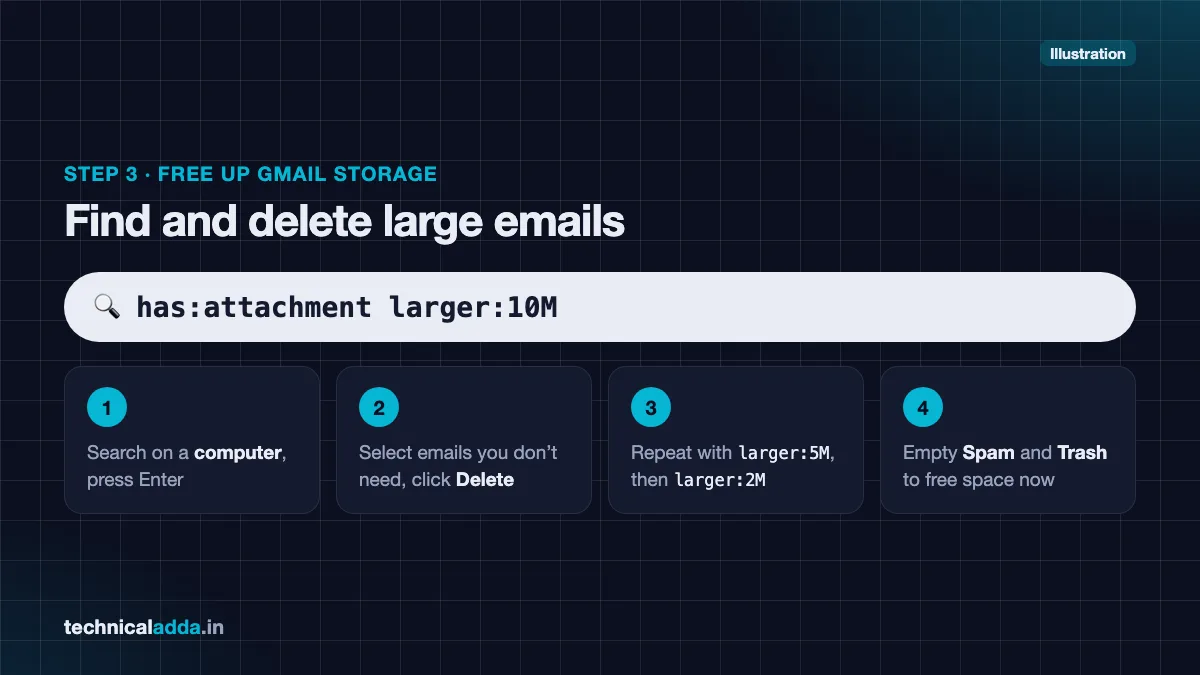
- Open Gmail on a computer (it is faster for bulk deletion).
- In the search bar, type:
has:attachment larger:10Mand press Enter. - Select emails you no longer need and click Delete.
- Repeat with
larger:5M, thenlarger:2M, to catch more.
Tip: Before deleting an important attachment (like an offer letter or invoice), download it to your laptop or save critical documents like Aadhaar and PAN in DigiLocker instead. See our guide on how to download Aadhaar from DigiLocker.
Delete old promotions and social emails
- Search
category:promotions older_than:1y. - Click the select-all checkbox, then click Select all conversations that match this search.
- Click Delete.
- Repeat with
category:social older_than:1yandcategory:updates older_than:2y.
Clean Spam and Trash
- Open Spam and click Delete all spam messages now.
- Open Trash and click Empty Trash now.
Gmail automatically deletes items in Trash and Spam after 30 days, but emptying them yourself frees space immediately.
Useful Gmail search operators
| Search | What it finds |
|---|---|
larger:10M |
Emails bigger than 10 MB |
has:attachment filename:mp4 |
Emails with video attachments |
has:attachment filename:zip |
Emails with ZIP files |
older_than:3y |
Emails older than 3 years |
from:noreply |
Automated emails from no-reply senders |
in:anywhere larger:5M |
Large emails including Spam and Trash |
Stop the inflow
Unsubscribe from newsletters you do not read. Gmail often shows an Unsubscribe link next to the sender's name at the top of promotional emails.
Step 4: Free up Google Drive storage
Sort files by size
- Open drive.google.com on a computer.
- Click Storage in the left menu (or go to drive.google.com/drive/quota).
- Files are listed by size, largest first.
- Delete videos, ZIP files and old installers you no longer need.
On mobile, open the Drive app, tap Menu > Storage to see the same list.
Check hidden space hogs
- Duplicate uploads: Search for the same file name and delete extra copies.
- Old course recordings and screen recordings: These are often hundreds of MB each.
- Files you own in shared folders: If you uploaded files to a college or office shared folder, they count against your storage, not the folder owner's.
- Hidden app data: Some apps store data in Drive. On the web, go to Settings (gear icon) > Manage apps to see apps with hidden data and delete it if you no longer use the app.
Empty Drive Trash
- Click Trash (Bin) in the left menu.
- Click Empty trash.
Drive also deletes Trash items automatically after 30 days, but emptying it now frees the space straight away.
Step 5: Free up Google Photos storage
For most Indian users, Google Photos is the biggest consumer of storage – especially videos and forwarded WhatsApp media.
Use the Photos storage tool
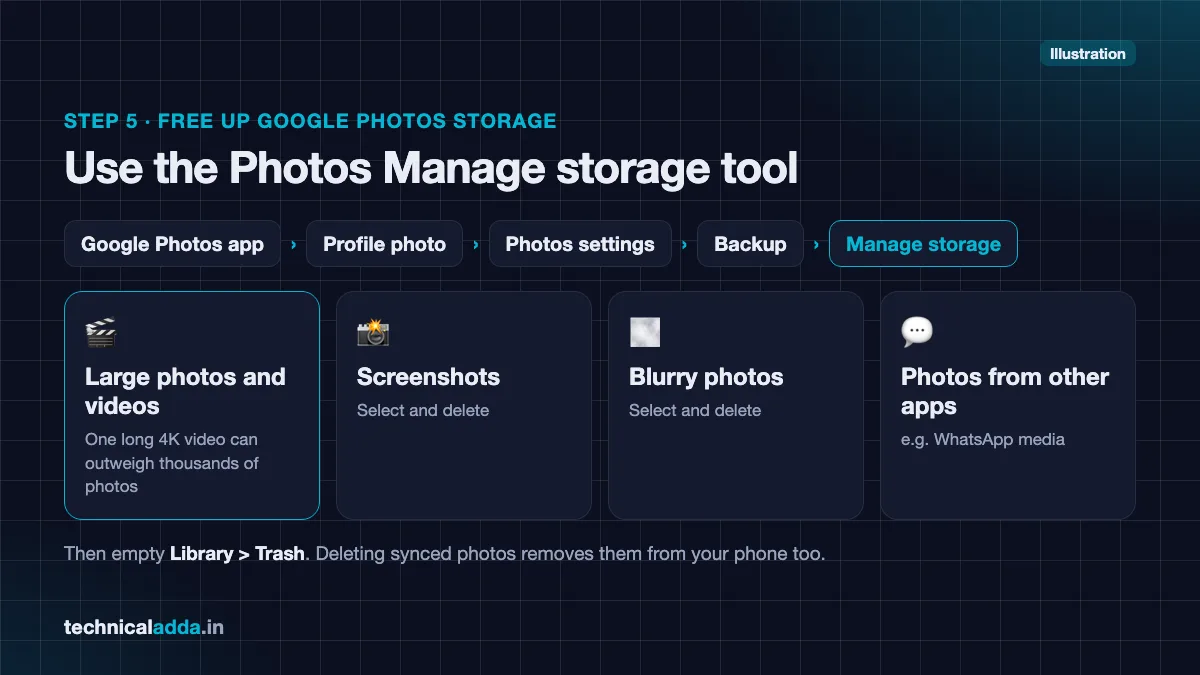
- Open the Google Photos app.
- Tap your profile photo > Photos settings > Backup > Manage storage (menu names can vary slightly by version).
- Review sections such as Large photos and videos, Screenshots, Blurry photos and photos from other apps.
- Select and delete what you do not need.
Delete large videos first
Search for "Videos" in Google Photos to see all videos. A single long 4K video can be larger than thousands of photos. Delete shaky, duplicate or long videos you will not watch again.
Stop backing up WhatsApp and screenshot folders
- In Google Photos, open Photos settings > Backup > Back up device folders.
- Turn off folders like WhatsApp Images, WhatsApp Video and Screenshots if you do not want them in the cloud.
Switch to Storage saver quality
- Go to Photos settings > Backup > Backup quality.
- Choose Storage saver. New photos are slightly compressed and use less space.
On a computer, open photos.google.com/settings, click Manage storage, then under Recover storage click Convert existing photos & videos to Storage saver. As of October 2026, Google's help page lists this option for computers only, and it does not appear if you have unlimited Photos storage. Some items, such as certain portrait photos, cannot be compressed. Treat the conversion as permanent and download important originals first.
Empty Photos Trash
Deleted photos and videos stay in Library > Trash (Bin) for up to 60 days for backed-up items. Open Trash and tap Empty trash to free the space now.
Important: In Google Photos, deleting a photo that is synced also deletes it from your phone. If you want to keep it on your device, download or move it first. If you need a WhatsApp chat or photo back later, our guide on how to recover deleted WhatsApp messages may help.
Step 6: Delete old backups
Backups from old phones quietly sit in your account for months.
- Open the Google One app and go to Storage, or open drive.google.com and click Storage > Backups (top right).
- Look for backups from phones you no longer use.
- Open a backup and choose Delete backup.
WhatsApp backup on Android
Since 2024, WhatsApp backups on Android count towards your Google storage. To reduce their size:
- In WhatsApp, go to Settings > Chats > Chat backup.
- Turn off Include videos.
- Go to Settings > Storage and data > Manage storage and delete large videos and forwarded files.
- Run a fresh backup; the new, smaller backup replaces the old one.
Switching from Android to iPhone? Your WhatsApp and photos will need a different backup route. Our Android to iPhone data transfer guide explains the options.
What happens if your Google storage is full
When you go over your storage limit:
- Gmail: You cannot send or receive emails. People who email you may get a bounce message.
- Google Drive: You cannot upload new files or create new Docs, Sheets or Slides until you free up space.
- Google Photos: New photos and videos stop backing up.
- Long-term risk: Google's policy says that if an account stays over its storage limit for two years, Google may delete content in Gmail, Drive and Photos. It sends email warnings before doing so.
Google also may delete content from Gmail, Drive or Photos if you are inactive in that product for two years, so sign in and use your accounts occasionally.
Google One plans in India
If you have cleaned up and still need more space, Google One plans start at a low monthly price in India. Prices below are from the official Google One plans page (opens in new tab), checked on 10 October 2026.
| Plan | Storage | Monthly price | Annual price* | Best for |
|---|---|---|---|---|
| Free | 15 GB | ₹0 | – | Light users after clean-up |
| Lite | 30 GB | ₹59 | ₹589 | Students, single phone backup |
| Basic | 100 GB | ₹130 | ₹1,300 | Most users with many photos |
| Google AI Plus | 400 GB | ₹399 | Not listed | Gemini AI features + storage |
| Google AI Pro | 5 TB | ₹1,950 | ₹19,500 | Families, heavy users, Gemini Pro features |
*Prices are from Google's official Google One and Google AI plans pages for India as of October 2026; annual billing saves up to 16%. Prices may change and taxes may apply. Google AI Plus launched in India in December 2025 at ₹399/month with 200 GB; in June 2026 Google raised its storage to 400 GB at the same India price. Introductory offers for new users may apply, so check the live price before buying.
Tips before you pay:
- Basic (100 GB) and higher plans, including Google AI Plus and AI Pro, can be shared with up to five other family members, which makes the per-person cost much lower. The Lite (30 GB) plan cannot be shared.
- Pay annually if you are sure you will keep the plan; it costs less than paying monthly for 12 months.
- Watch for festive offers. Google has run discounted Google One promotions in India during Diwali in previous years.
- Students should check whether they are eligible for free AI plan offers that include storage; see our guide on Gemini Pro free for students in India.
- Free alternative: export your data with Google Takeout (takeout.google.com) and store it on a laptop or external hard drive before deleting it from the cloud.
Key takeaways
- Your free 15 GB is shared across Gmail, Drive and Photos, plus Android and WhatsApp backups.
- Start at one.google.com/storage to see which service uses the most space.
- In Gmail, search
has:attachment larger:10Mand empty Spam and Trash. - In Photos, delete large videos and stop backing up WhatsApp and screenshot folders.
- Delete old phone backups and shrink your WhatsApp backup by excluding videos.
- If you still need space, Google One starts at ₹59/month for 30 GB in India.
Conclusion
Learning how to free up Google storage takes about 20 minutes and can save you from paying for a plan you do not need. Check your storage breakdown, use the Google One storage manager, clean large Gmail attachments, delete heavy videos from Photos and remove old backups – then empty every Trash folder. If you still run short, compare Google One plans in rupees and pick the smallest one that fits. Next, if you are a student, see whether you qualify for Gemini Pro free in India, or explore more guides in How-To & Troubleshooting.
FAQ
Frequently Asked Questions
Why is my Google storage full when I have no files in Drive?
Google storage is shared between Gmail, Google Drive and Google Photos, so it can be full even if Drive looks empty. Photos and videos backed up from your phone, large email attachments, Spam, Trash, old Android backups and WhatsApp backups all count. Visit one.google.com/storage to see which service is using the most space.
How do I free up Gmail storage quickly?
Open Gmail on a computer and search has:attachment larger:10M to find large emails, then delete what you do not need. Next, delete old promotions with category:promotions older_than:1y. Finally, empty the Spam and Trash folders. These three steps free up space in Gmail faster than deleting emails one by one.
Does deleting photos from Google Photos delete them from my phone?
Yes, if backup and sync is on, deleting a photo in the Google Photos app removes it from both the cloud and your phone. To keep a copy on your device, download it or use the "Delete from device" option for local-only deletion instead. Deleted items stay in Trash for up to 60 days before permanent deletion.
Do Google Docs and Sheets count towards storage?
Yes. Google Docs, Sheets, Slides, Drawings, Forms and other files created or edited after 1 June 2021 count towards your Google storage. Older files that were not edited after that date do not count. Native Google Docs are usually small, so large PDFs, videos and ZIP files are bigger targets for clean-up.
Does WhatsApp backup count in Google storage?
Yes. Since 2024, WhatsApp chat backups on Android count towards your Google account storage. To reduce their size, turn off "Include videos" in WhatsApp's Chat backup settings, delete large media from WhatsApp's Manage storage screen, and run a fresh backup. The new, smaller backup replaces the older one.
What happens if my Google storage is full?
When your Google storage is full, you cannot send or receive Gmail messages, upload files to Drive, or back up new photos to Google Photos. If you stay over your limit for two years, Google may delete content from Gmail, Drive and Photos after sending warnings. Free up space or upgrade to a Google One plan to avoid this.
How much does Google One cost in India?
On Google's India plans page in October 2026, Google One Lite (30 GB) costs ₹59 per month, Basic (100 GB) costs ₹130 per month and Google AI Pro (5 TB) costs ₹1,950 per month. Annual billing can save up to 16%. Google AI Plus is also offered in India with storage and Gemini features; check the current price before subscribing.
Is emptying Trash necessary to free Google storage?
Yes. Items in Gmail Trash, Drive Trash and Google Photos Trash still count towards your storage until they are permanently deleted. Gmail and Drive empty Trash automatically after 30 days and Photos after up to 60 days, but emptying Trash manually frees the space immediately, which matters if your account is completely full.
Can I get free extra Google storage?
Google does not offer extra free storage beyond 15 GB for personal accounts as a standard feature. However, some offers bundle storage, such as student AI plan promotions or offers with new phones. You can also create space for free by exporting old data with Google Takeout and storing it on a laptop or external drive.
How do I find large files in Google Drive?
Open drive.google.com on a computer and click "Storage" in the left menu, or visit drive.google.com/drive/quota. Drive lists your files by size, with the largest at the top. On mobile, open the Drive app and tap Menu > Storage. Delete large videos, ZIP files and duplicates, then empty Drive's Trash.