WiFi Connected but No Internet? 25 Fixes for Windows, Android, iPhone, Mac and Router
How-To & Troubleshooting 12 min read By Pragya Singh
In this articleTable of contents13
Last updated: 10 October 2026
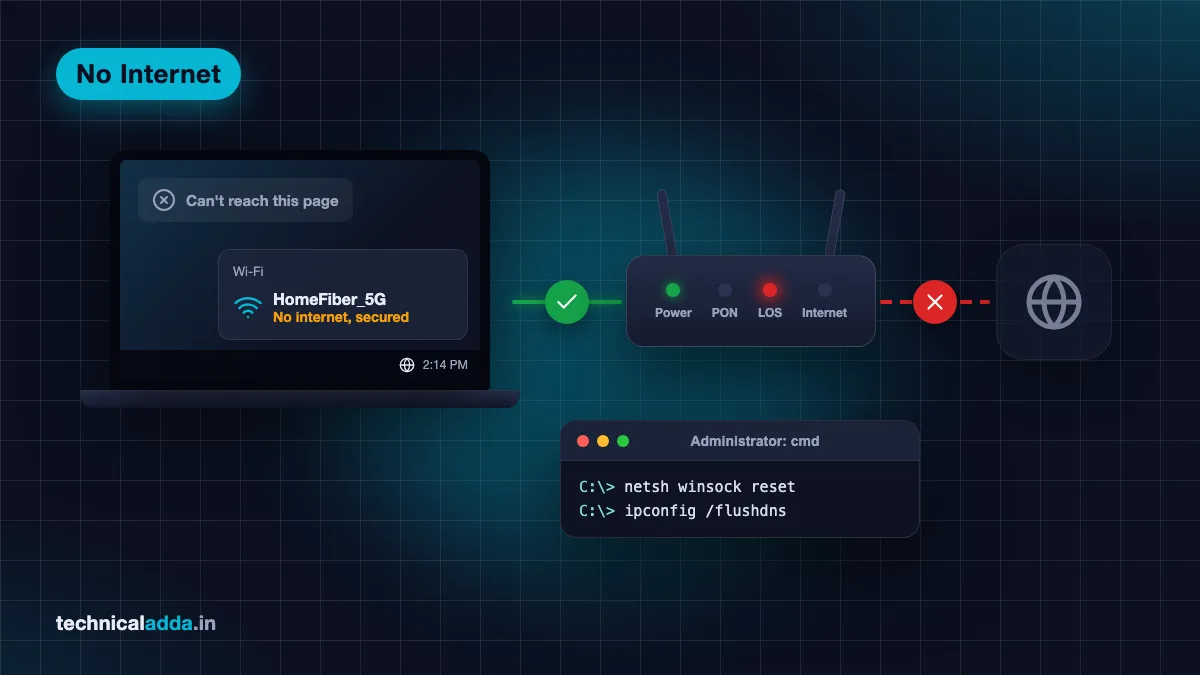
Your phone shows full Wi-Fi bars, your laptop says "Connected", yet nothing loads. WhatsApp is stuck on "connecting", UPI payments fail and Windows shows "No internet, secured". This wifi connected but no internet problem is one of the most common home-network issues in India, especially on JioFiber, Airtel Xstream Fiber and local cable broadband. The good news: most cases are fixed in under 10 minutes. This guide first helps you find where the problem is, then gives step-by-step fixes for Windows, Android, iPhone, Mac and the router itself.
Quick answer: If Wi-Fi is connected but there is no internet, restart the router and your device, then check if other devices work. If none work, the problem is the router or ISP – check the fibre (LOS) light, your plan validity and call your provider. If only one device fails, forget the network, turn off Private DNS/VPN and reset network settings.
First, find where the problem is
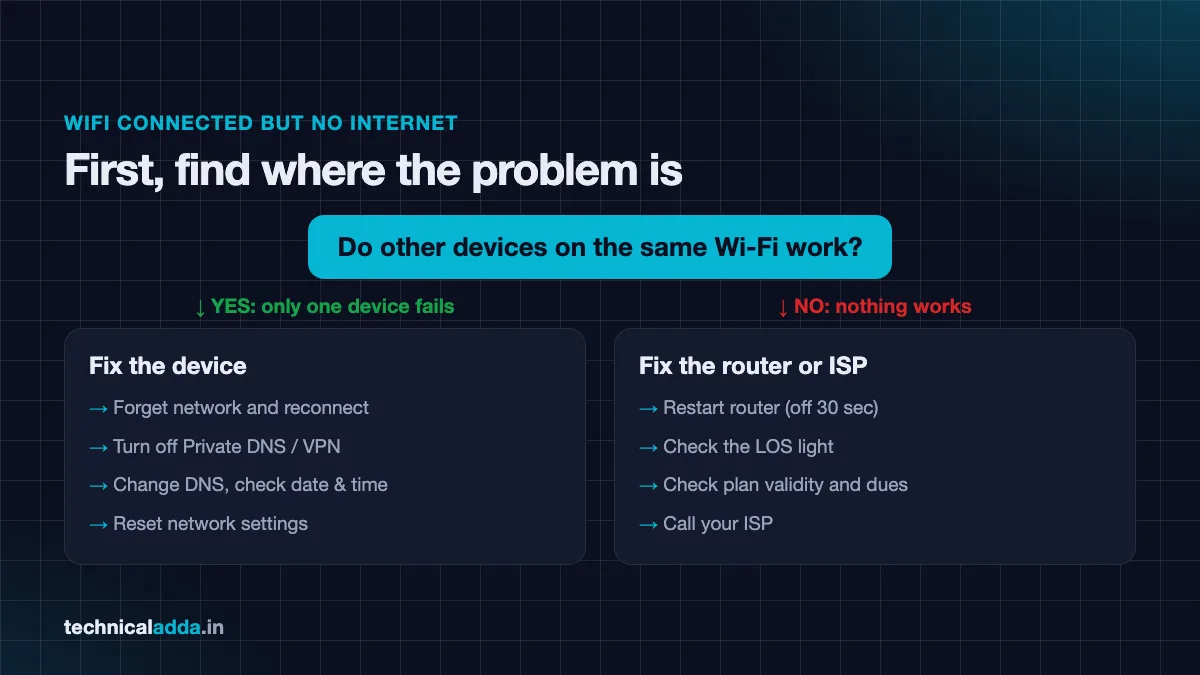
"Connected" only means your device is talking to the router. It does not mean the router is talking to the internet. So the first step is to find which link is broken.
Ask yourself two questions:
- Do other devices on the same Wi-Fi have internet?
- Does the router's internet/PON/LOS light look normal?
| What you see | Most likely problem | Start with |
|---|---|---|
| No device has internet, router LOS light is red | Fibre cut or ISP outage | Call your ISP |
| No device has internet, lights look normal | Router stuck, plan expired, ISP issue | Restart router, check plan |
| Only one device has no internet | Device settings, DNS, IP or driver issue | Device fixes below |
| Internet works on 2.4 GHz but not 5 GHz (or reverse) | Band-specific router issue | Switch band, restart router |
| Only some websites/apps fail | DNS problem or app-specific block | Change DNS, flush DNS |
| Works on mobile data but not on public Wi-Fi | Login (captive) page not opened | Open browser and log in |
Why WiFi is connected but there is no internet
These are the usual causes, roughly in order of how often they happen:
- Router or ONT stuck after long uptime, a power cut or a voltage fluctuation.
- ISP outage or fibre cut in your area – common after road digging or heavy rain.
- Plan expired or bill unpaid. Many prepaid broadband plans stop working the day validity ends.
- IP address conflict or failure to get an IP address (DHCP problem).
- DNS problem – the "phonebook" of the internet is not responding, so websites do not load.
- Wrong date and time on your device, which breaks secure (HTTPS) connections.
- VPN, Private DNS or security app blocking traffic.
- Outdated or faulty Wi-Fi driver on laptops.
- Captive portal on hotel, college, office or railway Wi-Fi that needs a login.
- Too many devices or MAC filtering on the router.
5 quick fixes for every device
Try these first. They solve the majority of cases.
- Restart the router properly. Switch it off at the wall, wait 30 seconds, switch it on and wait 2–3 minutes for all lights to settle. If you have a separate ONT/modem and router, restart the ONT first, then the router.
- Restart your phone or laptop.
- Toggle Airplane mode on and off on your device.
- Forget the Wi-Fi network and reconnect with the password.
- Move closer to the router or try the other band (2.4 GHz has more range, 5 GHz is faster but shorter range).
Fix on Windows 11 and Windows 10
Windows shows "No internet, secured" or a small globe icon when it connects to Wi-Fi but cannot reach the internet. Microsoft's own guide to fixing Wi-Fi connection issues in Windows (opens in new tab) recommends the steps below.
Step 1: Run the network troubleshooter
On Windows 11, open the Get Help app and run the network and internet troubleshooter. On Windows 10, go to Settings > Network & Internet > Status > Network troubleshooter.
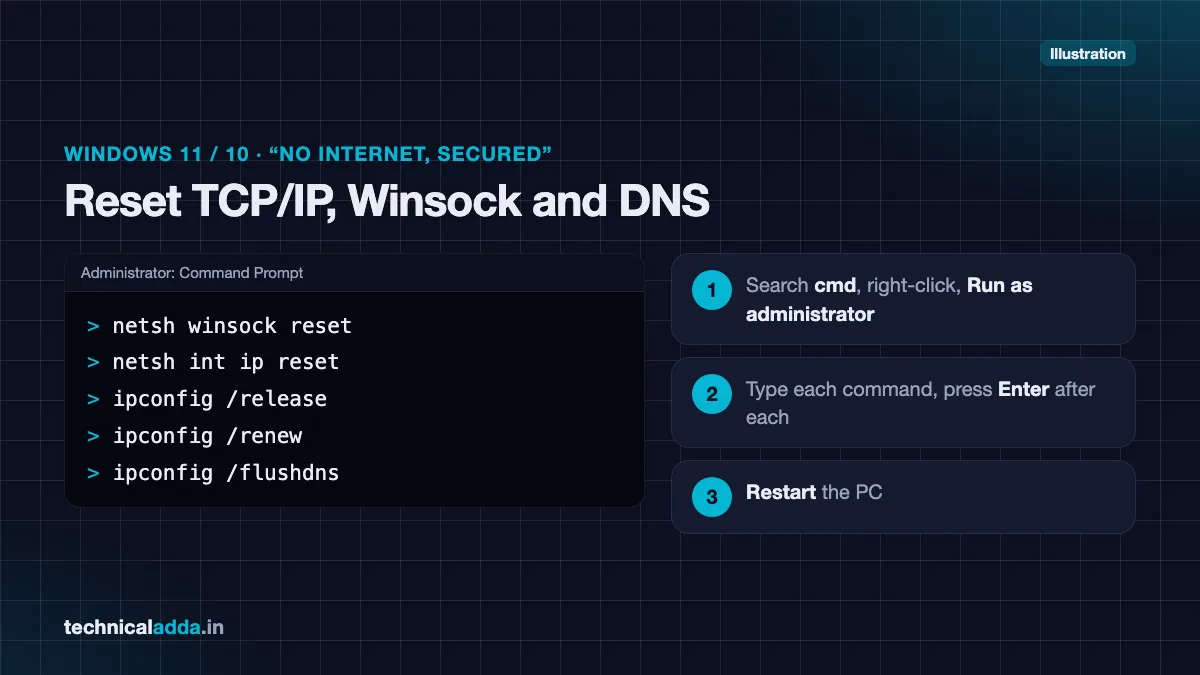
Step 2: Reset TCP/IP, Winsock and DNS
- Search for cmd, right-click Command Prompt and choose Run as administrator.
- Type these commands one by one, pressing Enter after each:
netsh winsock reset
netsh int ip reset
ipconfig /release
ipconfig /renew
ipconfig /flushdns
- Restart the PC.
Step 3: Change DNS servers
- Go to Settings > Network & internet > Wi-Fi > Hardware properties (or your Wi-Fi network's properties).
- Next to DNS server assignment, click Edit and choose Manual.
- Turn on IPv4 and enter a public DNS, for example Google (
8.8.8.8and8.8.4.4) or Cloudflare (1.1.1.1and1.0.0.1). - Save and test.
Step 4: Update or reinstall the Wi-Fi driver
- Right-click Start and open Device Manager.
- Expand Network adapters, right-click your Wi-Fi adapter and choose Update driver.
- If that fails, choose Uninstall device and restart; Windows will reinstall the driver.
- In the adapter's Properties > Power Management tab, untick "Allow the computer to turn off this device to save power".
Step 5: Network reset (last resort)
On Windows 11, go to Settings > Network & internet > Advanced network settings > Network reset, then click Reset now. On Windows 10, go to Settings > Network & Internet > Status > Network reset. This removes saved networks and VPN adapters, so note your passwords first.
If your laptop is also slow in general, our Windows 11 slow laptop fix guide covers drivers, startup apps and storage clean-up.
Fix on Android
Android may show "Connected, no internet" or an exclamation mark on the Wi-Fi icon. Menu names vary across Samsung, Xiaomi, Vivo, Oppo, Realme and Pixel phones.
- Forget and reconnect: Settings > Network & internet > Internet (or Wi-Fi), tap the network, choose Forget, then reconnect.
- Turn off Private DNS: Settings > Network & internet > Private DNS (on Samsung: Connections > More connection settings > Private DNS). Set it to Automatic or Off. A wrong private DNS hostname is a very common cause.
- Turn off VPN and ad blockers: Disconnect any VPN, "data saver" or ad-blocking app and test again.
- Check date and time: Settings > System > Date & time – turn on automatic date and time.
- Use device MAC instead of randomised MAC: Tap the network's settings and change Privacy from "Use randomised MAC" to "Use device MAC" – useful if your router uses MAC filtering.
- Set a static IP or DNS (advanced): In network settings, change IP settings to Static and enter DNS
8.8.8.8and1.1.1.1if your router's DNS is failing. - Reset network settings: Settings > System > Reset options > Reset Wi-Fi, mobile & Bluetooth. You will need to re-enter Wi-Fi passwords.
If no internet happens alongside strange pop-ups, unknown apps or very fast battery drain, also check if your phone is hacked, because some malicious apps install VPN profiles that block traffic.
Fix on iPhone
Apple's support page, If you can't connect to Wi-Fi on your iPhone or iPad (opens in new tab), suggests checking the network, removing VPN/security software and resetting network settings. Here is the full sequence:
- Check the network name: Settings > Wi-Fi – make sure you are on your own network with a blue tick, and look for any "No Internet Connection" message under it.
- Renew lease: Tap the (i) next to the network and tap Renew Lease.
- Private Wi-Fi Address: In the same screen, set Private Wi-Fi Address to Off or Fixed if your router uses MAC filtering. On iOS 18 and later the choices are Off, Fixed and Rotating.
- Limit IP Address Tracking: Turn it off for that network to test.
- Configure DNS: Tap Configure DNS > Manual and add
8.8.8.8and1.1.1.1. - Remove VPN or profiles: Check Settings > General > VPN & Device Management and remove unknown VPNs or profiles.
- Forget This Network and join again.
- Reset Network Settings: Settings > General > Transfer or Reset iPhone > Reset > Reset Network Settings. This deletes saved Wi-Fi passwords and VPN settings.
Fix on Mac
- Check the Wi-Fi menu: Click the Wi-Fi icon in the menu bar. If it shows "No Internet Connection" under your network, the Mac is connected to the router but not online.
- Renew DHCP lease: Open System Settings > Network > Wi-Fi > Details > TCP/IP and click Renew DHCP Lease.
- Change DNS: In Details > DNS, add
8.8.8.8and1.1.1.1. - Forget and rejoin: In System Settings > Wi-Fi, click the three dots next to your network, choose Forget This Network, then reconnect.
- Run Wireless Diagnostics: Hold the Option key, click the Wi-Fi icon and choose Open Wireless Diagnostics.
- Remove VPN/security apps: Disconnect VPNs and temporarily quit firewall or antivirus tools to test.
- Update macOS: System Settings > General > Software Update.
Router-side fixes
If no device has internet, focus on the router and the connection coming into your home.
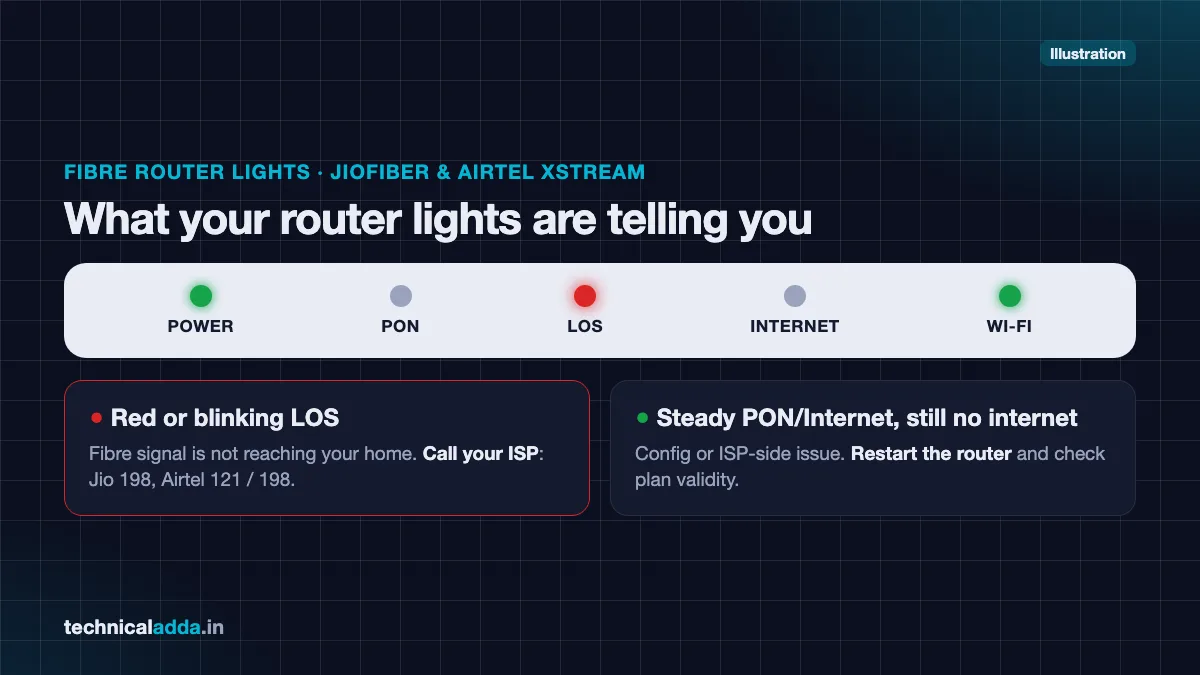
- Check the lights. A red or blinking LOS light on a fibre ONT usually means the fibre signal is not reaching your home – this needs your ISP. A steady PON/Internet light with no internet points to a configuration or ISP-side problem.
- Check cables. Make sure the fibre cable is not bent sharply or pinched, and that the LAN cable between ONT and router (if separate) is firmly connected.
- Check plan validity and dues in your provider's app.
- Log in to the router. Open a browser on a connected device and enter the router's IP address (printed on the router label – often
192.168.1.1,192.168.0.1or192.168.29.1). Check the WAN/Internet status page. - Check connected devices. Remove unknown devices and change the Wi-Fi password if neighbours are using your network.
- Update firmware. Most ISP routers update automatically, but third-party routers may need a manual update.
- Reduce interference. Keep the router high, central and away from microwaves, mirrors and thick walls.
- Factory reset (last resort). Press the reset pin for about 10 seconds. You will need your ISP login details (PPPoE username/password) for some connections, so call your ISP first if you are not sure.
- Use a mini UPS. Frequent power cuts and voltage fluctuations can make routers hang. A small DC UPS for routers keeps the connection alive during short power cuts.
JioFiber and Airtel Xstream Fiber specific fixes
Most JioFiber and Airtel Xstream Fiber users have a combined fibre router (ONT + Wi-Fi) supplied by the provider.
JioFiber
- Router login: JioFiber routers commonly use
192.168.29.1. Use the admin username and password printed on the router label; default credentials vary by model. - Restart the router: Switch the router off at the plug, wait a minute and switch it on again. If the problem continues, contact Jio support through the MyJio app or the numbers below.
- Check the LOS light: A red LOS light means a fibre problem. Raise a complaint from the MyJio app.
- Support: Call 198 (toll-free from a Jio number) or the 24/7 JioHome (JioFiber) helpline 1800-896-9999, both listed on jio.com.
- Set-top box working but no Wi-Fi internet? Restart both the router and set-top box, as they share the same fibre line.
Airtel Xstream Fiber
- Router login: Many Airtel routers use
192.168.1.1. Some newer models allow management only through the Airtel Thanks app. Check the label for login details. - Self-help: The Airtel Thanks app lets you check your plan, restart the router and raise a complaint. Airtel's own no-internet troubleshooting guide (opens in new tab) covers basic checks.
- Support: Call 121 from your registered Airtel mobile number, or 198 for broadband complaints.
- Bundled benefits: Airtel bundles extra apps and subscriptions with many plans; see our guide on Perplexity Pro free with Airtel to check if you are eligible.
Comparison: JioFiber vs Airtel Xstream quick reference
| Item | JioFiber | Airtel Xstream Fiber |
|---|---|---|
| Common router IP | 192.168.29.1 | 192.168.1.1 |
| Login credentials | Router label | Router label / Airtel Thanks app |
| Self-help app | MyJio | Airtel Thanks |
| Complaint number | 198 (from Jio number) | 121 / 198 |
| Fibre fault sign | Red LOS light | Red LOS light |
When to upgrade your router or add mesh Wi-Fi
If your internet works next to the router but drops in other rooms, or if your connection frequently shows "no internet" when many devices are online, the problem may be weak Wi-Fi coverage rather than your ISP.
Signs you should upgrade:
- Your router is more than four to five years old and supports only Wi-Fi 4/Wi-Fi 5.
- Your home has multiple floors or thick concrete walls.
- You have 10+ devices (phones, smart TV, CCTV, laptops).
- Speed tests near the router show your full plan speed, but far rooms show very low speed.
Options to consider (approx. price at time of writing):
| Product | Type | Good for | Approx. price* |
|---|---|---|---|
| TP-Link Archer AX23 | Wi-Fi 6 router (AX1800) | 1–2 BHK, upgrading an old ISP router | Around ₹4,400–₹4,700 |
| TP-Link Deco X10 (2-pack) | Wi-Fi 6 mesh | 2–3 BHK, budget mesh | Varies by seller |
| TP-Link Deco X50 (2-pack) | Wi-Fi 6 mesh | 3 BHK / multi-floor homes | Around ₹12,500–₹14,000 |
*Approx. Amazon/Flipkart prices as of October 2026. Prices change often; check the live price.
Setup tip: Keep your ISP's fibre router and connect your new router or mesh unit to its LAN port. Set the new device to Access Point mode to avoid "double NAT" issues, which can cause gaming and video-call problems.
Key takeaways
- "Connected but no internet" means your device reaches the router, but the router or ISP is not reaching the internet.
- Always check other devices first – it tells you whether to fix the device or the router.
- Restarting the router (properly, with a 30-second wait) fixes most cases.
- On devices, the usual culprits are DNS, Private DNS, VPNs, wrong date/time and drivers.
- A red LOS light on JioFiber or Airtel Xstream means a fibre fault – call your provider.
- Weak coverage in big homes is solved by a Wi-Fi 6 router or mesh system in Access Point mode.
Conclusion
The wifi connected but no internet error looks scary, but it follows a simple logic: if all devices fail, fix the router or call your ISP; if one device fails, fix that device's settings. Start with a proper router restart, then work through the device-specific steps above. For JioFiber and Airtel Xstream users, the LOS light and the provider app tell you quickly whether it is a fibre fault. Once you are back online, make sure your payments did not get stuck – read our guide on UPI transaction failed but money debited, or explore more fixes in our How-To & Troubleshooting section.
FAQ
Frequently Asked Questions
Why does my WiFi say connected but no internet?
It means your device is connected to the router, but the router cannot reach the internet or your device cannot use the connection. Common reasons are a stuck router, ISP outage, fibre cut, expired plan, DNS failure or a VPN/Private DNS setting. Check if other devices work to know whether the problem is the device or the router.
How do I fix WiFi connected but no internet on Android?
Forget the Wi-Fi network and reconnect, set Private DNS to Automatic or Off, disable any VPN, turn on automatic date and time, and restart the phone. If it still fails, go to Settings > System > Reset options > Reset Wi-Fi, mobile & Bluetooth. Re-enter your Wi-Fi password after the reset.
How do I fix "No internet, secured" on Windows 11?
Run the network troubleshooter in the Get Help app, then open Command Prompt as administrator and run netsh winsock reset, netsh int ip reset, ipconfig /release, ipconfig /renew and ipconfig /flushdns. Restart the PC. If it still fails, update the Wi-Fi driver or use Network reset under Advanced network settings.
Why is my JioFiber connected but not working?
JioFiber usually stops working because the router needs a restart, the plan has expired, or there is a fibre fault shown by a red LOS light. Restart the router, check your plan in the MyJio app and look at the LOS light. If LOS is red or the issue continues, raise a complaint in MyJio or call 198 from your Jio number.
Why is my Airtel Xstream Fiber showing no internet?
Airtel Xstream Fiber may show no internet due to a router glitch, unpaid bill, local outage or fibre fault. Restart the router, check the bill and plan in the Airtel Thanks app and check the router lights. If a red LOS light is on or the problem continues after a restart, call 121 or raise a complaint in the app.
Can wrong DNS cause no internet?
Yes. If the DNS server stops responding, your device cannot convert website names into addresses, so pages fail to load even though Wi-Fi is connected. Switching to a public DNS like Google (8.8.8.8) or Cloudflare (1.1.1.1) on the device or router often fixes the issue immediately, especially when only some websites fail.
Why does my phone have internet but my laptop does not on the same WiFi?
When only one device fails, the problem is on that device, not the router. On a laptop, common causes are an outdated Wi-Fi driver, VPN software, wrong DNS, power-saving settings on the adapter or a corrupted network stack. Run the troubleshooter, reset TCP/IP and Winsock, update the driver, and remove VPN software to test.
Does restarting the router really fix internet issues?
Yes, restarting the router fixes many problems because it clears temporary errors, memory leaks and stuck connections, and gets a fresh connection from your ISP. Switch it off at the power socket, wait about 30 seconds, then switch it on and wait two to three minutes before testing. Avoid pressing the reset pin unless needed.
How do I know if my internet provider is down?
If all devices in your home show no internet and the router lights look abnormal, especially a red LOS light, the problem is likely with your provider. Check your ISP's app for outage alerts, ask neighbours on the same provider, and call customer care. Mobile data can help you check outage reports while Wi-Fi is down.
Should I buy a new router if I keep getting no internet?
Buy a new router only if the problem is weak coverage or an old router that frequently hangs, and your ISP connection is fine. If the issue is outages, fibre faults or plan problems, a new router will not help. For large or multi-floor homes, a Wi-Fi 6 router or mesh system in Access Point mode works best.
Where to buy
-
Check price on Amazon (opens in new tab)
Wifi Router Mini UPS
-
Check price on Amazon (opens in new tab)
TP-Link Archer AX23
-
Check price on Amazon (opens in new tab)
TP-Link Deco X10 2-pack
-
Check price on Amazon (opens in new tab)
TP-Link Deco X50 2-pack