How to Run LLM Locally on Laptop: Ollama and LM Studio Guide (2026)
AI How-To & Prompts 13 min read By Sanjeev Pratap Singh
In this articleTable of contents12
Last updated: 10 October 2026
Want a ChatGPT-style assistant that works without internet, costs nothing per message, and never sends your files to a server? You can do that today on an ordinary laptop. This guide explains how to run LLM locally on laptop using two free tools, Ollama and LM Studio. You will see exactly how much RAM and GPU memory you need, which models fit on 8 GB, 16 GB and 32 GB machines, and step-by-step setup for both Windows and Mac. We also cover common errors, speed tips, and when a RAM or SSD upgrade is actually worth the money.
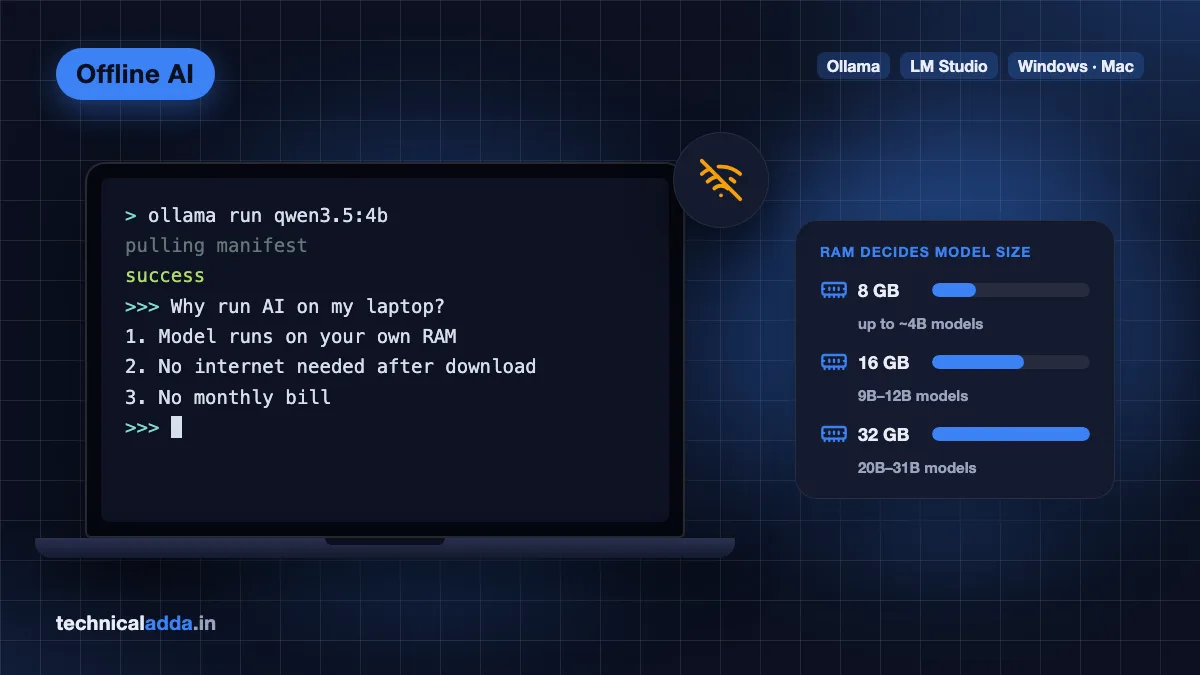
Quick answer: To run an LLM locally on a laptop, install Ollama or LM Studio, then download a small open model such as Gemma 4 E2B or Qwen 3.5 4B for 8 GB RAM, or Gemma 4 12B or Qwen 3.5 9B for 16 GB. The model runs fully offline after download. More RAM or GPU memory lets you run bigger, smarter models.
What does running an LLM locally mean?
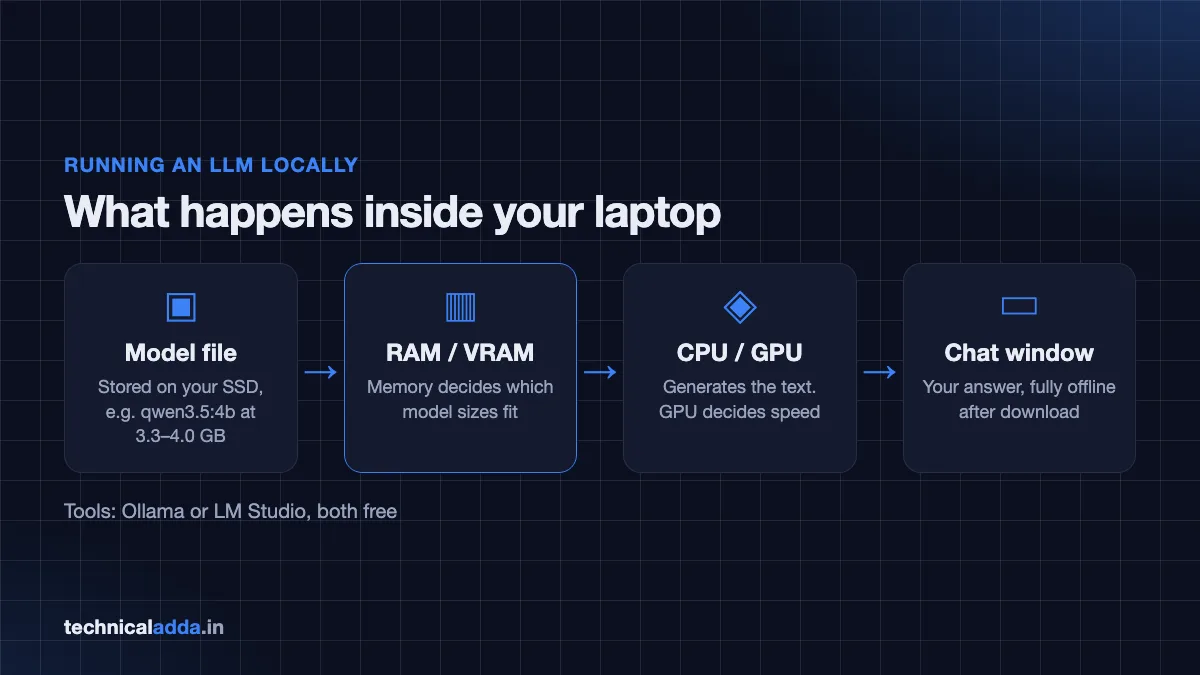
An LLM (large language model) is the "brain" behind chatbots like ChatGPT. Normally the model runs on a company's servers and you talk to it over the internet. Running it locally means the model file sits on your laptop and your own CPU, GPU and RAM do the work.
Why people do this:
- Privacy: your prompts and documents stay on your machine. Useful for client files, medical notes or company code.
- Offline use: works on a train, in a village with weak Jio or Airtel signal, or during an outage.
- No monthly bill: open models are free to download. You only pay for electricity and hardware.
- Learning: developers can build apps against a local API without paying per token.
The trade-off: local models that fit on a laptop are smaller than top cloud models like those compared in our ChatGPT vs Gemini vs Claude guide. They are good for summaries, drafting, coding help and Q&A, but they can be slower and make more mistakes on hard reasoning.
A quick word on model size and "quantization"
Models are described by parameters, like 4B (4 billion) or 12B. More parameters usually means smarter but heavier. Tools like Ollama download quantized versions, which compress the model (often to about 4 bits per weight) so it fits in less memory with a small quality loss.
A rough rule of thumb: the model needs roughly its download size in RAM or VRAM, plus a few extra GB for the conversation (context) and your operating system. A 7 GB model on a 16 GB laptop is comfortable. A 14 GB model on a 16 GB laptop is tight. Memory use also grows with longer conversations, so treat this as a starting point, not a guarantee.
Hardware requirements to run LLM locally
Here is what matters, in order of importance:
- Memory (RAM or VRAM): decides which model sizes you can load at all.
- GPU: decides speed. An NVIDIA GPU with its own VRAM, or an Apple Silicon Mac, is much faster than CPU-only.
- Storage: each model is a few GB to 20+ GB. An NVMe SSD loads models much faster than a hard disk.
- CPU: matters most when there is no usable GPU. LM Studio on Windows x64 needs a CPU with AVX2 support.
Official minimum requirements
| Tool | Windows | Mac | Notes |
|---|---|---|---|
| Ollama | Windows 10 version 22H2 or later; NVIDIA driver 551.61+ for NVIDIA GPUs; AMD via ROCm v7 or Vulkan | macOS 14 Sonoma or later; Apple Silicon (CPU + GPU) or Intel (CPU only) | App install needs about 4 GB; models need extra space |
| LM Studio | x64 with AVX2, or ARM (Snapdragon X Elite); 16 GB RAM recommended; 4 GB+ dedicated VRAM recommended | Apple Silicon only (M1 or newer); macOS 14.0+; 16 GB+ recommended | Intel Macs not supported |
Sources: Ollama Windows docs (opens in new tab), Ollama macOS docs, and LM Studio system requirements (opens in new tab).
Practical requirements by laptop type
| Your laptop | What you can expect | Best model size |
|---|---|---|
| 8 GB RAM, no dedicated GPU (most budget laptops) | Works, but slow; keep other apps closed | 1B–4B models |
| 16 GB RAM, integrated graphics | Usable for chat and summaries | 4B–12B models |
| 16 GB RAM + NVIDIA GPU with 6–8 GB VRAM (gaming laptops) | Noticeably faster on models that fit in VRAM | 7B–12B models |
| Apple Silicon Mac with 16 GB unified memory | Smooth for small and mid models | 4B–12B models |
| 32 GB RAM or Mac with 32 GB+ | Can run larger, smarter models | 20B–31B models |
On Apple Silicon Macs, the CPU and GPU share "unified memory", so a 16 GB Mac can give most of that memory to the model. On Windows laptops, a model runs fastest when it fits completely inside the GPU's VRAM; otherwise part of it spills into slower system RAM.
Which models fit on 8, 16 and 32 GB laptops
The table below uses download sizes shown on the official Ollama model library pages in October 2026. Sizes vary by quantization tag, so check the exact tag before downloading.
| RAM | Recommended models (Ollama tag) | Approx. download size | Good for |
|---|---|---|---|
| 8 GB | qwen3.5:2b |
2.7–3.1 GB | Quick Q&A, summaries |
| 8 GB | qwen3.5:4b |
3.3–4.0 GB | Best all-rounder for 8 GB |
| 8 GB | llama3.2:3b |
2.0 GB | Simple chat, older laptops |
| 8 GB (tight) | gemma4:e2b |
4.6 GB+ | Multimodal (images), close other apps |
| 16 GB | qwen3.5:9b |
6.6–7.6 GB | Strong general use |
| 16 GB | gemma4:e4b |
6.6 GB+ | Vision and audio input, tool use |
| 16 GB | gemma4:12b |
7.7–8.0 GB | Writing, reasoning, long documents |
| 16 GB (tight) | gpt-oss:20b |
14 GB | OpenAI's open-weight reasoning model; Ollama says it can run with as little as 16 GB memory |
| 32 GB | gemma4:26b |
16–19 GB | Higher quality answers |
| 32 GB | qwen3.5:27b |
17–20 GB | Coding, analysis |
| 32 GB | gemma4:31b |
19–20 GB | Best quality that fits most 32 GB machines |
Notes:
- Ollama also lists tags ending in
-cloud. These run on Ollama's servers, not on your laptop, so they are not offline. Avoid them if privacy is your goal. - Tags ending in
-mlxare optimised for Apple Silicon Macs. - For coding, also look at coder-specific models such as
qwen2.5-coderin smaller sizes. Our list of best free AI coding tools covers editor plugins that can connect to local models. - Model rankings change every few months. The models above were listed in the Ollama library (opens in new tab) as of October 2026, so check it for newer releases.
Ollama vs LM Studio: which should you use?
Both are free. Ollama is free and open source. LM Studio has been free for both home and work use since July 2025, according to its official blog.
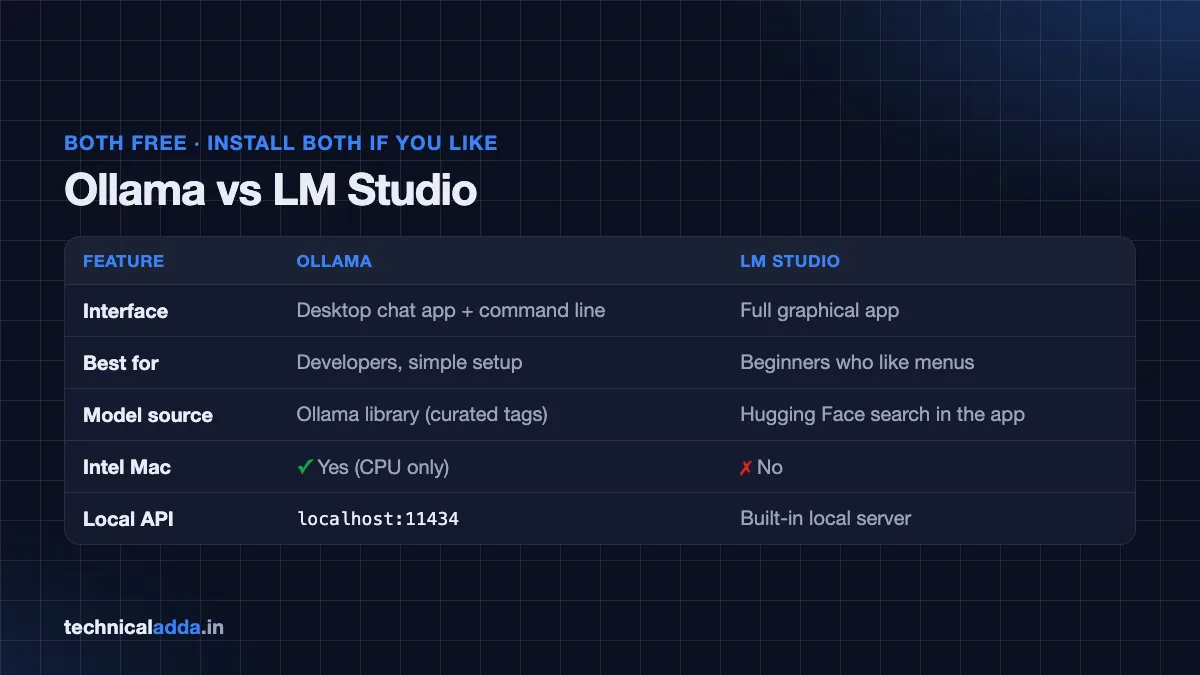
| Feature | Ollama | LM Studio |
|---|---|---|
| Interface | Desktop chat app + command line | Full graphical app |
| Best for | Developers, automation, simple setup | Beginners who like menus and sliders |
| Model source | Ollama library (curated tags) | Hugging Face search inside the app |
| Intel Mac support | Yes (CPU only) | No |
| Local API for apps | Yes, http://localhost:11434 |
Yes, built-in local server |
| Cost | Free, open source | Free for personal and work use |
Our suggestion: start with Ollama if you want the quickest setup, or LM Studio if you prefer to see every setting on screen. You can install both; they do not conflict, though each stores its own copy of models.
How to run LLM locally on laptop with Ollama (Windows)
Step 1: Check your system
- Press Win + R, type
winver, and confirm Windows 10 22H2 or newer (or Windows 11). - Open Task Manager → Performance to see your RAM and GPU memory.
- If you have an NVIDIA GPU, update the driver from NVIDIA's website or GeForce app (version 551.61 or later).
- Make sure you have at least 15–20 GB free disk space for the app plus one or two models.
Step 2: Install Ollama
- Go to ollama.com/download (opens in new tab) and download the Windows installer (
OllamaSetup.exe). - Run it. Admin rights are not required; it installs in your user folder.
- After install, Ollama runs in the background (look for the icon in the system tray).
Step 3: Download and chat with a model
You can use the Ollama desktop app: open it, pick a model from the dropdown, and start typing. It downloads the model on first use.
Or use the terminal. Open Command Prompt or PowerShell and run:
ollama run qwen3.5:4b
The first run downloads the model. When you see the >>> prompt, type your question. Type /bye to exit.
Step 4: Useful commands
ollama list              # show downloaded models
ollama ps                # show models currently loaded in memory
ollama pull gemma4:12b   # download without starting a chat
ollama rm gemma4:12b     # delete a model to free disk space
Step 5: Move models to another drive (optional)
If your C: drive is small:
- Search Windows for "environment variables" and open Edit environment variables for your account.
- Create a new variable named
OLLAMA_MODELSand set it to a folder likeD:\ollama-models. - Quit Ollama from the tray and start it again.
How to run LLM locally on Mac with Ollama
- Check you are on macOS 14 Sonoma or later (Apple menu → About This Mac).
- Download the Mac app from ollama.com/download.
- Open the
.dmgand drag Ollama into the Applications folder. - Launch it. On first start it may ask permission to add the
ollamacommand to your PATH; allow it. - Open the Ollama app and choose a model, or open Terminal and run:
ollama run gemma4:e4b
On Apple Silicon, Ollama uses the GPU automatically. On older Intel Macs it runs on CPU only, so stick to models of 4B parameters or smaller. Models are stored in the ~/.ollama folder in your home directory.
How to use LM Studio (Windows and Mac)
- Download LM Studio from lmstudio.ai (opens in new tab). Choose Windows (x64 or ARM) or macOS (Apple Silicon).
- Install and open it.
- Go to the Discover (search) tab and search for a model name such as "Gemma 4" or "Qwen 3.5".
- LM Studio shows multiple quantized files for each model. Its documentation recommends a 4-bit option or higher if your machine can run it. Pick a file whose size fits your RAM or VRAM using the rule of thumb above.
- Click Download.
- Open the Chat tab, select the model at the top, and start chatting.
- Optional: open the Developer tab to start a local server, so other apps can use the model like an API.
Tip: in the model load settings you can lower the context length if you run out of memory. A shorter context uses less RAM.
Speed tips and common errors
Make it faster
- Close Chrome tabs and heavy apps before loading a model; every GB counts on 8 GB laptops.
- Keep your laptop plugged in and set Windows power mode to Best performance. Many laptops slow down the CPU and GPU on battery.
- Choose a smaller model or a more compressed (lower-bit) quantization.
- Reduce the context length if you do not need long documents.
- Keep the laptop cool. Sustained AI work heats the CPU and GPU; a basic cooling pad and a hard, flat surface help. If your laptop is already sluggish in daily use, see our Windows 11 slow laptop fix guide first.
Common errors and fixes
| Problem | Likely cause | Fix |
|---|---|---|
| "Out of memory" or app crashes when loading | Model too big for RAM/VRAM | Use a smaller model or lower quantization; close other apps |
| Very slow replies (a few words per second) | Running on CPU or model spilling out of VRAM | Use a smaller model; update GPU drivers; check ollama ps |
| GPU not used on Windows | Old NVIDIA driver or unsupported AMD card | Update driver; AMD cards may fall back to Vulkan |
ollama command not found |
PATH not set or terminal opened before install | Open a new terminal or restart the laptop |
| LM Studio won't install on Mac | Intel Mac | Use Ollama instead (CPU only) |
| Disk full | Many models downloaded | ollama rm <model> or delete in LM Studio |
Should you upgrade RAM or SSD?
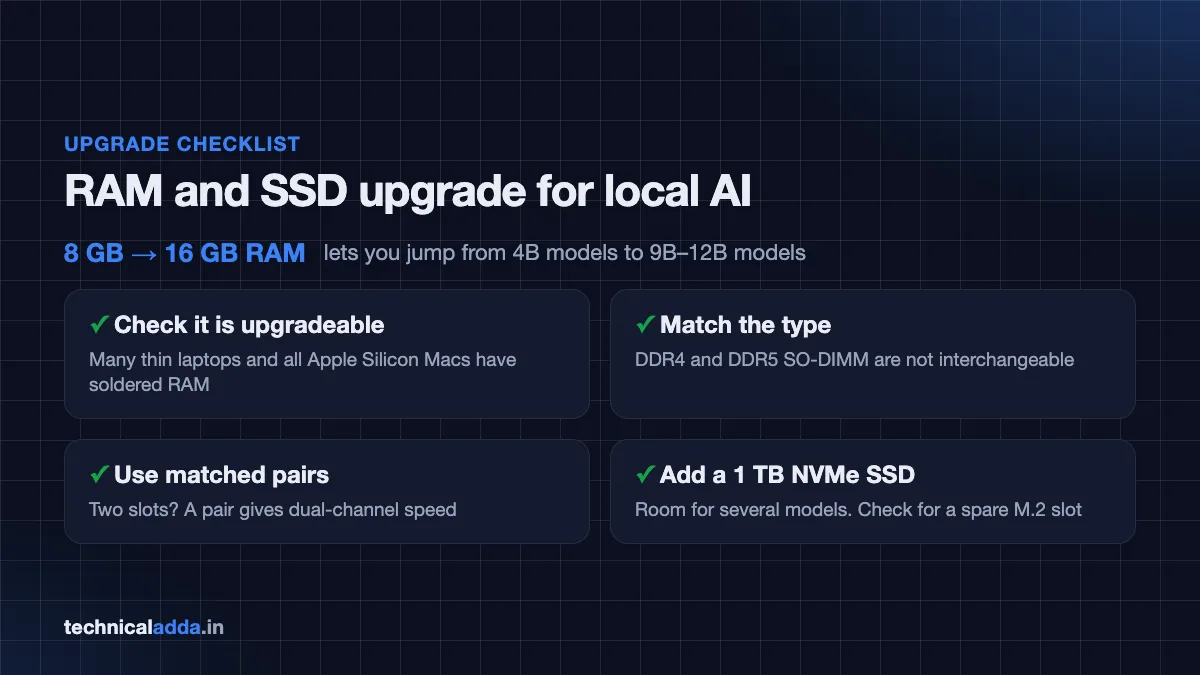
For local AI, memory is the single biggest upgrade. Moving from 8 GB to 16 GB lets you jump from 4B models to 9B–12B models, which is a big quality improvement. Before you buy:
- Check if your RAM is upgradeable. Many thin laptops and all Apple Silicon Macs have soldered RAM that cannot be upgraded. Check your laptop model's spec sheet or use a tool like CPU-Z on Windows (Memory and SPD tabs).
- Match the type and speed. DDR4 and DDR5 laptop memory (SO-DIMM) are not interchangeable.
- Use matched pairs if you have two slots, for dual-channel speed.
Example upgrades (pick the type your laptop supports):
- 16 GB DDR4 laptop RAM (SO-DIMM)
- 32 GB (2 × 16 GB) DDR5 laptop RAM kit.
SSD: models are large, and you will want several. A 1 TB NVMe SSD gives plenty of room and fast loading. Check whether your laptop has a spare M.2 slot or needs a replacement drive.
- 1 TB NVMe M.2 SSD.
- 1 TB NVMe M.2 SSD (alternative)
- Laptop cooling pad for long sessions.
Before you buy, check your laptop maker's spec sheet for the supported RAM type and speed, the maximum RAM, and the SSD slot type (for example M.2 NVMe). Prices and listings change often.
If you are buying a new machine, our guide to the best laptop for students under ₹50,000 explains which configurations are worth it. For local AI, prioritise 16 GB RAM (upgradeable if possible) and an NVMe SSD over a slightly faster CPU.
Going further
Once a model runs locally, you can connect it to coding editors, note apps or your own scripts through the local API. Developers can also connect local models to tools through protocols like MCP; see our explainer on what an MCP server is.
Key takeaways
- You can run an LLM locally on a laptop for free using Ollama or LM Studio, fully offline after the model downloads.
- RAM or VRAM decides which models fit: about 4B models for 8 GB, 9B–12B for 16 GB, and 20B–31B for 32 GB.
- Good current picks are Qwen 3.5 and Gemma 4 in sizes that match your memory; gpt-oss 20B needs about 16 GB.
- Ollama supports Windows 10 22H2+ and macOS 14+, including Intel Macs (CPU only); LM Studio on Mac needs Apple Silicon.
- Avoid
-cloudmodel tags if you want everything to stay on your device. - A RAM upgrade gives the biggest jump in local AI quality, but only if your laptop's RAM is not soldered.
Conclusion
Now you know how to run LLM locally on laptop hardware you already own. Check your RAM, install Ollama or LM Studio, and start with a model that fits: a 4B model on 8 GB, a 9B–12B model on 16 GB, or a 26B–31B model on 32 GB. If you hit memory limits often, a RAM or SSD upgrade is the most useful spend.
Next, see which cloud assistants are worth using alongside your local model in our ChatGPT vs Gemini vs Claude comparison, or browse more guides in AI How-To & Prompts.
FAQ
Frequently Asked Questions
Can I run an LLM on a laptop with 8 GB RAM?
Yes, you can run small models on an 8 GB laptop. Choose models of about 2B to 4B parameters, such as Qwen 3.5 4B or Llama 3.2 3B, and close other apps first. Responses will be slower than cloud chatbots, especially without a dedicated GPU, but they are fine for summaries, simple questions and drafting short text.
Do I need a GPU to run an LLM locally?
No, a GPU is not required. Ollama and LM Studio can run models on the CPU alone. However, a GPU makes replies much faster. An NVIDIA GPU with 6 GB or more VRAM, or any Apple Silicon Mac, gives a much smoother experience. Without a GPU, stick to smaller models to keep speed usable.
Is Ollama free to use?
Yes, Ollama is free and open source for Windows, macOS and Linux. You can download the app and open models from its library at no cost. Some model tags ending in "-cloud" run on Ollama's servers instead of your laptop; those are not offline. Running local models only costs you disk space and electricity.
Is LM Studio free for commercial use?
LM Studio announced in July 2025 that the app is free to use both at home and at work, with no separate commercial licence needed. You should still check the licence of each model you download, because open models come with their own terms, and some have restrictions on certain commercial uses.
Which is the best local LLM for a 16 GB laptop?
For a 16 GB laptop, good choices in late 2026 include Qwen 3.5 9B, Gemma 4 E4B and Gemma 4 12B, which download at roughly 7 to 8 GB. OpenAI's gpt-oss 20B can also run with about 16 GB, but it will be tight. Test two or three models on your own tasks before settling on one.
Does a local LLM work without internet?
Yes. After you download the model once, a local LLM runs completely offline. Your prompts and files stay on your laptop. You only need internet again to download new models or app updates. Make sure you are not using a cloud model tag, which sends requests to a remote server instead.
Can I run an LLM locally on an Intel Mac?
Yes, with Ollama, but only on the CPU. Ollama supports Intel Macs running macOS 14 Sonoma or later, while LM Studio requires Apple Silicon. Because Intel Macs have no GPU acceleration in Ollama, choose small models of around 4B parameters or fewer for usable speed.
How much storage does a local LLM need?
Ollama itself needs about 4 GB on Windows, and each model needs anything from about 1 GB for tiny models to 20 GB or more for 30B-class models. If you plan to try several models, keep 50 to 100 GB free, ideally on an NVMe SSD so models load quickly.
Is running AI locally safer than using ChatGPT?
For privacy, yes: a local model does not send your prompts or documents to any company server. That makes it a good choice for confidential files. However, local models can still give wrong answers, and downloaded models should come from trusted sources such as the official Ollama library or well-known publishers on Hugging Face.
Can I use a local LLM for coding?
Yes. Many local models handle code well, and coding-focused models such as Qwen coder variants are available in Ollama. You can chat with them directly or connect them to code editors through the local API. Expect smaller local models to be weaker than top cloud coding assistants on large, complex projects.
Where to buy
-
Check price on Amazon (opens in new tab)
16 GB DDR4 laptop RAM (SO-DIMM)
-
Check price on Amazon (opens in new tab)
32 GB (2 × 16 GB) DDR5 laptop RAM kit
-
Check price on Amazon (opens in new tab)
1 TB NVMe M.2 SSD
-
Check price on Amazon (opens in new tab)
1 TB NVMe M.2 SSD (alternative)
-
Check price on Amazon (opens in new tab)
Laptop cooling pad for long sessions
-
Check price on Meesho (opens in new tab)
Laptop cooling pad for long sessions