NotebookLM Tutorial 2026: Step-by-Step Guide (Now Called Gemini Notebook)
AI How-To & Prompts 13 min read By Xavio Thomas
In this articleTable of contents12
Last updated: 10 October 2026
If you have a pile of PDFs, lecture notes or YouTube lectures and no time to read them all, Google's NotebookLM can turn them into summaries, podcasts, flashcards and quizzes in minutes. In this NotebookLM tutorial, you will learn how to set up your first notebook, add sources, ask questions with citations, and use Studio features like Audio Overviews in Hindi. One big change first: in July 2026 Google renamed NotebookLM to Gemini Notebook. The product, your notebooks and the features are the same. Only the name and web address changed. This guide covers both names so you can follow along easily.
Quick answer: NotebookLM (now Gemini Notebook) is Google's free AI research assistant that answers only from the sources you upload. To use it, open notebook.google.com, create a notebook, add PDFs, Docs, websites or YouTube links, then ask questions or generate Audio Overviews, flashcards, quizzes, reports and slide decks from the Studio panel.
What is NotebookLM (Gemini Notebook)?
NotebookLM is an AI notebook from Google Labs. You give it your own material, called sources, and it builds answers only from those sources. Every answer comes with numbered citations. Click a citation and it jumps to the exact line in your PDF or document.
This "source-grounded" design is the key difference from a general chatbot. ChatGPT or the Gemini app answer from everything they learned during training plus the web. NotebookLM stays inside your notes, which makes it far more useful for exam prep, research papers, legal documents and company reports, where you need answers you can trust and verify.
Google says the tool has more than 30 million users and over 600,000 organisations (Google blog, July 2026 (opens in new tab)).
What changed in 2026
Several big changes landed this year. Here is what matters for you:
- New name: On 16 July 2026, Google announced it is renaming NotebookLM to Gemini Notebook. Google calls it "the same standalone product, now doing more across the Google ecosystem."
- New address: The web app now lives at notebook.google.com. Old notebooklm.google.com links redirect automatically, so your saved notebooks are safe.
- Inside the Gemini app: You can now create and open notebooks inside the Gemini app, with syncing between the two.
- Code execution: Each notebook can now run code for data analysis on your sources. At launch on 16 July 2026, Google made it available to Google AI Ultra users and some Workspace business customers, and said it would roll out to all Google AI Pro users on the web over the following weeks.
- Coming to Search: Google says notebooks will come to AI Mode in Search "soon".
Google's help pages and some menus may still show the old name during the transition, so do not worry if you see both.
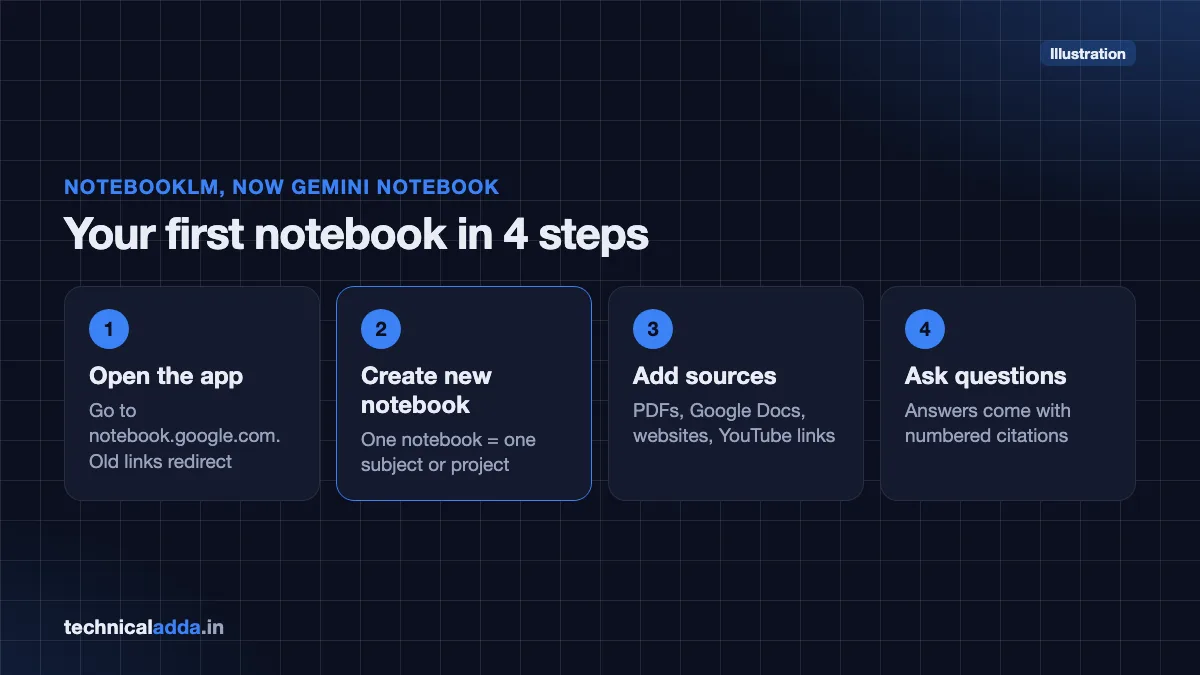
NotebookLM tutorial: getting started step by step
You only need a Google account. Personal Gmail accounts work. Google's help page says the browser version is available to users above the age of consent (or the applicable age in their country) in supported countries, and India is on the supported list. You may need to verify your age in your Google Account first, and some features are limited to users over 18.
Step 1: Open the app
- Go to notebook.google.com (opens in new tab) on a laptop or desktop browser. Chrome works best.
- Sign in with your Google account.
- On mobile, install the Gemini Notebook app from the Play Store or App Store. Some features are web-only (see the mobile section below).
Step 2: Create a notebook
- Click Create new notebook.
- A pop-up asks you to add sources. Think of one notebook as one subject or project, such as "Class 12 Physics – Optics" or "UPSC Polity".
- Rename the notebook from the title at the top.
Step 3: Add sources
Click Upload a source or + Add in the Sources panel. Common source types include:
- PDF files (textbooks, notes, research papers)
- Google Docs, Google Slides and Google Sheets from Drive
- Microsoft Word files
- Website links
- YouTube video links (NotebookLM reads the transcript)
- Copied text pasted directly
As of October 2026, Google's help page also lists audio files (such as MP3 and WAV), images (PNG, JPEG, GIF, WebP and HEIC), text, Markdown, CSV, PowerPoint and ePub files, Google Play Books purchases and Gemini chats as sources. Google Slides are limited to 100 slides and Google Sheets to 100k tokens.
Each source can contain up to 500,000 words, and uploaded files can be up to 200 MB (Gemini Notebook Help (opens in new tab)).
Step 4: Discover sources from the web (optional)
Don't have material yet? In the Sources panel you can search the web or Google Drive for sources. There are two modes:
- Fast Research: quickly finds a list of relevant sources you can import.
- Deep Research: an agent browses many websites, then writes a detailed report. You can import the report and its sources into your notebook.
Always check imported web sources. A wrong website in your notebook means wrong answers out of it.
Step 5: Chat with your sources
Type a question in the middle Chat panel. Good starter questions:
- "Summarise chapter 3 in 10 bullet points."
- "What are the five most important formulas in these notes?"
- "Explain this topic like I am in Class 10, then like a college student."
- "Which sources disagree on this point?"
Hover over or click the small numbers in each answer to see the exact quote. You can untick sources in the left panel to ask questions about only some of them.
Step 6: Save useful answers as notes
Click Save to note under any good answer. Notes stay in your notebook and can themselves be turned into a source later. This is a simple way to build your own revision sheet.
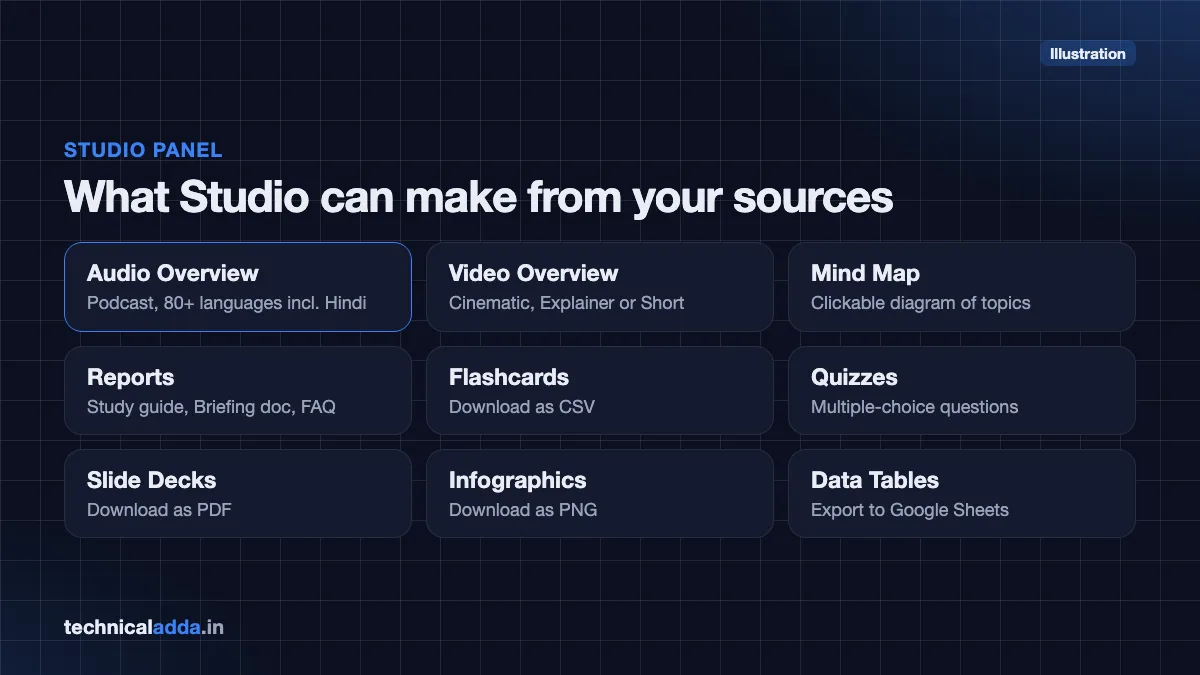
Studio features explained
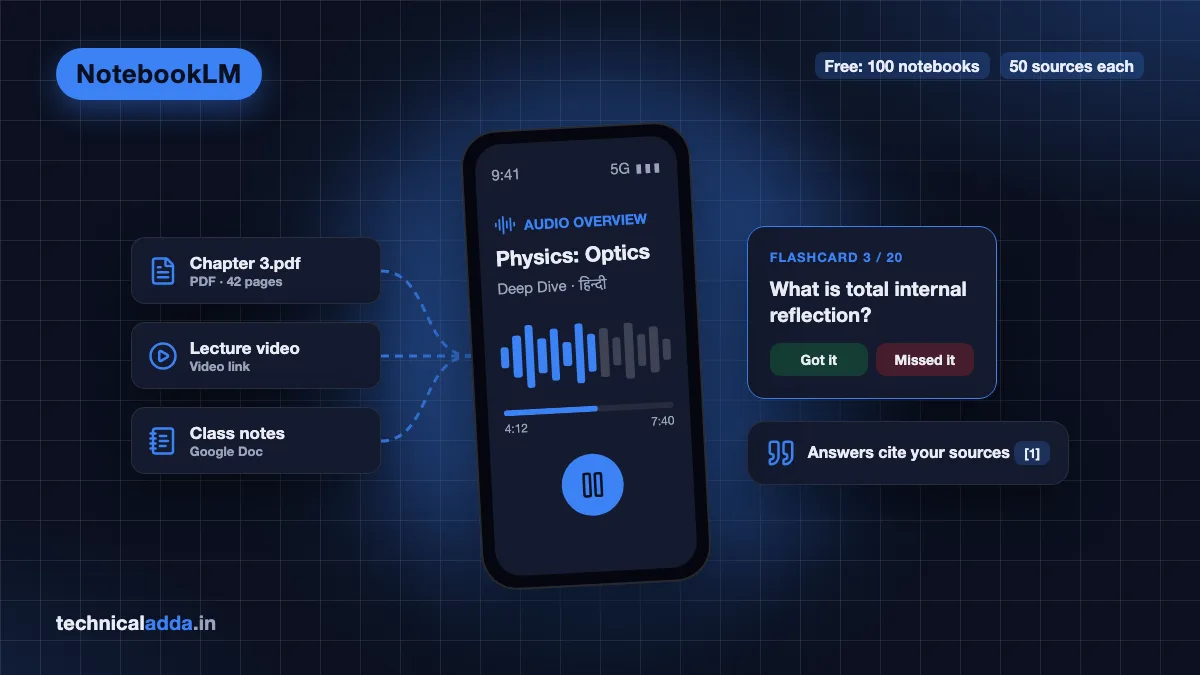
The Studio panel on the right turns your sources into ready-made study material. You need edit access to the notebook to generate these.
Audio Overview
An AI-generated podcast where hosts discuss your sources. Formats listed on Google's help page:
- Deep Dive (default): two hosts discuss the material in depth.
- The Brief: one speaker, under two minutes.
- The Critique: expert-style feedback on your own writing, like an essay or project report.
- The Debate: two hosts argue opposite sides.
You can choose Shorter, Default or Longer length (Longer is English-only), pick the output language, and add a custom prompt such as "focus on exam questions". In English, an interactive mode lets you "join" the conversation by voice and ask the hosts a question (Audio Overview help page (opens in new tab)).
Video Overview
A narrated video with visuals made from your sources. The help page lists three formats: Cinematic (most immersive, English-only, 18+), Explainer (structured and detailed), and Short (about 60 seconds). Explainer videos offer visual styles such as Watercolor, Papercraft, Anime, Whiteboard, Retro Print and Heritage.
Mind Map
A clickable diagram of the main topics and how they connect. Click any branch to ask NotebookLM about it. Great for seeing a whole chapter at a glance.
Reports
Written documents such as a Study guide, Briefing doc, FAQ, or a custom report you describe. Reports can be exported to Google Docs.
Flashcards and Quizzes
Auto-generated cards and multiple-choice questions from your sources. You can set how many to create. Mark flashcards as "Got it" or "Missed it" to track progress, and download flashcards as a CSV file.
Slide Decks
A presentation built from your sources. Choose length (short, default, long) and language, request revisions, and download as PDF.
Infographics and Data Tables
Infographics summarise a topic as one visual image you can download as PNG. Data tables pull facts from your sources into rows and columns you can export to Google Sheets.
How to make an Audio Overview in Hindi
Audio Overviews support more than 80 languages. Google's help page lists Hindi along with Bengali, Gujarati, Kannada, Konkani, Maithili, Malayalam, Marathi, Odia, Punjabi, Sindhi, Tamil, Telugu and Urdu. Here is how to get a Hindi podcast:
- Open a notebook with your sources added.
- In the Studio panel, click the pencil (customise) icon on the Audio Overview card.
- Choose the format, such as Deep Dive or The Brief.
- Set the language to Hindi (हिन्दी).
- Optional: add a focus prompt, e.g. "Explain for a Class 11 student and give examples from daily life in India."
- Click Generate. It runs in the background and can take a few minutes.
- Play it in the browser, download it, or share the link.
Your sources can be in English; the overview will still be spoken in Hindi. The default output language follows your Google Account language setting.
Best use cases for Indian students
Board and university exams
Upload NCERT chapters or your college notes. Ask for a study guide, generate a 20-question quiz, and listen to a Brief audio summary while commuting. Use flashcards for definitions and formulas.
Competitive exams (UPSC, SSC, banking, NEET, JEE)
Create one notebook per subject. Add standard reference PDFs and your own notes. Ask "List previous-year style questions on this topic" or "Compare Article 352 and Article 356 in a table". Always cross-check facts with official sources, because the AI can still misread a source.
Project reports and research papers
Add 10–20 research papers and ask: "What methods do these papers use?" or "Which papers support and which oppose this claim?" The Critique audio format can review your own draft report.
Learning from YouTube lectures
Add long YouTube lecture links and ask for timestamps-free notes, key definitions, and a mind map. This is handy for NPTEL lectures.
Placement prep
Add a company's annual report, the job description and your resume. Ask, "What questions might they ask me based on this?" Pair this with our guide on ChatGPT prompts for resume for a complete prep kit.
For more study tools, see our list of best free AI tools for students in India.
NotebookLM limits: free vs paid plans
NotebookLM is free to use with a standard Google account. Paid Google AI plans raise the limits. Here are the notebook and source limits from Google's help page (plan limits help page (opens in new tab)), which Google says are subject to change:
| Plan | Notebooks per user | Sources per notebook | Who it suits |
|---|---|---|---|
| Standard (free) | 100 | 50 | Most students and casual users |
| Plus (Google AI Plus) | 200 | 100 | Heavy students, small projects |
| Pro (Google AI Pro) | 500 | 300 | Researchers, professionals |
| Ultra (20 TB) | 500 | 500 | Power users and teams |
| Ultra (30 TB) | 500 | 600 | Power users and teams |
Other limits to know:
- Usage limits for chats and Studio outputs are separate from the table above. As of October 2026, Google says limits are compute-based: your quota depends on things like prompt complexity, the features you use and chat length, and it refreshes every 5 hours until you hit a weekly limit. Google AI Plus gets 2x the standard limits, Pro 4x, and Ultra 5x or 20x the Pro limits depending on the tier. Check Settings > Usage to see where you stand (Gemini Notebook usage limits (opens in new tab)).
- Cinematic Video Overviews are limited on lower tiers and are English-only.
- Mobile app: generating or viewing notes, mind maps, reports and data tables is not yet available on mobile, while flashcards, quizzes, infographics and slide decks are. Use the web version for full features.
- Sharing: sharing a notebook does not change the source limit for collaborators.
Free plan for students: As of October 2026, Google offers college students in India aged 18 or older a one-year Google AI Plus plan at no cost. You must redeem it by 31 December 2026, a payment method is needed at sign-up, and the plan renews at ₹399 a month unless you cancel. Check gemini.google/students (opens in new tab) for current terms. Our guide on Gemini Pro free for students in India tracks these offers.
Paid plans: as of October 2026, Google's India plans page lists Google AI Plus at ₹399 a month, Google AI Pro at ₹1,950 a month and Google AI Ultra from ₹6,500 a month (₹19,500 for the higher-usage tier). Offers change often, so check gemini.google/subscriptions (opens in new tab) before you buy.
Tips to get better answers
- One notebook per topic. Mixing unrelated subjects confuses answers.
- Clean sources beat many sources. Ten good PDFs give better answers than 50 random links.
- Ask for format. "Answer in a table", "in 5 bullet points", "in Hindi" all work.
- Use source selection. Untick sources to focus on one chapter.
- Check the citations. If an answer has no citation, treat it with care.
- Scanned PDFs: if a PDF is an image scan, text extraction may be poor. Try a clearer copy.
- Customise Studio outputs. Always use the pencil icon to add a focus prompt before you generate.
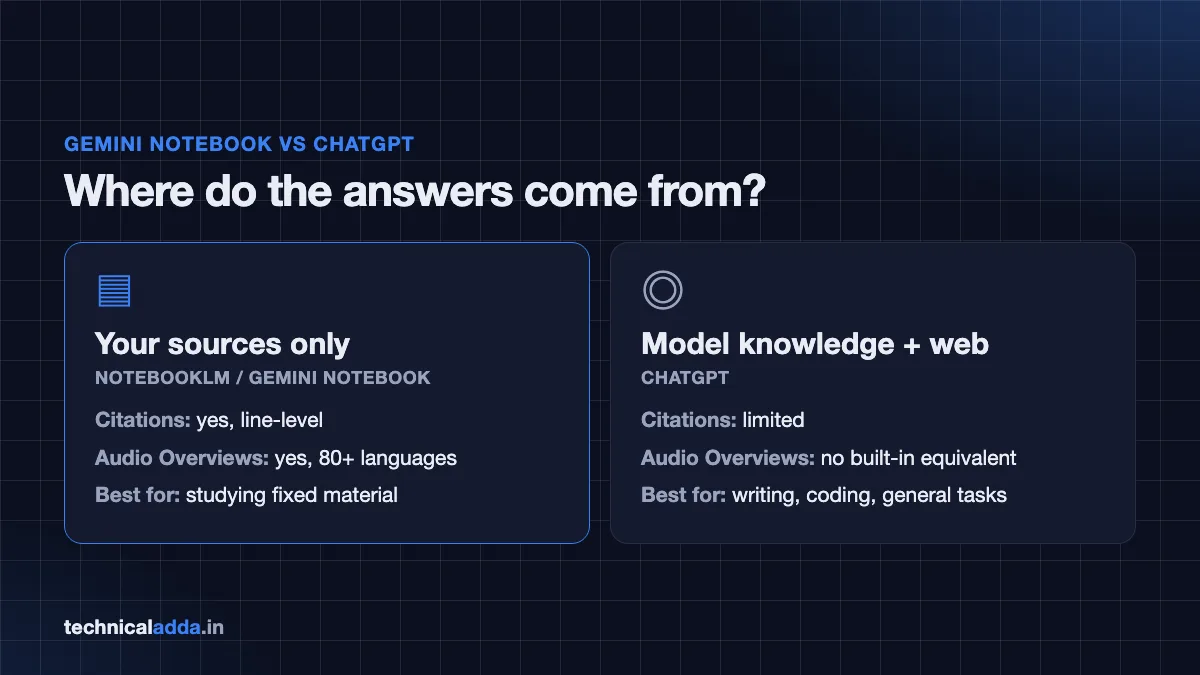
NotebookLM vs ChatGPT and Gemini app
| Feature | NotebookLM / Gemini Notebook | Gemini app | ChatGPT |
|---|---|---|---|
| Answers mainly from | Your uploaded sources | Model knowledge + web | Model knowledge + web |
| Citations to your files | Yes, line-level | Limited | Limited (with file uploads) |
| Podcast-style Audio Overviews | Yes, 80+ languages | Via notebooks integration | No built-in equivalent |
| Flashcards and quizzes | Yes | Yes, on request in chat | Via prompts |
| Best for | Studying and research on fixed material | General questions, Google apps | Writing, coding, general tasks |
In short: use NotebookLM when your answer must come from specific documents. Use a general chatbot for open-ended writing or brainstorming. Our ChatGPT vs Gemini vs Claude comparison covers the chatbots in detail, and developers can explore Google's model playground in our Google AI Studio tutorial.
Key takeaways
- NotebookLM was renamed Gemini Notebook in July 2026; it now lives at notebook.google.com and old links still work.
- It answers only from your sources, with clickable citations, which makes it ideal for study and research.
- The Studio panel creates Audio and Video Overviews, mind maps, reports, flashcards, quizzes, slide decks and infographics.
- Audio Overviews work in Hindi and many other Indian languages.
- The free plan allows 100 notebooks with 50 sources each, which is enough for most students.
- Always double-check important facts against the original source.
Conclusion
This NotebookLM tutorial showed you how to create a notebook, add sources, chat with citations, and use Studio tools like Hindi Audio Overviews, flashcards and quizzes. The new Gemini Notebook name does not change the basics: upload good sources, ask clear questions, and always check citations. Start with one chapter today and build from there.
Want more free study tools? Read our guide to the best free AI tools for students in India, or explore more step-by-step guides in AI How-To & Prompts.
FAQ
Frequently Asked Questions
Is NotebookLM free to use?
Yes, NotebookLM, now called Gemini Notebook, is free with a standard Google account. The free plan allows 100 notebooks with up to 50 sources each and includes Studio features like Audio Overviews, flashcards and quizzes, subject to usage limits. Paid Google AI plans such as Plus, Pro and Ultra raise these limits and unlock some advanced features first.
Is NotebookLM the same as Gemini Notebook?
Yes. Google announced on 16 July 2026 that NotebookLM is being renamed Gemini Notebook. It is the same standalone product with the same notebooks and features. The web address moved from notebooklm.google.com to notebook.google.com, and old links redirect automatically. Notebooks can now also be opened inside the Gemini app.
Can NotebookLM make Audio Overviews in Hindi?
Yes. Audio Overviews support more than 80 languages, including Hindi, Tamil, Telugu, Bengali, Marathi, Gujarati, Kannada, Malayalam, Punjabi and Urdu. Open the Audio Overview customise option, set the language to Hindi, and generate. Your sources can be in English. Note that the Longer length option and interactive mode are currently English-only.
How many sources can I add to NotebookLM?
On the free plan you can add up to 50 sources per notebook and create up to 100 notebooks. Google AI Plus raises this to 100 sources, Pro to 300, and Ultra to 500 or 600 depending on the tier. Each source can be up to 500,000 words or 200 MB. Google says these limits can change.
Does NotebookLM work on mobile phones?
Yes, there is a Gemini Notebook app for Android and iPhone. You can view notebooks, chat with sources and use flashcards, quizzes, infographics and slide decks. However, generating or viewing notes, mind maps, reports and data tables is not yet available in the mobile app, so use a laptop browser for the full experience.
Is my data safe in NotebookLM?
Google's help page says your notebook content is not used to directly train its foundation models unless you choose to send feedback. If you click thumbs up or down, the related prompts, sources and outputs may be collected and reviewed. Workspace accounts get stronger protections. As a habit, avoid uploading Aadhaar numbers, bank details or confidential company files.
Can NotebookLM read YouTube videos?
Yes, you can add a YouTube link as a source and NotebookLM will use the video's transcript. This works well for lectures and tutorials. Videos without captions or transcripts may not work properly. Once added, you can ask questions, create notes, or generate flashcards from the lecture just like any PDF source.
What is the difference between NotebookLM and ChatGPT?
NotebookLM answers mainly from the documents you upload and shows line-level citations, so you can verify every answer. ChatGPT answers from its general training and the web, which is better for open-ended writing and brainstorming. For exam prep or research on fixed material, NotebookLM is usually more reliable. Many students use both together.
Can teachers use NotebookLM in Google Classroom?
Yes. Google announced in April 2026 that students can create personal class notebooks with NotebookLM inside Google Classroom, where it is available for supported Google Workspace for Education accounts. Teachers can share course material that students then study through notebooks. Availability depends on the school's Workspace edition and admin settings, so check with your institution's administrator.
Why is NotebookLM giving wrong answers?
Wrong answers usually come from poor sources, such as scanned PDFs with bad text, unrelated documents mixed in one notebook, or an inaccurate website added through Discover. Fix it by keeping one topic per notebook, removing weak sources, and checking the citations. If an answer has no citation, verify it against the original document before relying on it.