502 Bad Gateway Nginx: Meaning, Causes and Step-by-Step Fix
Web Hosting & Servers 16 min read By Xavio Thomas
In this articleTable of contents15
Last updated: 10 October 2026
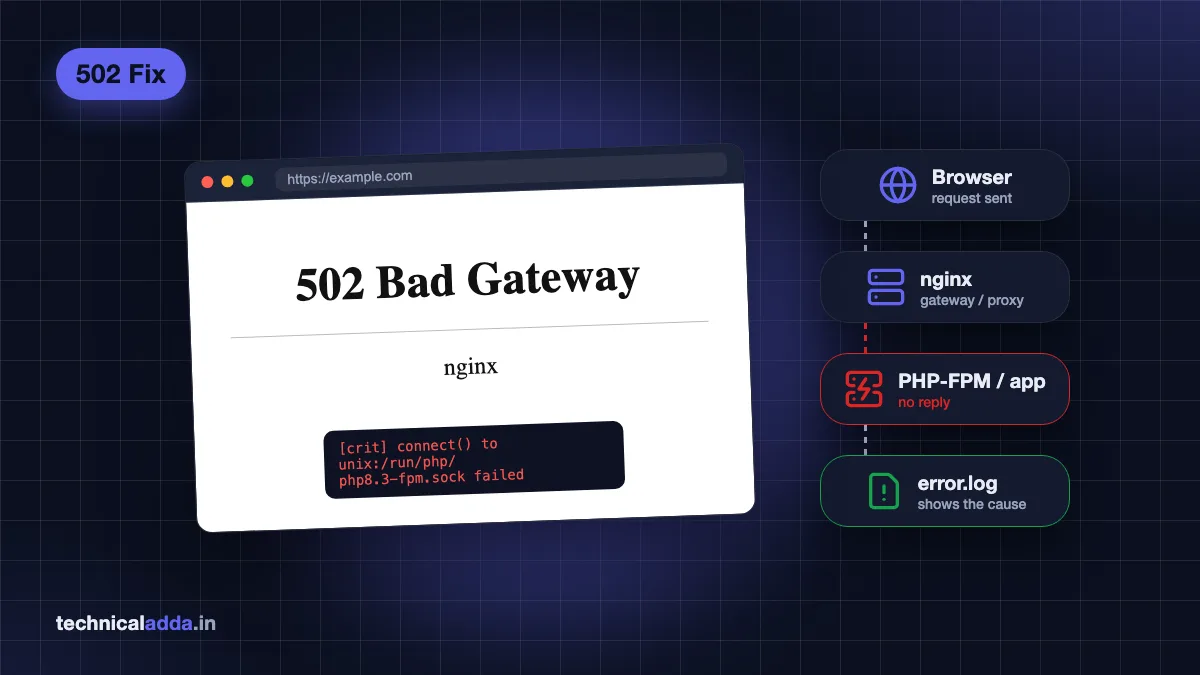
You open a website and see a plain white page that says 502 Bad Gateway with "nginx" written below it. If you are a visitor, this is the website's problem, not yours. If it is your own website or VPS, the 502 bad gateway nginx error means nginx is running but the application behind it (PHP-FPM, Node.js, Python, Docker) did not give a valid reply. This guide explains the error in simple words, shows you how to read the nginx error log, and walks through every common fix on Ubuntu 24.04: PHP-FPM socket problems, crashed services, timeouts, buffer sizes, Cloudflare and WordPress-specific causes.
Quick answer: A 502 Bad Gateway in nginx means nginx could not get a valid response from its upstream (PHP-FPM, Node.js, Gunicorn or another server). Run
sudo tail -n 50 /var/log/nginx/error.logto see the exact reason, then restart or fix the upstream service, correct the socket/port path, raise buffer sizes or free up RAM.
What does 502 Bad Gateway nginx mean?
Most modern websites have two layers:
- Nginx sits in front. It accepts the visitor's request, handles HTTPS and serves static files like images and CSS.
- An application server sits behind it. For WordPress and Laravel this is PHP-FPM. For other apps it could be Node.js (PM2), Python (Gunicorn/Uvicorn), a Docker container or another web server.
In nginx language, the application server is called the upstream. When nginx forwards a request to the upstream and gets nothing usable back, it returns HTTP status 502 Bad Gateway to the visitor.
So the 502 page tells you one important thing: nginx itself is working. The problem is almost always the service behind it, or the connection between them.
502 vs 503 vs 504 – what is the difference?
These three errors look similar but point to different problems.
| Status | Name | What it usually means in nginx | First thing to check |
|---|---|---|---|
| 502 | Bad Gateway | Upstream refused the connection, crashed, closed early or sent an invalid reply | Is PHP-FPM/app running? Socket or port correct? |
| 503 | Service Unavailable | Server is overloaded, in maintenance or rate-limited | Maintenance mode, limit_req, overload |
| 504 | Gateway Timeout | Upstream took too long and nginx gave up waiting | Slow scripts, fastcgi_read_timeout, database |
| 500 | Internal Server Error | The application itself threw an error | Application/PHP error log |
A slow upstream usually gives a 504, not a 502. But a script that runs out of memory or crashes halfway through often gives a 502, because the connection is closed before a full reply comes back.
Why does the page show a version like "nginx/1.24.0 (Ubuntu)"?
The line at the bottom of the error page, such as nginx/1.24.0 (Ubuntu) or nginx/1.18.0 (Ubuntu), is just the nginx version that generated the page. Version 1.24.0 is what Ubuntu 24.04 ships; 1.18.0 is the Ubuntu 22.04 package. The version number does not change the fix. You can hide it by adding server_tokens off; inside the http { } block of /etc/nginx/nginx.conf, which is a small security improvement.
If you are a visitor: what to do
If you are not the owner of the website, there is very little you can fix. Still, try these quick steps:
- Reload the page after 30–60 seconds. Many 502 errors last only while a server restarts.
- Open the site in another browser or incognito window to rule out a stale cache.
- Switch networks – try mobile data (Jio, Airtel, Vi) instead of Wi-Fi. Rarely, a proxy or VPN in between causes the error.
- Check if the site is down for everyone using a status checker website or the company's social media.
- Wait and try later. If it is a bank, IRCTC or government portal, heavy traffic during sales or result days often causes 502/503/504 errors.
In Hindi terms, "502 bad gateway ka matlab" is simple: the website's front server could not get a reply from its back-end server. Your phone, laptop and internet are fine.
Step 1: Read the nginx error log
Never guess. The nginx error log tells you the exact reason for every 502. On Ubuntu 24.04 the default log is /var/log/nginx/error.log.
Show the last 50 lines of the error log:
sudo tail -n 50 /var/log/nginx/error.log
Watch the log live while you reload the broken page in your browser (press Ctrl+C to stop):
sudo tail -f /var/log/nginx/error.log
If your site has its own log file, find where it is defined:
grep -R "error_log" /etc/nginx/sites-enabled/
Before and after any config change, always test the nginx configuration for syntax errors:
sudo nginx -t
If the test passes, reload nginx without dropping live connections:
sudo systemctl reload nginx
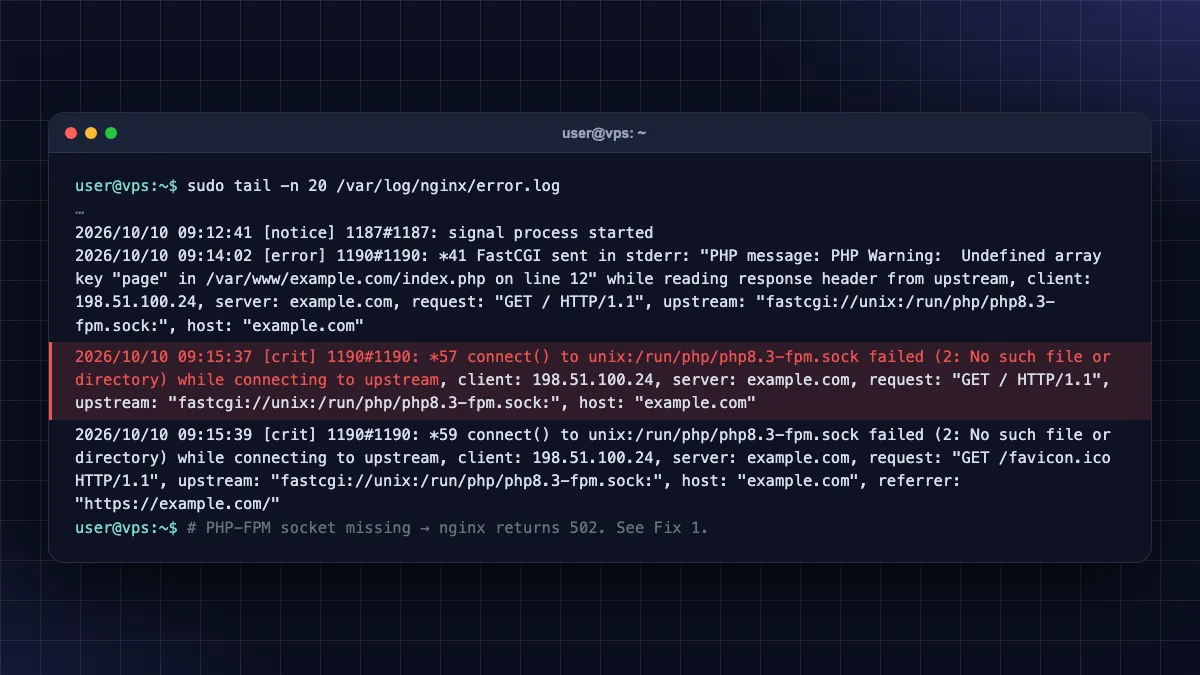
Common 502 error messages and what they mean
Match the message in your error log with this table, then jump to the matching fix.
| Error log message (partial) | What it means | Go to |
|---|---|---|
connect() to unix:/run/php/php8.3-fpm.sock failed (2: No such file or directory) |
PHP-FPM is stopped, or nginx points to the wrong PHP version socket | Fix 1 |
connect() to unix:/run/php/...sock failed (13: Permission denied) |
Socket ownership/permissions do not allow the nginx user (www-data) |
Fix 1 |
connect() failed (111: Connection refused) while connecting to upstream |
Nothing is listening on that port – app not running or wrong port | Fix 2 |
connect() to unix:... failed (11: Resource temporarily unavailable) |
PHP-FPM is overloaded; its queue is full | Fix 3 |
upstream prematurely closed connection while reading response header from upstream |
App crashed or was killed mid-request | Fix 3 / Fix 5 |
recv() failed (104: Connection reset by peer) |
Upstream reset the connection, often a crash or worker restart | Fix 3 |
upstream sent too big header while reading response header from upstream |
Response headers (cookies, redirects) are bigger than nginx's buffer | Fix 4 |
no live upstreams while connecting to upstream |
All servers in an upstream { } block are marked failed |
Fix 2 |
upstream timed out (110: Connection timed out) |
Upstream too slow – usually shows as 504, sometimes alongside 502s | Fix 3 |
Fix 1: PHP-FPM service is down or socket path is wrong
This is the most common cause of a php-fpm 502 bad gateway on WordPress and Laravel servers. Ubuntu 24.04 ships PHP 8.3, so the service is called php8.3-fpm and the default socket is /run/php/php8.3-fpm.sock.
Check if PHP-FPM is running
Check the PHP-FPM service status:
sudo systemctl status php8.3-fpm
If it says inactive or failed, start it and enable it at boot:
sudo systemctl enable --now php8.3-fpm
If it fails to start, read why:
sudo journalctl -u php8.3-fpm -n 50 --no-pager
Test the PHP-FPM configuration for errors before restarting:
sudo php-fpm8.3 -t
Make sure nginx points to the right socket
List the sockets that actually exist:
ls -l /run/php/
Now check what your nginx site config expects:
grep -R "fastcgi_pass" /etc/nginx/sites-enabled/
If the config says php8.1-fpm.sock or php7.4-fpm.sock but only php8.3-fpm.sock exists (common after upgrading Ubuntu from 22.04 to 24.04), edit the site file and change the line to:
fastcgi_pass unix:/run/php/php8.3-fpm.sock;
Then run sudo nginx -t and sudo systemctl reload nginx.
Fix "Permission denied" on the socket
Open the PHP-FPM pool file:
sudo nano /etc/php/8.3/fpm/pool.d/www.conf
Make sure these lines match the user nginx runs as (www-data on Ubuntu):
listen = /run/php/php8.3-fpm.sock
listen.owner = www-data
listen.group = www-data
listen.mode = 0660
Restart PHP-FPM so the new socket permissions apply:
sudo systemctl restart php8.3-fpm
Security note: Do not "fix" permission errors by setting listen.mode = 0777 or running PHP as root. That gives every user on the server access to your PHP process.
Fix 2: Node.js, Python or Docker app not running
If your nginx uses proxy_pass (for example proxy_pass http://127.0.0.1:3000;) and the log shows Connection refused, nothing is listening on that port.
See which ports are actually listening and which program owns them:
sudo ss -tlnp
Ask the app directly, bypassing nginx (change the port to yours):
curl -I http://127.0.0.1:3000
If curl fails, the problem is the app, not nginx. Restart it with whatever runs it:
- PM2 (Node.js):
pm2 status, thenpm2 restart allandpm2 logsto see crash reasons. - systemd service (Gunicorn, Uvicorn, n8n):
sudo systemctl status yourappandsudo journalctl -u yourapp -n 50. - Docker:
docker psto check the container is up,docker logs <container>to see errors.
Common mistakes that cause this:
- The app listens on
localhostinside a Docker container, but nginx on the host connects to127.0.0.1:3000without the port being published (-p 3000:3000). - nginx uses
localhost, which may resolve to IPv6::1, while the app listens only on IPv4. Use127.0.0.1explicitly inproxy_pass. - A typo in the port number after changing the app's config.
- The app's
upstream { }block lists a server that no longer exists, causing no live upstreams.
If you are planning to run tools like n8n behind nginx, our guide on installing n8n on a VPS shows a working reverse-proxy setup.
Fix 3: Upstream crashes, timeouts and slow scripts
If the upstream is running but still gives 502 errors under load, it is either crashing or overloaded.
PHP-FPM ran out of workers
PHP-FPM writes a warning when every worker is busy. Check for it:
sudo grep -i "max_children" /var/log/php8.3-fpm.log
If you see server reached pm.max_children setting, raise the limit in /etc/php/8.3/fpm/pool.d/www.conf. A rough formula is: available RAM for PHP ÷ average memory per PHP process. For example, on a 4 GB VPS where PHP can use about 2 GB and each process uses roughly 60–80 MB, around 25 workers is reasonable.
pm = dynamic
pm.max_children = 25
pm.start_servers = 5
pm.min_spare_servers = 5
pm.max_spare_servers = 10
pm.max_requests = 500
pm.max_requests recycles each worker after 500 requests, which limits slow memory leaks in plugins. Restart PHP-FPM after saving. Do not set max_children higher than your RAM can handle – that causes Fix 5 problems instead.
Long-running scripts and timeouts
Imports, backups, report exports and AI API calls can run for minutes. nginx's default fastcgi_read_timeout and proxy_read_timeout are 60 seconds, per the nginx fastcgi module documentation (opens in new tab). For a specific slow location, you can raise it:
location ~ \.php$ {
    include snippets/fastcgi-php.conf;
    fastcgi_pass unix:/run/php/php8.3-fpm.sock;
    fastcgi_read_timeout 300s;
}
The PHP side must allow it too. In /etc/php/8.3/fpm/php.ini, check max_execution_time, and in the pool file check request_terminate_timeout. If PHP kills a script before nginx stops waiting, you get a 502 with "upstream prematurely closed connection".
For proxy_pass apps, the equivalent is proxy_read_timeout 300s;.
Tip: Raising timeouts hides slow code. It is fine for admin-only tasks like imports. For normal page loads, find out why the page is slow (database queries, external API calls, heavy plugins) instead.
PHP fatal errors
Some PHP fatal errors kill the worker and appear as 502. Check the PHP-FPM log and, for WordPress, enable WP_DEBUG_LOG (covered below).
Fix 4: Increase nginx buffer sizes
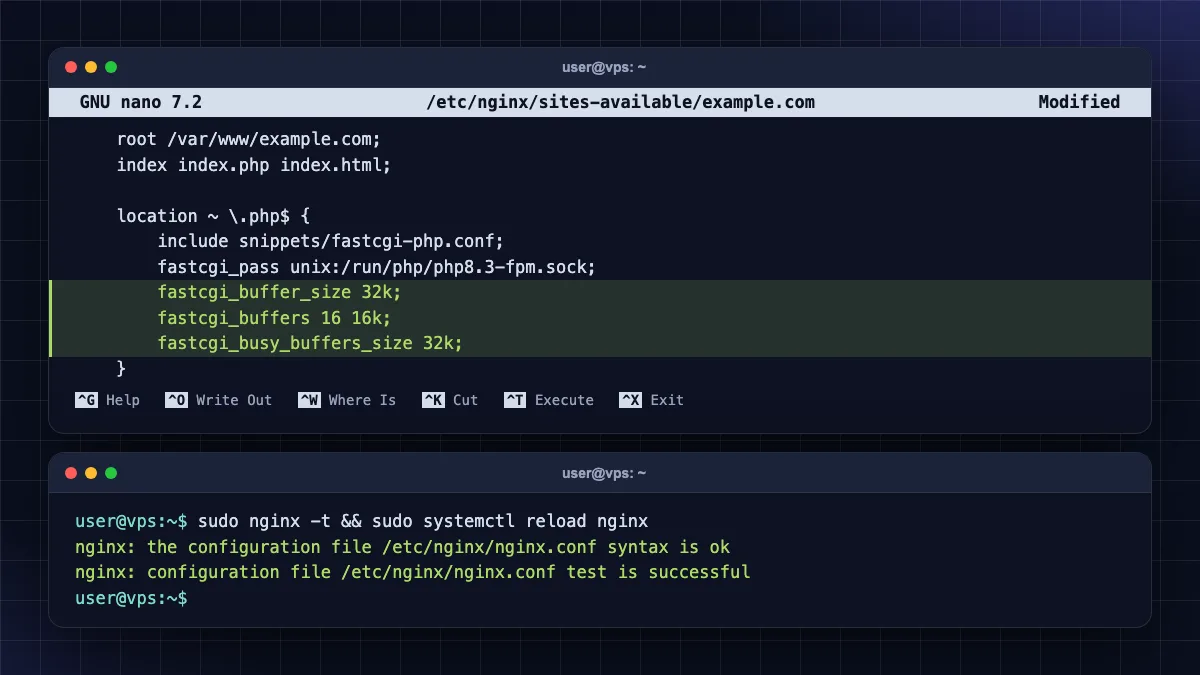
The error upstream sent too big header while reading response header from upstream means the reply headers are larger than nginx's buffer. This is common with WordPress login cookies, WooCommerce sessions, large redirects and some OAuth/SSO apps.
According to the nginx proxy module documentation (opens in new tab), proxy_buffer_size and proxy_buffers default to one memory page (4k or 8k). The FastCGI buffers have the same defaults.
For PHP-FPM sites, add these lines inside the PHP location block (or the server block):
fastcgi_buffer_size 32k;
fastcgi_buffers 16 16k;
fastcgi_busy_buffers_size 32k;
For proxy_pass apps (Node.js, Python, Docker), use the proxy versions:
proxy_buffer_size 32k;
proxy_buffers 16 16k;
proxy_busy_buffers_size 32k;
Test and reload:
sudo nginx -t && sudo systemctl reload nginx
Start with these moderate values. Very large buffers on every connection waste RAM on small VPS plans.
Fix 5: Server out of memory
On small VPS plans (1–2 GB RAM), the Linux out-of-memory (OOM) killer may kill PHP-FPM, MySQL or your Node.js app when RAM runs out. Nginx then gets no reply and shows 502.
Check current memory and swap usage:
free -h
Look for processes the kernel killed:
sudo dmesg -T | grep -i -E "killed process|out of memory"
See which processes use the most memory right now:
ps aux --sort=-%mem | head -n 10
Fixes, from cheapest to most effective:
- Lower
pm.max_childrenso PHP cannot use more RAM than you have. - Add a swap file as a safety net (not a replacement for RAM):
sudo fallocate -l 2G /swapfile && sudo chmod 600 /swapfile && sudo mkswap /swapfile && sudo swapon /swapfile
Make the swap permanent across reboots:
echo '/swapfile none swap sw 0 0' | sudo tee -a /etc/fstab
- Tune MySQL/MariaDB – reduce
innodb_buffer_pool_sizeon small servers. - Add page caching so most visitors never hit PHP.
- Upgrade the VPS. If your site has outgrown 1–2 GB of RAM, more memory is the real fix. Our best VPS hosting in India comparison lists plans with 4–8 GB RAM at budget prices, and our Contabo VPS review covers one of the cheapest high-RAM options.
Cloudflare 502 vs origin 502
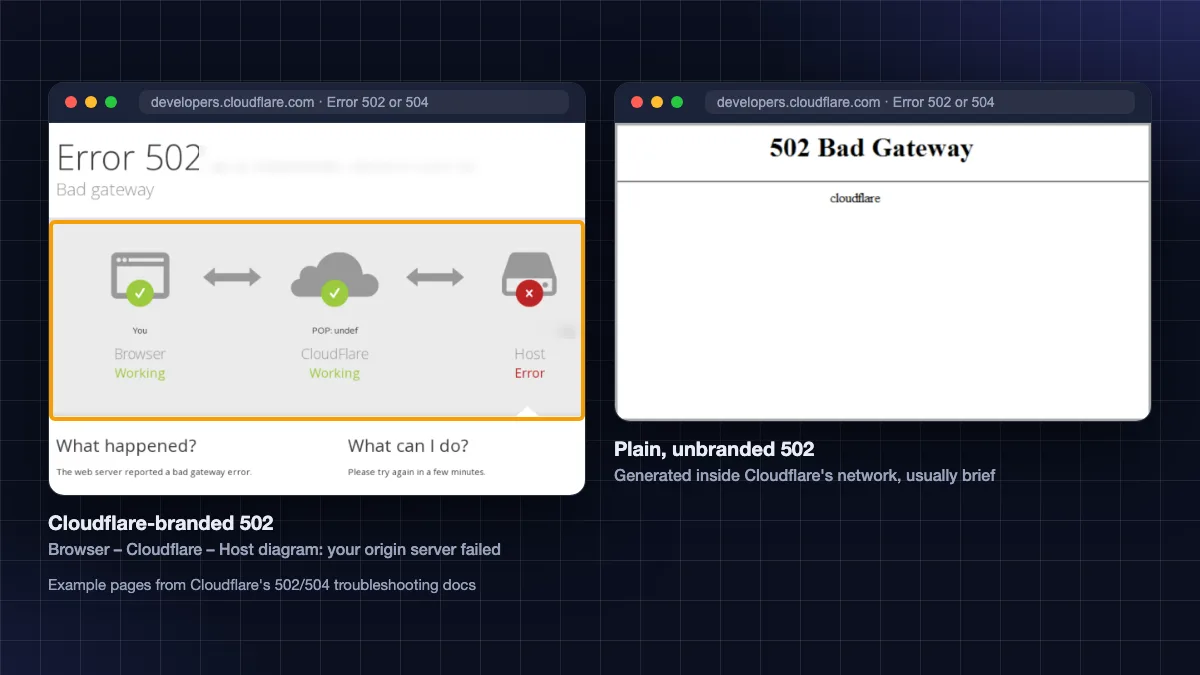
If your site uses Cloudflare, a 502 can come from Cloudflare's network or from your own server (the "origin"). Cloudflare's own 502/504 troubleshooting guide (opens in new tab) explains how to tell them apart:
| What you see | Where the 502 came from | What to do |
|---|---|---|
| Cloudflare-branded error page (with Cloudflare logo and "Host – Error" diagram) | Your origin server returned 502/504 and Cloudflare passed it on | Fix the origin: follow Steps 1–5 above on your VPS |
| Plain blank page without Cloudflare branding | Cloudflare's network generated it | Usually brief; check Cloudflare status, test with origin compression disabled |
| Plain "502 Bad Gateway – nginx" page | Your own nginx (Cloudflare not in the path, or DNS set to "DNS only") | Fix the origin |
Quick checks for Cloudflare users:
- Bypass Cloudflare to test the origin directly. From your laptop, run
curl -I --resolve example.com:443:YOUR_SERVER_IP https://example.com(replace with your domain and IP). If this also fails, the problem is on your server. - Check SSL mode. In the Cloudflare dashboard, "Full (strict)" needs a valid certificate on your origin. A broken or expired origin certificate usually shows a 525/526 error, but misconfigured HTTPS on the origin can also cause failures. Our guide to a free SSL certificate for your website covers Let's Encrypt on nginx.
- Firewall blocks. If your VPS firewall or fail2ban blocks Cloudflare's IP ranges, requests fail. Allow Cloudflare's published IP ranges.
- Collect evidence. For Cloudflare support, note the time, the URL and the output of
https://yourdomain.com/cdn-cgi/trace.
502 Bad Gateway on WordPress
WordPress on nginx + PHP-FPM has a few specific triggers. If you followed our install WordPress on a VPS guide, these apply directly.
- A plugin or theme crashes PHP. Rename the plugins folder to disable all plugins at once:
sudo mv /var/www/example.com/wp-content/plugins /var/www/example.com/wp-content/plugins.off
If the site loads, rename it back (plugins.off to plugins) and disable plugins one by one from the dashboard to find the culprit.
- Turn on WordPress debug logging. Add these lines to
wp-config.phpabove "That's all, stop editing":
define( 'WP_DEBUG', true );
define( 'WP_DEBUG_LOG', true );
define( 'WP_DEBUG_DISPLAY', false );
Errors then go to wp-content/debug.log. Turn this off again when done, and never leave WP_DEBUG_DISPLAY on for a live site.
- PHP memory limit. Heavy page builders and WooCommerce need more memory. Raise
memory_limitin/etc/php/8.3/fpm/php.ini(for example to256M) and restart PHP-FPM – but only if the server has the RAM. - Large cookies after login. Logged-in WordPress and WooCommerce users carry bigger cookies. If 502 appears only after login, apply the buffer fix (Fix 4).
- WP-Cron and heavy admin tasks. Backups, imports and image optimisation plugins can exhaust workers. Move WP-Cron to a real system cron and run heavy jobs off-peak.
- Brute-force attacks on
wp-login.phpandxmlrpc.php. Thousands of login attempts can fill every PHP worker. Rate-limit or block these endpoints and use strong admin passwords – see our strong password examples guide.
On shared or managed hosting, you usually cannot read nginx logs yourself. Contact your host's support with the time of the error and the URL. If 502 errors are frequent on a cheap shared plan, it may be time to move to a VPS or managed cloud host; our best web hosting in India guide compares options.
How to prevent 502 errors
- Monitor uptime with a free uptime checker so you hear about 502 errors before visitors do.
- Keep PHP and nginx updated with
sudo apt update && sudo apt upgrade, but check socket paths after major PHP upgrades. - Size PHP-FPM to your RAM and add page caching.
- Use
systemctl enablefor PHP-FPM, databases and app services so they start after a reboot. - Set
Restart=on-failurein custom systemd services so crashed apps come back automatically. - Test configs before reloads – always
sudo nginx -tfirst. - Harden the server against bot floods. Our secure Linux VPS server guide covers UFW, fail2ban and SSH hardening.
Key takeaways
- 502 Bad Gateway means nginx is up, but its upstream (PHP-FPM, Node.js, Python, Docker) gave no valid response.
- Always start with
sudo tail -n 50 /var/log/nginx/error.log; the message tells you the exact cause. - "No such file" or "Permission denied" on a
.sockfile means a stopped PHP-FPM, wrong PHP version or wrong socket owner. - "Too big header" is fixed with larger
fastcgi_buffer_size/proxy_buffer_size; crashes under load point topm.max_childrenor low RAM. - A Cloudflare-branded 502 means your origin server failed; an unbranded blank 502 comes from Cloudflare.
- Visitors cannot fix a 502 – reload later or try another network.
Conclusion
The 502 bad gateway nginx error looks alarming, but it follows a clear pattern: nginx is fine, and something behind it is not. Read the error log, match the message to the table above, and fix the specific cause – PHP-FPM, a stopped app, buffer sizes or memory. If your server keeps running out of RAM, a bigger VPS is often cheaper than hours of tuning; start with our best VPS hosting in India guide, or browse more server guides in our Web Hosting & Servers section.
FAQ
Frequently Asked Questions
What does 502 Bad Gateway nginx mean?
It means nginx received your request but could not get a valid response from the server behind it, called the upstream. The upstream is usually PHP-FPM for WordPress, or a Node.js, Python or Docker app. Nginx itself is working; the application is stopped, crashed, overloaded or misconfigured, so nginx returns a 502 error page instead.
Is a 502 Bad Gateway error my fault as a visitor?
No. A 502 Bad Gateway is a server-side error, so your phone, browser and internet connection are almost never the cause. Reload after a minute, try incognito mode or mobile data, and check if the site is down for everyone. If the error continues, only the website owner or hosting company can fix it.
How do I fix 502 Bad Gateway nginx on Ubuntu?
Read the error log with sudo tail -n 50 /var/log/nginx/error.log first. If it mentions a PHP socket, run sudo systemctl status php8.3-fpm, start the service and check the socket path in fastcgi_pass. For "connection refused", restart your app. For "too big header", raise buffer sizes. Test with sudo nginx -t and reload nginx.
Why does PHP-FPM cause 502 Bad Gateway?
PHP-FPM causes a 502 when it is stopped, when nginx points to the wrong socket (for example php8.1 after upgrading to PHP 8.3), when socket permissions block the www-data user, or when all PHP workers are busy or crash. Check systemctl status php8.3-fpm, list /run/php/ and look for "max_children" warnings in the PHP-FPM log.
What is "upstream sent too big header" in nginx?
This message means the response headers from your application, often large cookies or redirect headers, are bigger than nginx's default 4k or 8k buffer. Increase fastcgi_buffer_size and fastcgi_buffers for PHP sites, or proxy_buffer_size and proxy_buffers for proxied apps, then test with nginx -t and reload nginx.
What is the difference between 502 and 504 errors?
A 502 Bad Gateway means the upstream refused the connection, crashed or sent an invalid reply. A 504 Gateway Timeout means the upstream was too slow and nginx stopped waiting, usually after the default 60-second read timeout. Both point to the application behind nginx, but 504 is mostly about slow scripts while 502 is about failures.
How do I know if the 502 error is from Cloudflare or my server?
According to Cloudflare's documentation, a Cloudflare-branded 502 page means your origin server returned the error, so you must fix your server. A blank page without Cloudflare branding is generated by Cloudflare itself and is usually temporary. A plain "502 Bad Gateway nginx" page comes straight from your own nginx server.
Can low RAM cause 502 Bad Gateway?
Yes. When a VPS runs out of memory, the Linux OOM killer can stop PHP-FPM, MySQL or your Node.js app, and nginx then shows 502. Check with free -h and sudo dmesg -T | grep -i "killed process". Reduce pm.max_children, add swap, enable caching, or upgrade to a VPS with more RAM.
How do I fix 502 Bad Gateway on WordPress?
Disable all plugins by renaming the wp-content/plugins folder, then reload the site. If it works, a plugin was the cause. Also enable WP_DEBUG_LOG, raise the PHP memory limit if the server has spare RAM, increase FastCGI buffers if 502 appears only after login, and check that PHP-FPM is running.
Does restarting nginx fix 502 Bad Gateway?
Usually not, because nginx is rarely the broken part. Restarting the upstream service, such as sudo systemctl restart php8.3-fpm or your Node.js app, fixes far more 502 errors. Restart or reload nginx only after changing its configuration, and always run sudo nginx -t first to avoid taking the site fully offline.
Where to buy
-
Visit official site (opens in new tab)
Hostinger
-
Visit official site (opens in new tab)
Cloudways managed hosting