How to Connect to VPS Using SSH: Windows, Mac, Linux and Android Guide
Web Hosting & Servers 15 min read By Xavio Thomas
In this articleTable of contents12
Last updated: 10 October 2026
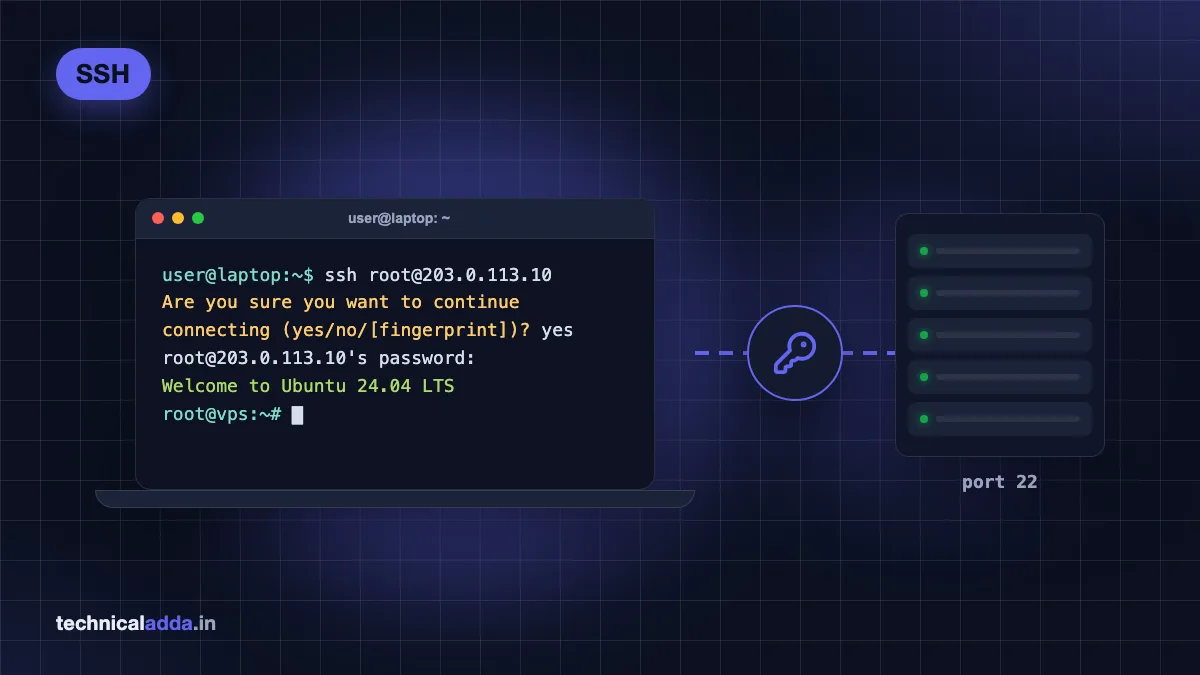
You just bought a VPS and the welcome email shows an IP address, a username and a password. Now what? This guide shows you how to connect to VPS using SSH from any device you own: Windows (PowerShell and PuTTY), Mac, Linux and even an Android phone. You will also set up SSH keys so you never type the password again, learn what to do on your first login, and fix the most common errors such as "Permission denied (publickey)", "Connection refused", "Connection timed out" and "Remote host identification has changed". All server commands are tested against Ubuntu 24.04 LTS.
Quick answer: To connect to a VPS using SSH, open PowerShell (Windows) or Terminal (Mac/Linux) and run
ssh username@your_server_ip, for examplessh [email protected]. Typeyesto accept the server fingerprint, then enter your password or use an SSH key. On Android, install Termux and run the same command.
What you need before you connect
SSH (Secure Shell) is an encrypted way to control a remote Linux server by typing commands. Everything you type and every reply travels encrypted, so it is safe even on public Wi-Fi.
Before you start, collect four things from your VPS provider's welcome email or control panel:
- Server IP address – for example
203.0.113.10(this is a sample address; use your own). - Username – often
root, but some providers useubuntuor another name. - Password or private key – some providers email a root password; cloud providers usually ask you to add an SSH key while creating the server.
- SSH port – the default is
22unless your provider or you changed it.
Default SSH usernames by provider
| Provider / image | Default username | Login method at first boot |
|---|---|---|
| Hostinger VPS | root | Password set in hPanel, or SSH key |
| Contabo VPS | root (or admin user you chose) | Password set at checkout, keys addable later |
| DigitalOcean Droplet | root | SSH key (recommended) or password |
| Oracle Cloud (Ubuntu image) | ubuntu | SSH key only |
| Oracle Cloud (Oracle Linux image) | opc | SSH key only |
| AWS EC2 (Ubuntu AMI) | ubuntu | SSH key (.pem file) only |
| Google Cloud | your Google username | Browser SSH or key |
Defaults as of October 2026; always trust your provider's panel if it shows something different.
If you have not bought a server yet, our best VPS hosting in India guide compares plans, and the Oracle Cloud free tier gives you a free server to practise on. New to the idea? Read what is VPS hosting first.
Connect to VPS using SSH on Windows (PowerShell)
Windows 10 (version 1809 and later) and Windows 11 include Microsoft's built-in OpenSSH client, so you do not need PuTTY anymore.
Step 1: Check that SSH is installed
Open PowerShell (press Windows key, type PowerShell, press Enter) and check the SSH version:
ssh -V
If you see a version like OpenSSH_for_Windows_9.x, you are ready. If you get "ssh is not recognized", install the client. Open PowerShell as Administrator and run this to install the OpenSSH Client feature (per Microsoft's OpenSSH documentation (opens in new tab)):
Add-WindowsCapability -Online -Name OpenSSH.Client~~~~0.0.1.0
You can also add it from Settings > System > Optional features > View features > OpenSSH Client.
Step 2: Connect
Connect as root to your server (replace the IP with yours):
ssh [email protected]
If your provider uses a different port, add -p with the port number:
ssh -p 2222 [email protected]
Step 3: Accept the fingerprint and log in
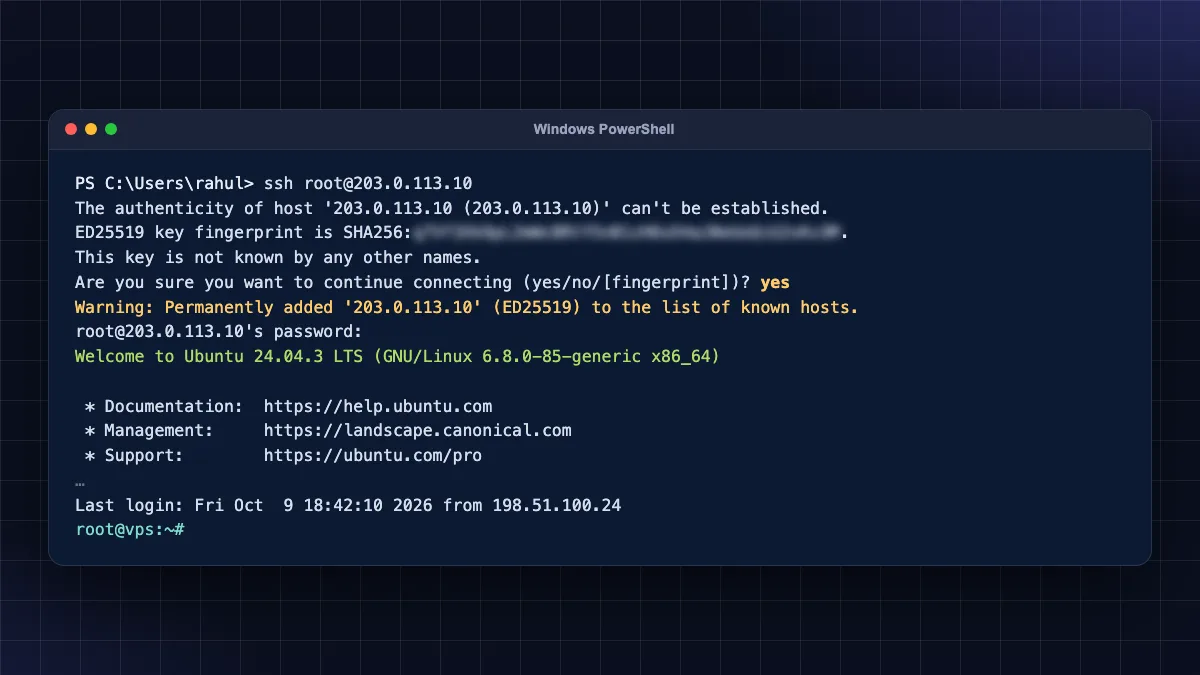
The first time, you will see a message like "The authenticity of host '203.0.113.10' can't be established… Are you sure you want to continue connecting (yes/no)?". Type yes and press Enter. This saves the server's identity in your known_hosts file.
Then type your password. Nothing appears on screen while you type – no stars, no dots. That is normal. Press Enter when done. To paste a password in PowerShell, right-click inside the window.
When you see a prompt like root@vps:~#, you are in.
Connect to VPS using PuTTY
PuTTY is the classic free SSH app for Windows. It is useful if you prefer a graphical window with saved sessions. Download it only from the official PuTTY website (opens in new tab) – fake PuTTY downloads with malware have been spread through search ads.
- Install and open PuTTY.
- In Session, enter your server IP in Host Name (or IP address).
- Set Port to
22(or your custom port) and Connection type to SSH. - Type a name under Saved Sessions (for example "My VPS") and click Save, so you can reconnect with a double-click.
- Click Open.
- Click Accept on the security alert about the host key (first time only).
- At
login as:, type your username (e.g.root), then your password. As with PowerShell, the password stays invisible while you type.
Paste in PuTTY: right-click pastes. Copy: just select text with the mouse.
Using an SSH key with PuTTY
PuTTY uses its own .ppk key format.
- Open PuTTYgen (installed with PuTTY).
- To create a new key, choose EdDSA (Ed25519) and click Generate. To use an existing OpenSSH key, click Load and select it.
- Click Save private key to get a
.ppkfile. Copy the text in the "Public key for pasting into OpenSSH authorized_keys file" box – this goes on the server. - In PuTTY, go to Connection > SSH > Auth > Credentials and browse to your
.ppkfile under Private key file for authentication. - Go back to Session, select your saved session, click Save, then Open.
Connect to VPS on Mac and Linux
macOS and every Linux distribution ship with the OpenSSH client.
- On Mac, open Terminal (Cmd + Space, type Terminal). On Linux, press Ctrl + Alt + T on most desktops.
- Run the same command as Windows:
ssh [email protected]
- Type
yesfor the fingerprint prompt, then your password.
If your provider gave you a key file (for example a .pem file from AWS), first lock down its permissions so only you can read it – SSH refuses keys that others can read:
chmod 600 ~/Downloads/mykey.pem
Then connect using that key with -i:
ssh -i ~/Downloads/mykey.pem [email protected]
Save time with an SSH config file
Instead of typing the IP, user and key every time, create a shortcut. Open (or create) your SSH config file:
nano ~/.ssh/config
Add an entry like this (change the values to yours):
Host myvps
    HostName 203.0.113.10
    User root
    Port 22
    IdentityFile ~/.ssh/id_ed25519
    ServerAliveInterval 60
Now connect with just:
ssh myvps
ServerAliveInterval 60 sends a small signal every 60 seconds so idle sessions do not freeze or drop – very handy on Jio and Airtel mobile hotspots. The same file works on Windows at C:\Users\<you>\.ssh\config.
Connect to VPS on Android
You can manage a server from your phone – useful when you are travelling and a website goes down.
Option 1: Termux (free, full OpenSSH)
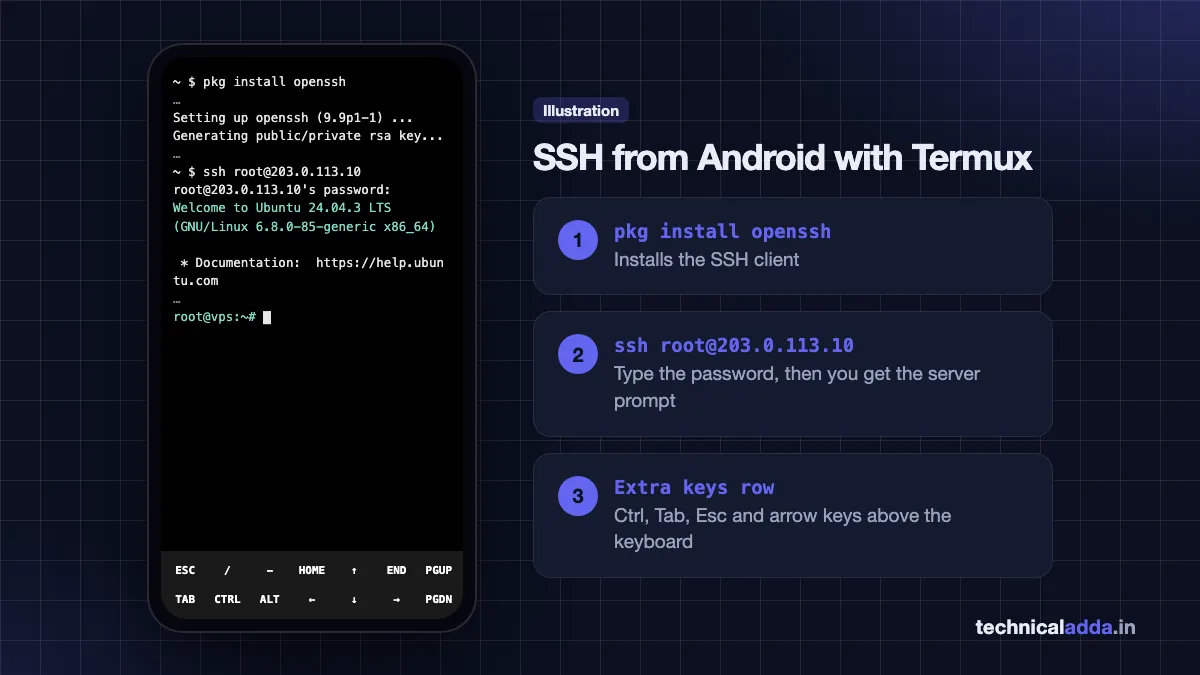
Termux is a free Linux terminal for Android. Install it from F-Droid or the Termux GitHub releases page – the Termux project says most users should prefer these over the experimental Google Play build. Do not mix Termux apps from different sources.
- Open Termux and update its packages:
pkg update && pkg upgrade
- Install the OpenSSH client:
pkg install openssh
- Connect exactly like on a laptop:
ssh [email protected]
- To create an SSH key on the phone, run
ssh-keygen -t ed25519– the steps in the next section are the same.
Tip: install the Hacker's Keyboard or use Termux's extra keys row for Ctrl, Tab and arrow keys.
Option 2: Termius or ConnectBot (app with saved hosts)
- Termius – polished app with saved hosts and key management; free tier for basic SSH, paid plan for syncing across devices.
- ConnectBot – free and open source, simple and lightweight.
What about JuiceSSH? JuiceSSH was popular for years, but it has not been updated since February 2021 and was reportedly removed from Google Play in December 2025. Avoid installing it from random APK sites; use Termux, Termius or ConnectBot instead.
On iPhone, Termius and Blink Shell are popular SSH apps. The commands are the same.
How to connect to VPS using SSH key
Passwords can be guessed by bots that attack every public server all day. SSH keys are far safer: your laptop holds a private key that never leaves it, and the server holds the matching public key. Ubuntu's OpenSSH server documentation (opens in new tab) recommends the Ed25519 key type.
Step 1: Create a key pair on your computer
This works the same in PowerShell, Mac/Linux Terminal and Termux:
ssh-keygen -t ed25519 -C "your-laptop-name"
- Press Enter to accept the default location (
~/.ssh/id_ed25519, orC:\Users\<you>\.ssh\id_ed25519on Windows). - Enter a passphrase. This encrypts the private key, so a stolen laptop does not mean a stolen server.
You now have two files: id_ed25519 (private – never share) and id_ed25519.pub (public – safe to copy to servers).
Step 2: Copy the public key to the VPS
Mac, Linux and Termux – one command copies the key and sets permissions:
ssh-copy-id [email protected]
Windows PowerShell does not include ssh-copy-id. This one-liner sends your public key and appends it to the server's authorized_keys file:
type $env:USERPROFILE\.ssh\id_ed25519.pub | ssh [email protected] "mkdir -p ~/.ssh && chmod 700 ~/.ssh && cat >> ~/.ssh/authorized_keys && chmod 600 ~/.ssh/authorized_keys"
Using the provider's panel: Hostinger, DigitalOcean, Contabo, Oracle and AWS let you paste your public key (the contents of id_ed25519.pub) when creating the server, or in the server's settings later. This is the easiest method for a fresh VPS.
Step 3: Log in with the key
ssh [email protected]
SSH automatically tries your default key. If you used a different filename, add -i path/to/key. You should now log in without the server password (you may be asked for your key's passphrase instead).
Step 4: Turn off password login (after testing!)
Only after you have confirmed key login works in a second terminal window, disable password logins on the server. On Ubuntu 24.04, check for cloud-init overrides first, because files in /etc/ssh/sshd_config.d/ take priority:
sudo grep -ri "PasswordAuthentication" /etc/ssh/sshd_config /etc/ssh/sshd_config.d/
Set PasswordAuthentication no in the file that currently says yes (often /etc/ssh/sshd_config.d/50-cloud-init.conf), then test the config:
sudo sshd -t
If there are no errors, restart SSH to apply the change:
sudo systemctl restart ssh
Warning: keep your current session open until you have tested a new login. If you lock yourself out, most providers offer a browser-based "VNC" or "console" in their panel to recover.
What to do after your first login
A fresh VPS is exposed to the internet from minute one. Do these basics right away:
- Update the system:
sudo apt update && sudo apt upgrade -y
- Change the root password if your provider emailed it to you:
passwd
- Create a normal user with sudo rights, so you do not work as root all the time (replace
sanjeevwith your name):
adduser sanjeev
usermod -aG sudo sanjeev
- Copy your SSH key to the new user (run from your laptop):
ssh-copy-id [email protected]
- Turn on the firewall, allowing SSH first so you are not locked out:
sudo ufw allow OpenSSH && sudo ufw enable
- Check who you are and where you are:
whoami,hostname -I,df -handfree -hshow your user, IP, disk and RAM.
For the full checklist – timezone, swap, automatic security updates, fail2ban and disabling root login – follow our Ubuntu VPS initial server setup and how to secure a Linux VPS guides. If commands like ls, cd and nano are new to you, keep our Linux commands for beginners PDF handy.
Changing the SSH port on Ubuntu 24.04: Ubuntu 24.04 starts SSH through systemd socket activation. After changing Port in sshd_config, allow the new port in UFW first, then run sudo systemctl daemon-reload and sudo systemctl restart ssh.socket. Test the new port in a second window before closing your session.
Common SSH errors and fixes
| Error message | Likely cause | Fix |
|---|---|---|
Permission denied (publickey) |
Wrong username, wrong key, or password login disabled | Use the right user (ubuntu on AWS/Oracle), pass -i key, add your public key via the provider panel |
Permission denied, please try again. |
Wrong password | Retype carefully (it is invisible); reset root password in the provider panel |
Connection refused |
SSH service not running, or wrong port | Use the provider's web console; run sudo systemctl status ssh; check the port |
Connection timed out |
Wrong IP, server off, or a firewall blocks port 22 | Check IP and server status; open port 22 in UFW and the cloud firewall/security list |
REMOTE HOST IDENTIFICATION HAS CHANGED |
Server was reinstalled, so its host key changed | If you reinstalled it, run ssh-keygen -R 203.0.113.10 and reconnect |
UNPROTECTED PRIVATE KEY FILE / bad permissions |
Key file readable by others | chmod 600 key on Mac/Linux; fix file permissions on Windows (see below) |
Too many authentication failures |
SSH tried too many keys from your agent | ssh -o IdentitiesOnly=yes -i ~/.ssh/id_ed25519 user@ip |
ssh is not recognized (Windows) |
OpenSSH Client not installed | Install it from Optional features or PowerShell |
Session freezes or Broken pipe |
Idle timeout on mobile/office networks | Add ServerAliveInterval 60 to ~/.ssh/config |
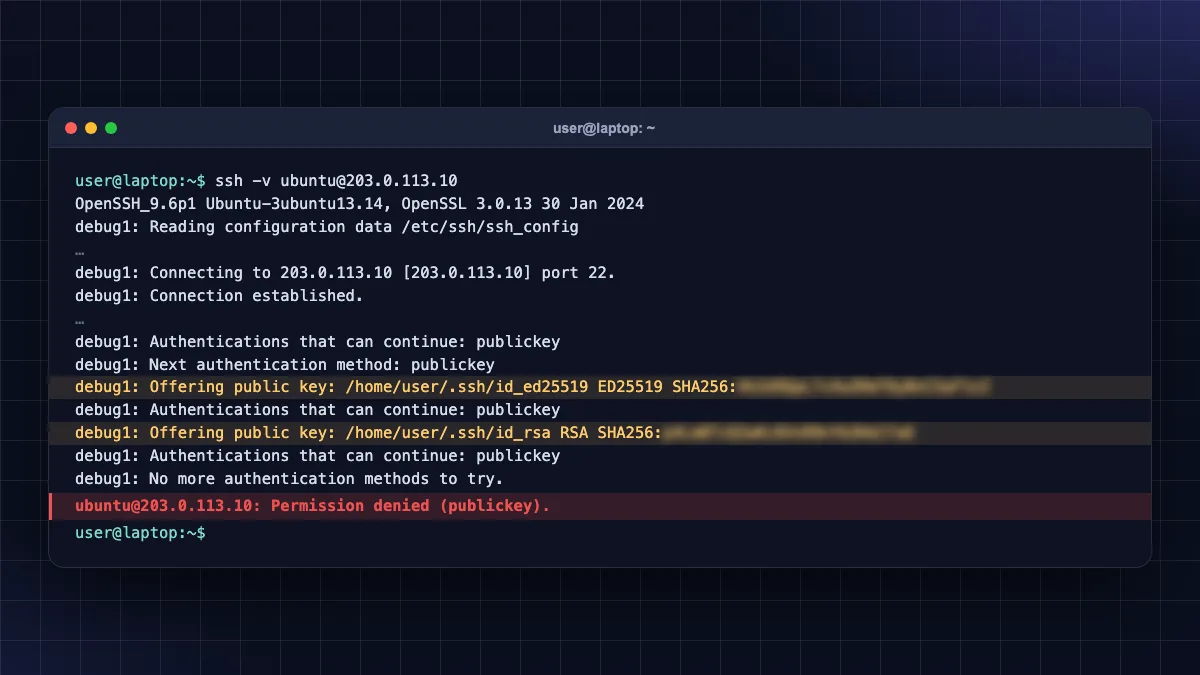
Permission denied (publickey) – detailed checks
- Username: Ubuntu images on AWS and Oracle use
ubuntu, notroot. - Key file: point to the right key with
-i. Runssh -v user@ipto see which keys SSH tries. - Server-side permissions: from the provider's console, run
chmod 700 ~/.sshandchmod 600 ~/.ssh/authorized_keysfor that user. - Key pasted correctly: the public key must be on a single line in
authorized_keys.
Connection timed out – detailed checks
- Is the server running? Check the provider panel.
- Cloud firewall: Oracle Cloud uses Security Lists/NSGs and AWS uses Security Groups – port 22 must be allowed for your IP. Our Oracle Cloud free tier guide shows where these settings live.
- Your network: some college, office and public Wi-Fi networks block outgoing port 22. Try your phone's hotspot to test.
- fail2ban ban: too many failed logins can temporarily ban your IP. Wait, or unban from the web console.
Host key changed – is it an attack?
The "REMOTE HOST IDENTIFICATION HAS CHANGED" warning protects you from man-in-the-middle attacks. If you just reinstalled or rebuilt the VPS, it is expected – remove the old entry with ssh-keygen -R your_ip. If you did not change anything, do not connect; check the fingerprint in your provider's console first.
Fix private key permissions on Windows
If Windows OpenSSH complains about key permissions, remove inherited access so only your account can read the key:
icacls $env:USERPROFILE\.ssh\id_ed25519 /inheritance:r /grant:r "$($env:USERNAME):R"
Copy files to your VPS
Once SSH works, you can move files securely over the same connection.
Copy a local file to the server's home folder with scp:
scp backup.zip [email protected]:~/
Download a file from the server to your current folder:
scp [email protected]:/var/log/nginx/error.log .
Prefer a drag-and-drop window? WinSCP (Windows) and FileZilla (Windows/Mac/Linux) use SFTP over your SSH login – choose the SFTP protocol, port 22, and the same username and key.
Need a VPS to practise on?
If you are learning, a low-cost VPS with root access is the best classroom. Hostinger has India-based VPS options with a simple panel and browser terminal, while Contabo gives lots of RAM for the price – see our Hostinger review and Contabo VPS review for the honest pros and cons.
·.
Key takeaways
- The command is the same everywhere:
ssh username@server_ip(add-p portfor a custom port). - Windows 10/11 has SSH built into PowerShell; PuTTY is optional. Mac and Linux use Terminal; Android uses Termux or Termius.
- Passwords are invisible while you type – that is normal.
- Switch to Ed25519 SSH keys, then disable password login only after testing key login in a second window.
- Most errors come from the wrong username, wrong key, closed port 22 in a cloud firewall, or a reinstalled server's new host key.
- After the first login, update the system, create a sudo user and enable the UFW firewall.
Conclusion
Learning how to connect to VPS using SSH takes just one command – ssh username@server_ip – whether you are on Windows PowerShell, PuTTY, a Mac, Linux or an Android phone with Termux. Set up Ed25519 keys on day one, keep password login off once keys work, and use the error table above when something goes wrong. Your next step is hardening the server: follow our Ubuntu VPS initial server setup guide, or browse more tutorials in our Web Hosting & Servers section.
FAQ
Frequently Asked Questions
How do I connect to my VPS using SSH?
Open PowerShell on Windows or Terminal on Mac and Linux, then run ssh username@your_server_ip, for example ssh [email protected]. Type yes to trust the server the first time, then enter your password or use your SSH key. Use -p followed by the port number if your provider uses a port other than 22.
How do I connect to a VPS on Windows without PuTTY?
Windows 10 (1809 or later) and Windows 11 include the OpenSSH client. Open PowerShell and type ssh root@your_server_ip. If you see "ssh is not recognized", install OpenSSH Client from Settings > System > Optional features, or run Add-WindowsCapability -Online -Name OpenSSH.Client~~~~0.0.1.0 in an administrator PowerShell window.
How do I connect to a VPS from an Android phone?
Install Termux, run pkg update, then pkg install openssh, and connect with ssh root@your_server_ip. Termux works like a normal Linux terminal, including SSH keys. If you prefer an app with saved servers, Termius and ConnectBot are good options. JuiceSSH is no longer updated, so avoid installing it from APK sites.
How do I connect to a VPS using an SSH key?
Create a key with ssh-keygen -t ed25519, then copy the public key to the server using ssh-copy-id user@ip on Mac or Linux, the PowerShell one-liner on Windows, or your provider's control panel. After that, ssh user@ip logs in with the key automatically. Use -i path/to/key if the key has a non-default name.
Why can't I see my password when typing in SSH?
This is a security feature, not a problem. Linux hides passwords completely while you type, without stars or dots, so nobody watching your screen can count the characters. Type the password carefully and press Enter. In PowerShell and PuTTY, you can paste a copied password with a right-click.
How do I fix "Permission denied (publickey)" in SSH?
Check that you are using the correct username, such as ubuntu on AWS and Oracle Ubuntu images instead of root. Point to the right private key with -i, and run ssh -v to see which keys are tried. On the server, make sure your public key is in ~/.ssh/authorized_keys and the folder permissions are 700 and the file 600.
Why does SSH say "Connection timed out"?
A timeout means your computer cannot reach the server on port 22. The IP may be wrong, the server may be off, or a firewall is blocking the port. Check the server status in your provider's panel, allow port 22 in UFW and in the cloud firewall or security list, and try a mobile hotspot in case your Wi-Fi blocks SSH.
What is the default username for SSH on a VPS?
It depends on the provider and image. Hostinger, Contabo and DigitalOcean usually use root. Ubuntu images on AWS EC2 and Oracle Cloud use ubuntu, while Oracle Linux uses opc. Your welcome email or server control panel always lists the correct username, so check there first if login fails.
Is it safe to log in to a VPS as root?
Logging in as root works, but it is risky because one mistake or stolen password gives full control of the server. Create a normal user with sudo rights, log in with SSH keys, and then disable password login and direct root login. This blocks most automated attacks that constantly try to guess root passwords on public servers.
How do I fix "REMOTE HOST IDENTIFICATION HAS CHANGED"?
If you recently reinstalled or rebuilt your VPS, its host key changed, so run ssh-keygen -R your_server_ip to remove the old saved key and connect again. If you did not change anything on the server, do not connect. Compare the fingerprint in your provider's console first, because the warning can indicate a man-in-the-middle attack.
Where to buy
-
Visit official site (opens in new tab)
Need a VPS to practise on?
-
Visit official site (opens in new tab)
Need a VPS to practise on?