Strong Password Examples: How to Create Passwords Hackers Can’t Guess
Cyber Safety 13 min read By Richa Singh
In this articleTable of contents12
Last updated: 10 October 2026
Most hacked accounts in India are not "hacked" with clever tricks. Someone simply guessed or reused a weak password like Rahul@123, India@2024 or a mobile number. If you are searching for strong password examples, you probably want something safe that you can still remember for Gmail, Instagram, IRCTC or net banking. This guide shows you example patterns of strong passwords (and why they work), how to build an easy-to-remember passphrase, the password rules for popular Indian services, which password manager to use, and how two-factor authentication protects you even if a password leaks.
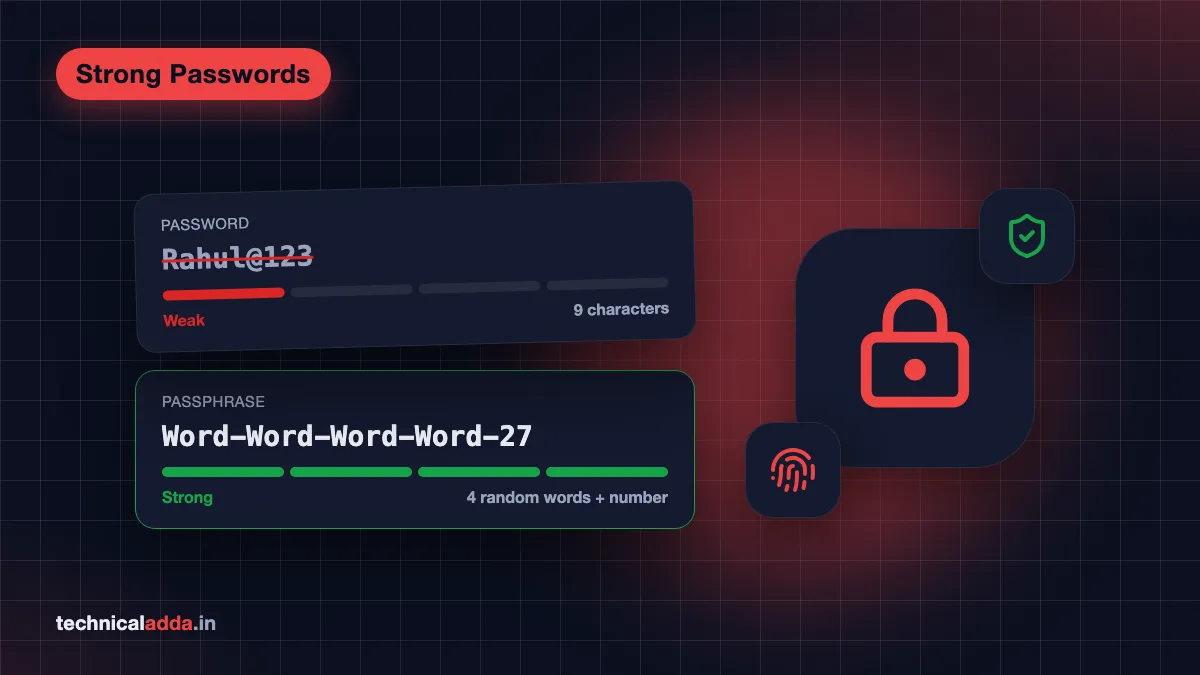
Quick answer: A strong password is long (at least 12–15 characters), unique for every account, and not based on your name, birthday or phone number. The easiest strong password is a passphrase of 4–5 random words with a number and symbol, like the pattern
Word-Word-Word-Word-27. Never copy example passwords from the internet; create your own or use a password manager.
Important: never use these examples as your password
Every password shown in this article – and on any other website – is public. Attackers collect example passwords from blogs and add them to the word lists they use for guessing. So:
- Do not copy any example below. Use them only to understand the pattern.
- Do not make small changes to an example (like changing one digit). Attackers try those variations too.
- Create your own using the method in this guide, or let a password manager generate one.
What makes a password strong?
A strong password is hard for a computer to guess. Attackers use software that tries billions of combinations: common passwords, dictionary words, names, dates and leaked passwords from old data breaches. Your password is strong when it survives all of that.
The four rules that matter most:
- Length beats complexity. Every extra character multiplies the number of guesses needed. The US standards body NIST, in its digital identity guidelines (SP 800-63B) (opens in new tab), now asks services to require at least 15 characters for passwords used on their own (without a second factor), and to allow passwords of at least 64 characters.
- Unique for every account. If one website leaks your password, attackers try it on Gmail, Instagram and banking apps within hours. This is called "credential stuffing".
- Unpredictable. No names, birthdays, pet names, city names, cricket players, phone numbers, vehicle numbers or keyboard patterns like
qwertyand1234. - Secret. Never share it on WhatsApp, never type it on a link someone sent you, and never tell it to "bank officials" or "police" on a call. Real banks and police never ask for passwords or OTPs.
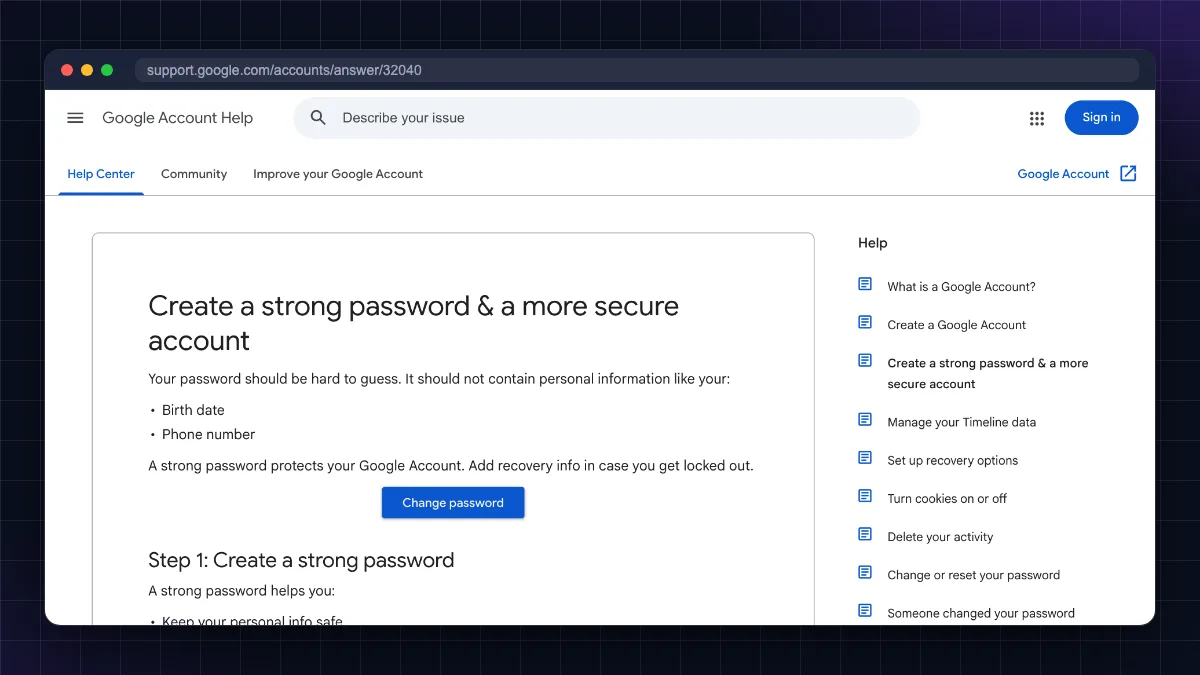
Google's own tips for creating a strong password (opens in new tab) say the same: make it at least 12 characters, avoid personal information and common words, and use a different password for each important account.
Is a "complex" short password strong?
Not really. R@hu1#91 looks complex, but it is only 8 characters and is built from a name and number with common symbol swaps (a→@, l→1). Cracking tools try exactly these swaps first. A 20-character passphrase of random words is much stronger and easier to remember.
Weak vs strong password examples
The table below shows the patterns to avoid and to follow. Remember: the strong examples are public now, so do not use them.
| Weak password | Why it is weak | Strong pattern (example only) | Why it is strong |
|---|---|---|---|
password123 |
Among the most common passwords in breach lists | Tiffin-Galaxy-Pillow-Rocket-58 |
5 random words + number, 30 characters |
Rahul@123 |
Name + common ending | rAin%Kettle!Moped#Sitar |
Random words with mixed symbols, 23 characters |
9876543210 |
Phone number – easy to find | 7Owls.Drink.Chai.At.Noon! |
Silly sentence, 25 characters |
India@2026 |
Country + year | Purple-Auto-Ladder-Mint-Dosa |
Random unrelated words |
qwerty@1 |
Keyboard pattern | vT8#qL2!mZ9$wR4x (generated) |
16 random characters from a password manager |
Priya1995 |
Name + birth year | Brick_Monsoon_Violin_Cactus_3 |
Passphrase with separators |
| Same password everywhere | One leak opens every account | Different password per site | A leak affects only one account |
Why the passphrase examples are strong: each random word is chosen from thousands of possibilities, so four or five of them together create an enormous number of combinations – while staying easy to type and remember.
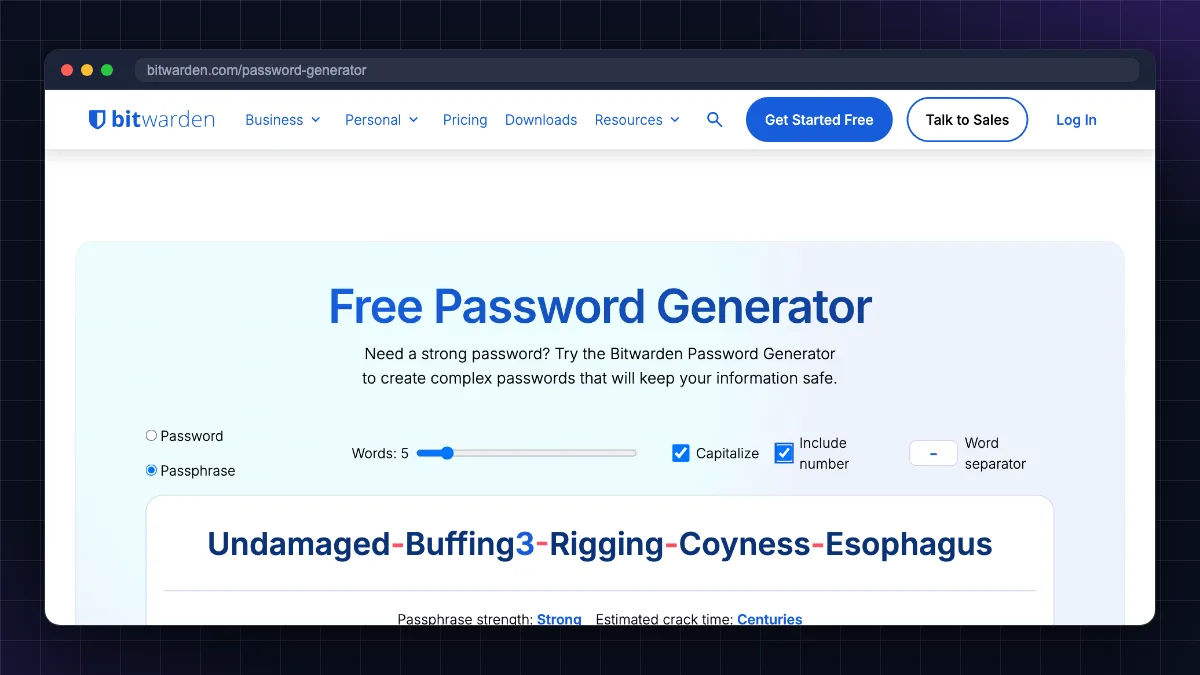
Strong password examples that are easy to remember
Here are four methods to make your own memorable strong password. The outputs are only illustrations.
Method 1: Random word passphrase (best for most people)
- Pick 4–5 unrelated words. Ideally let a password manager or dice choose them – humans are bad at being random.
- Join them with a separator like
-,.or_. - Add a number and capitalise one word if a website demands it.
Pattern: Word-Word-Word-Word-Number → example: Kettle-Nimbu-Glacier-Tabla-73
Method 2: Sentence (story) password
Think of a strange sentence only you would make up, and keep it as a full sentence with spaces or punctuation (where allowed).
Pattern: Number + Noun + Verb + Object + Place + Symbol → example: 3 Goats Ate My Laptop In Shimla!
Avoid famous quotes, film dialogues, song lyrics and cricket commentary lines – these are in attackers' lists.
Method 3: First-letter method (for sites with short maximum lengths)
Some older banking and government sites only allow 8–16 characters. Take a long private sentence and use the first letters, with numbers and symbols.
Sentence: "My sister bought 2 blue scooters in Pune last July!" → Msb2bsiPlJ!
This is shorter, so it is weaker than a passphrase – use it only where length is limited, and always turn on 2FA there.
Method 4: Let a password manager generate it
For accounts you rarely type by hand, a random 16–20 character password like vT8#qL2!mZ9$wR4x is the strongest option. The password manager remembers it for you, so you only need to remember one master passphrase.
"Strong password kaise banaye" – Hindi summary
Strong password banane ke liye: kam se kam 12–15 characters rakhein, 4–5 random words ko jodkar passphrase banayein, apna naam, janamdin ya mobile number kabhi use na karein, har account ka password alag rakhein, aur password manager plus 2FA on karein.
How to create a strong password: step by step
- List your most important accounts first: email (Gmail/Outlook), phone account (Google/Apple ID), banking, UPI apps, Instagram/WhatsApp, IRCTC, DigiLocker and work accounts.
- Secure your email first. Your email can reset every other password, so it needs the strongest, unique passphrase and 2FA.
- Install a password manager (see the comparison below) and create one strong master passphrase of 5+ random words. Write it on paper and keep it at home in a safe place until you remember it.
- Generate a new unique password for each account inside the password manager, and update it on the website.
- Turn on 2FA for every account that offers it.
- Delete old passwords saved in notes apps, WhatsApp "message yourself" chats, screenshots and Excel files.
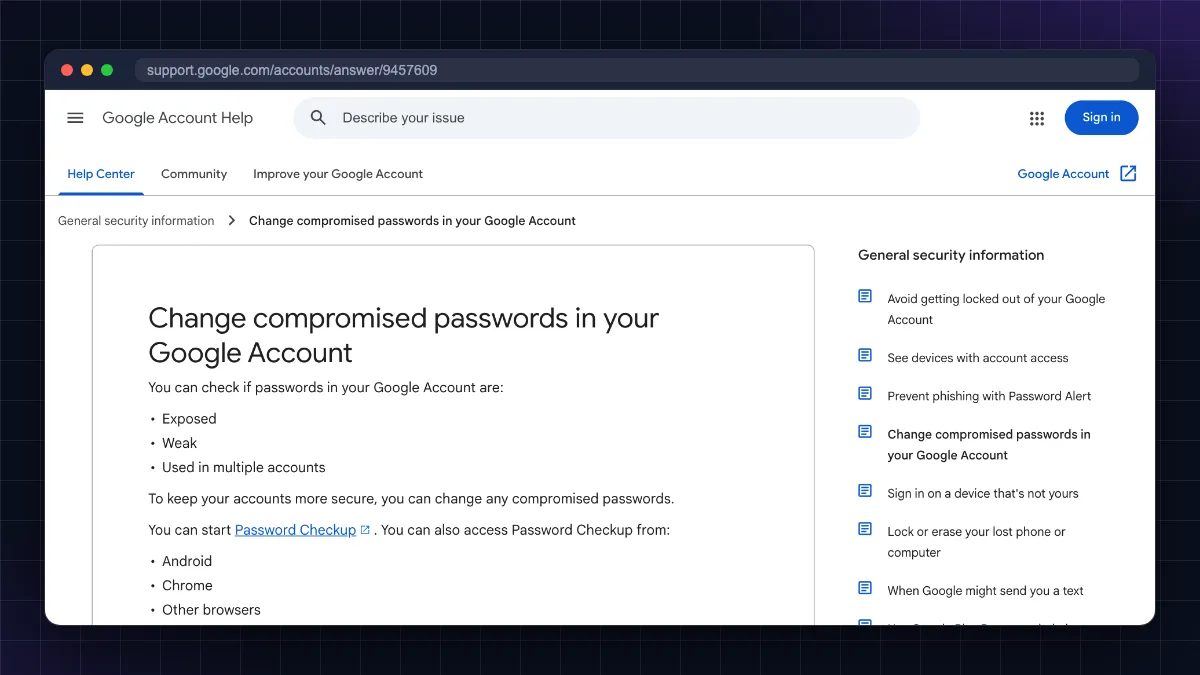
- Check for reused passwords using your password manager's health report or Google Password Checkup.
Password rules for Gmail, Instagram, IRCTC and banking
Each service has its own minimum rules. Meeting the minimum is not enough – aim for a passphrase that easily beats it.
| Service | Minimum rule (as of October 2026) | Recommended |
|---|---|---|
| Gmail / Google Account | Google advises at least 12 characters; ASCII characters only; cannot start or end with a space; blocks very weak and previously used passwords | 15+ character passphrase + passkey or 2FA |
| At least 6 characters (Instagram recommends 8+) | 15+ character passphrase + authenticator-app 2FA | |
| IRCTC | Signup form says "Minimum 11 to Maximum 15 characters allowed"; must include an uppercase letter, a lowercase letter, a number and a special character; rejects 3 repeated characters in a row, simple sequences like 123, abc or qwe, and a password that matches your username |
Use all 15 characters (random, from a password manager); unique; never shared with agents |
| Net banking (rules differ by bank) | Examples: SBI requires 8–20 characters, alphanumeric with at least one special character, and from at least 3 character types with no long letter or digit sequences; HDFC Bank's NetBanking password (IPIN) can be up to 15 characters, and HDFC advises 8–15 alphanumeric; ICICI Bank advises letters, numbers and special characters. Check your bank's change-password screen | Longest allowed; never reuse; use bank's own app login |
| UPI PIN | 4 or 6 digits – this is a PIN, not a password | Never share; avoid birth year or 1234 |
| Wi-Fi router (WPA2/WPA3) | 8–63 characters | 16+ character passphrase |
Gmail password tips
- Gmail is the master key to your phone, YouTube, Google Pay and Drive. Use a unique passphrase.
- Turn on passkeys (fingerprint or face unlock) and 2-Step Verification. With a passkey, there is no password to steal.
- Add a recovery phone number and email that you control.
Instagram password tips
- Instagram account takeovers often start with a fake "copyright violation" or "blue tick" DM linking to a phishing page. Only change your password inside the app or at instagram.com.
- Use an authenticator app for 2FA instead of SMS where possible.
IRCTC password tips
- Never share your IRCTC login with travel agents or Telegram "tatkal" groups – shared IDs get misused and can be blocked.
- IRCTC's signup form needs 11–15 characters with upper and lowercase letters, a number and a special character, so a long passphrase will not fit. Use the full 15 characters with a random mix generated by your password manager, or the first-letter method above. Avoid runs like
123orabcand triple letters, which the form rejects. - Use a unique password; IRCTC accounts are linked to your Aadhaar and payment details.
Banking password tips
- Your net banking password, MPIN, UPI PIN and card PIN should all be different from each other.
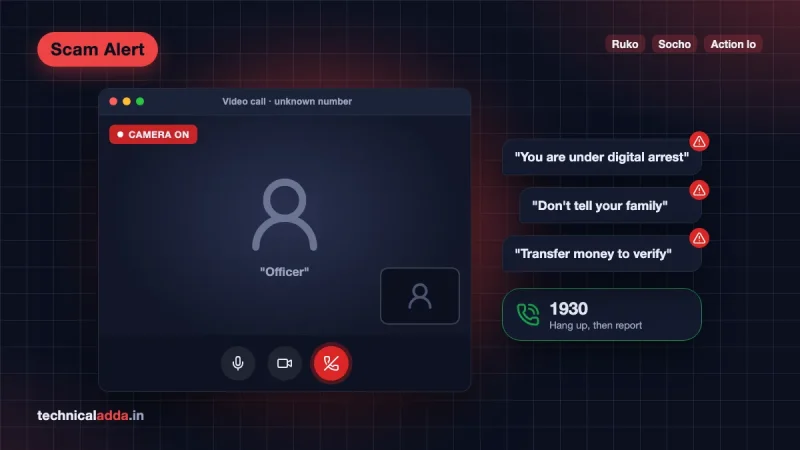
- No bank employee, RBI official or police officer will ask for your password, OTP or PIN – that is always a scam. Read our explainer on the digital arrest scam to see how fraudsters use fear to get these details.
Best password managers compared
A password manager stores all your passwords in an encrypted vault, fills them in automatically and generates new strong ones. You remember only one master password.
| Password manager | Free plan | Paid price (as of October 2026) | Best for |
|---|---|---|---|
| Bitwarden | Yes – unlimited passwords on unlimited devices | Premium $19.80/year; Families $47.88/year for up to 6 users | Best free option for most people |
| NordPass | Yes – but no multi-device access, health check or breach scanner | Premium from $1.39/month on a 2-year plan; Family from $2.49/month (6 users), excluding tax; 30-day money-back | Simple design, good if you also use NordVPN |
| 1Password | No (14-day free trial) | Individual $3.99/month, Families $5.99/month (5 users), billed yearly; first-year promo prices may apply | Polished apps, families, travel mode |
| Google Password Manager | Yes – built into Chrome and Android | Free | Android + Chrome users who want zero setup |
| Apple Passwords | Yes – built into iPhone, iPad, Mac | Free | iPhone and Mac users |
Prices are in US dollars on the official pricing pages, may exclude tax, and change often. Check the live price before you buy.
Which one should you pick?
- Students and most people: Start with Bitwarden Free. It syncs across phone and laptop at no cost, is open source and independently audited.
- Android + Chrome only: Google Password Manager is already on your phone. Turn on on-device encryption for extra protection, and use Password Checkup to find weak or leaked passwords.
- iPhone + Mac only: Apple's Passwords app is free and works well inside the Apple ecosystem.
- Want a polished paid app: NordPass or 1Password. NordPass is cheaper on long plans; 1Password has strong family-sharing features.
Who should not rely only on a browser's built-in manager: people who use multiple browsers or a mix of Windows, iPhone and Android – a cross-platform manager like Bitwarden or NordPass is easier.
Safety tips for any password manager:
- Make your master password a 5–6 word passphrase you have never used anywhere else.
- Turn on 2FA for the password manager account itself.
- Save the recovery code/emergency kit offline.
- Lock your phone with a strong PIN or biometrics – your phone unlocks the vault.
Turn on two-factor authentication (2FA)
Even a perfect password can leak through a phishing page or a hacked website. Two-factor authentication adds a second check, so a stolen password alone is not enough.
Types of 2FA, from strongest to weakest:
- Passkeys / security keys – log in with fingerprint, face or a physical key. Very resistant to phishing.
- Authenticator apps – Google Authenticator, Microsoft Authenticator, or the one in your password manager. Codes change every 30 seconds and stay on your phone.
- Prompts on your phone – "Is it you trying to sign in?" on Google and Microsoft accounts.
- SMS OTP – better than nothing, but vulnerable to SIM-swap fraud and OTP-sharing scams.
Turn on 2FA first for email, then social media, then everything else. Save backup codes offline in case you lose your phone.
Golden rule: 2FA only works if you never share the code. Anyone who asks for your OTP on a call, SMS or WhatsApp is a fraudster.
What to do if your password is leaked
Signs your password may be compromised: login alerts you did not trigger, friends receiving strange messages from your account, password-reset emails you did not request, or a breach warning from your browser or password manager.
- Change the password immediately from the official app or website – not from a link in an email or SMS.
- Change it on every other site where you used the same or a similar password.
- Log out of all sessions (Google, Instagram and WhatsApp all have "log out of other devices" options).
- Turn on 2FA and check recovery email/phone have not been changed.
- Check your phone for malware if passwords keep leaking – see how to check if your phone is hacked.
- Beware of fake websites asking you to "verify" your account; learn how to check if a website is fake.
- If money is lost, call the national cyber-crime helpline 1930 immediately and file a complaint at cybercrime.gov.in (opens in new tab). Our guide on how to report cyber fraud online in India explains every step. You can also report suspected fraud calls and messages through the Chakshu facility on sancharsaathi.gov.in.
Key takeaways
- Long beats complex: aim for 15+ characters, and use a passphrase of 4–5 random words.
- Never use example passwords from any website, and never reuse a password across accounts.
- Avoid names, birthdays, phone numbers, vehicle numbers and keyboard patterns.
- A password manager like Bitwarden (free), Google Password Manager, NordPass or 1Password makes unique passwords effortless.
- Turn on 2FA, preferring passkeys or an authenticator app over SMS.
- If money is lost to fraud, call 1930 and report at cybercrime.gov.in right away.
Conclusion
Strong password examples are useful only to learn the pattern: long, random, unique and never personal. Build your own passphrase, let a password manager handle the rest, and switch on 2FA or passkeys for email, banking and social media. Do this for your top five accounts today – it takes under an hour. Next, learn the warning signs of fraud in our guide on how to report cyber fraud online in India, or read more safety guides in our Cyber Safety section.
FAQ
Frequently Asked Questions
What is an example of a strong password?
A strong password pattern is four or five random words with a number and separator, such as Tiffin-Galaxy-Pillow-Rocket-58. It is long, unpredictable and easy to remember. However, never use any example you see online, because published passwords end up in attackers' guessing lists. Create your own using the same pattern or a password manager.
How many characters should a strong password have?
Use at least 12 characters, and preferably 15 or more. Google advises at least 12 characters for Google Accounts, and NIST guidelines ask services to require at least 15 characters for passwords used without a second factor. Longer passphrases are both stronger and easier to remember than short complex passwords.
What is a strong password that is easy to remember?
A passphrase is the easiest strong password to remember. Join four or five unrelated words with hyphens and add a number, or make up an odd sentence like a mini story. Avoid famous quotes, song lyrics and film dialogues. Store it in a password manager so you do not need to remember dozens of them.
Is my mobile number or date of birth a good password?
No. Mobile numbers, dates of birth, anniversaries and vehicle numbers are easy to find on social media, KYC leaks and WhatsApp profiles. Attackers try these first, especially combined with your name. Use a random passphrase instead, and keep your UPI PIN and bank PIN different from any personal number.
What are the password rules for IRCTC?
As of October 2026, IRCTC's registration form requires 11 to 15 characters, with at least one uppercase letter, one lowercase letter, one number and one special character. It rejects simple sequences like 123 or abc, three repeated characters in a row, and a password that matches your username. Use all 15 characters with a random mix from a password manager. Never share your IRCTC login with agents or Telegram groups, because shared IDs can be misused or blocked.
Should I use a password manager?
Yes. A password manager creates and remembers a unique strong password for every account, so one leaked website cannot open your other accounts. Bitwarden's free plan works on unlimited devices, Google Password Manager is built into Android and Chrome, and Apple Passwords is free on iPhone and Mac. Protect the manager with a strong master passphrase and 2FA.
Are password managers safe?
Reputable password managers encrypt your vault on your device with your master password before syncing, so the company cannot read it. The main risks are a weak master password, malware on your device or falling for phishing. Use a long unique master passphrase, turn on 2FA for the manager, keep your phone and laptop updated, and save the recovery kit offline.
How often should I change my password?
You do not need to change strong, unique passwords on a fixed schedule. Current NIST guidance says services should not force regular changes, because people then choose weaker, predictable passwords. Change a password immediately if a website reports a breach, you see a suspicious login alert, or you typed it into a fake page.
What is the difference between a password and a passkey?
A password is a secret you type and can be phished or leaked. A passkey is a login method stored on your phone or laptop that you unlock with fingerprint, face or screen lock. It works only on the genuine website, so it cannot be phished. Google, Apple, Microsoft and many apps now support passkeys.
Is 2FA necessary if I have a strong password?
Yes. A strong password stops guessing, but it can still be stolen through phishing pages, malware or a website data breach. Two-factor authentication adds a second check, such as a passkey, an authenticator app code or a phone prompt, so a stolen password alone cannot open your account. Never share 2FA codes with anyone.