How to Take Screenshot in Laptop: Win + Shift + S, Fn + PrtSc and Mac Keys
How-To & Troubleshooting 13 min read By David Johnson
In this articleTable of contents14
Last updated: 10 October 2026
You need to save a payment confirmation, share an error with IT support, or send class notes on WhatsApp, and suddenly you are not sure which key to press. This guide explains how to take screenshot in laptop for every common setup: Windows 11, Windows 10, brand-specific keys on HP, Dell, Lenovo, Asus and Acer, MacBook, and Chromebook. You will also learn how to take a scrolling (full-page) screenshot, where your screenshots are saved, and what to do when the Print Screen key does nothing. All shortcuts are checked against Microsoft, Apple and Google support pages.
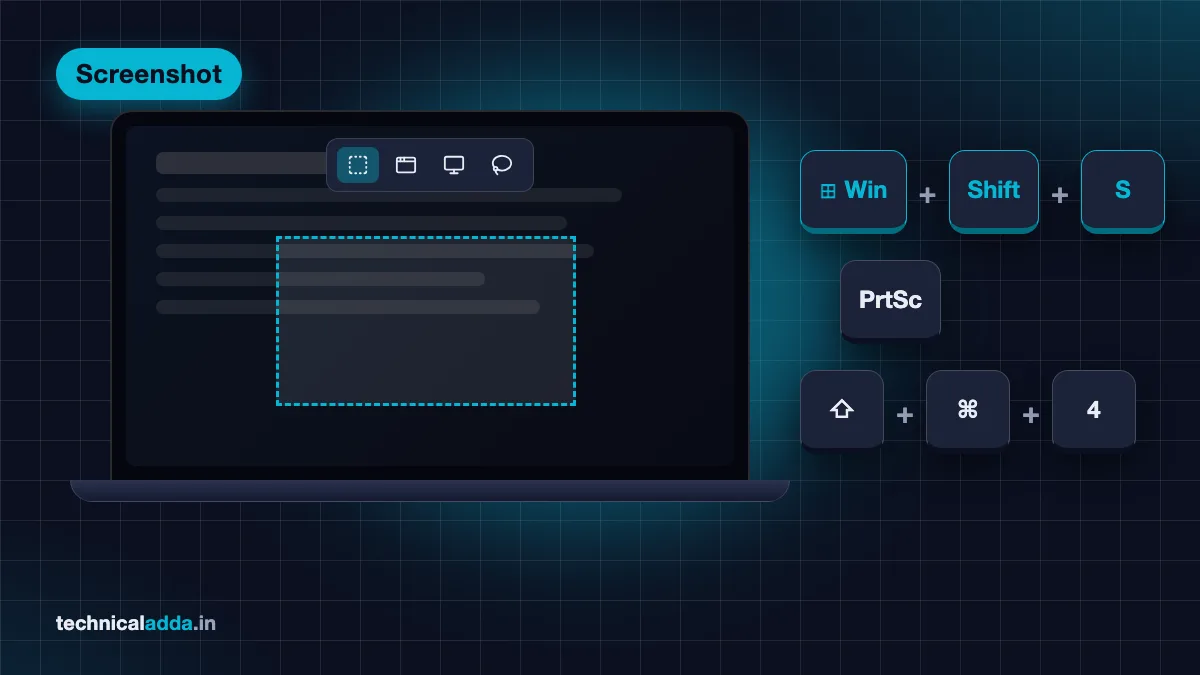
Quick answer: On a Windows laptop, press Windows + Shift + S to select any area, or Windows + PrtSc to save the full screen to Pictures > Screenshots. On a MacBook, press Shift + Command + 3 (full screen) or Shift + Command + 4 (area). On a Chromebook, press Shift + Ctrl + Show windows. If PrtSc does nothing, try Fn + PrtSc.
All screenshot shortcuts at a glance
Bookmark this table. It covers the shortcuts most people need.
| What you want | Windows 11 / 10 | MacBook | Chromebook |
|---|---|---|---|
| Select an area | Windows + Shift + S | Shift + Command + 4 | Shift + Ctrl + Show windows, then choose Partial |
| Full screen, saved as a file | Windows + PrtSc | Shift + Command + 3 | Ctrl + Show windows |
| Full screen to clipboard | PrtSc (see note below) | Control + Shift + Command + 3 | None |
| Active window only | Alt + PrtSc | Shift + Command + 4, then Space | Screenshot menu > Window |
| Screenshot toolbar / options | Snipping Tool app | Shift + Command + 5 | Shift + Ctrl + Show windows |
| Record the screen | Windows + Shift + R (Windows 11) | Shift + Command + 5 | Shift + Ctrl + Show windows > Screen record |
| Game screenshot | Windows + Alt + PrtSc | None | None |
Note on PrtSc: on most up-to-date Windows 11 laptops, PrtSc now opens the Snipping Tool selection bar instead of silently copying the screen. You can change this (explained below).
How to take screenshot in laptop on Windows 11
Windows 11 has five built-in ways to capture the screen. You do not need any extra app.
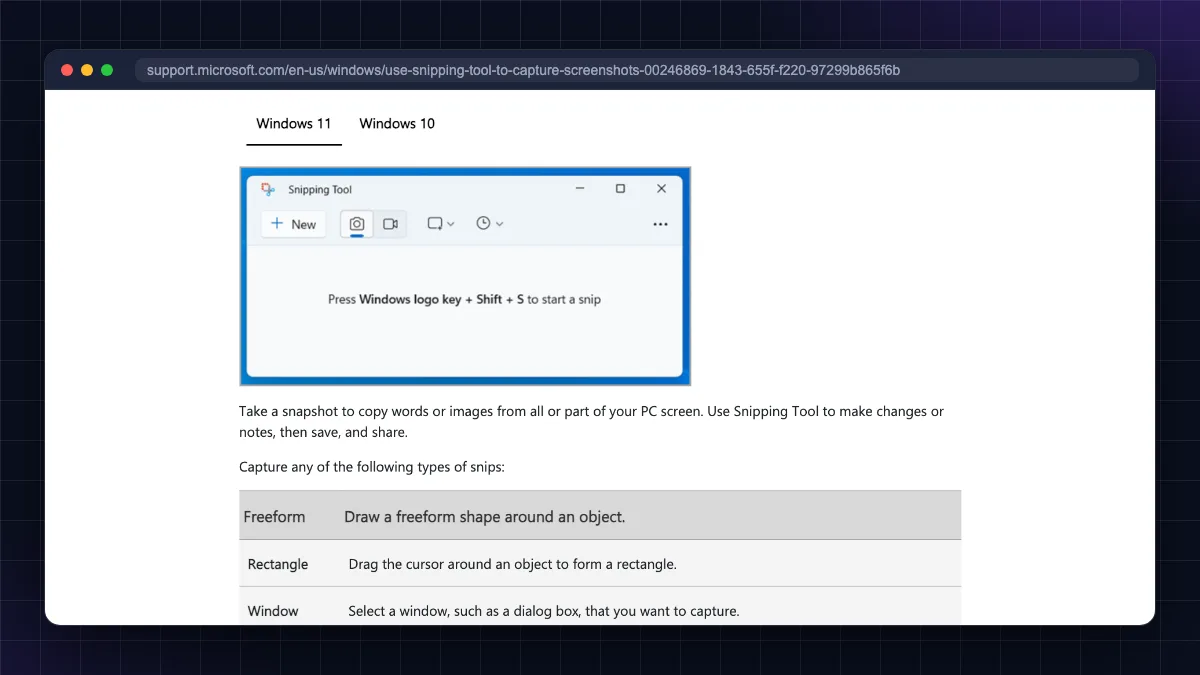
Method 1: Windows + Shift + S (best for most people)
- Press Windows + Shift + S together.
- The screen dims and a small toolbar appears at the top.
- Choose a mode: Rectangle, Window, Full screen or Freeform.
- Drag over the area you want.
- The screenshot is copied to the clipboard and a notification appears. Click it to annotate, or paste it anywhere with Ctrl + V (WhatsApp Web, Word, Gmail, Paint).
According to Microsoft's Snipping Tool support page (opens in new tab), Windows 11 also saves these snips automatically to your Screenshots folder, so you do not lose them even if you forget to paste.
Method 2: Windows + PrtSc (full screen saved as a file)
Press Windows + PrtSc. The screen dims for a moment, and the image is saved as a PNG file in Pictures > Screenshots. This is the fastest way to take many screenshots in a row, for example during an online exam practice test or a long form.
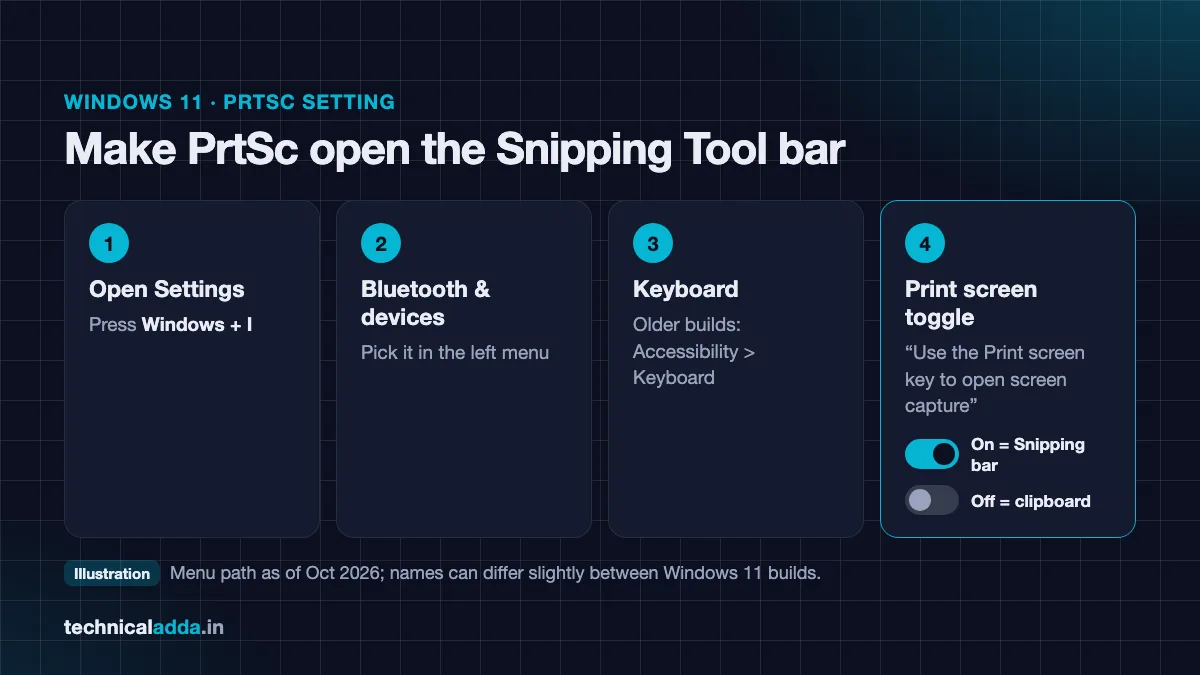
Method 3: PrtSc key alone
What PrtSc does depends on one setting:
- If "Use the Print screen key to open screen capture" is On (the default on most updated Windows 11 PCs), PrtSc opens the same Snipping Tool bar as Windows + Shift + S.
- If it is Off, PrtSc copies the whole screen to the clipboard. Paste it into Paint, Word or a chat with Ctrl + V.
To change it, open Settings > Accessibility > Keyboard and toggle the Print Screen option. The exact label can differ slightly between Windows 11 builds.
Method 4: Alt + PrtSc (active window only)
Click the window you want, then press Alt + PrtSc. Only that window is copied to the clipboard, useful when you do not want your taskbar, open tabs or notifications in the image.
Method 5: Snipping Tool app (delay, video and text)
Search Snipping Tool in the Start menu. Extra features:
- Delay: waits a few seconds before the capture, so you can open a drop-down menu first.
- Record: press Windows + Shift + R to record a part of the screen as video.
- Text actions: copy text from an image (OCR) and quickly redact emails and phone numbers.
- Annotate with pen, highlighter, shapes and crop.
Bonus: Xbox Game Bar
Press Windows + Alt + PrtSc to capture the current app or game, or Windows + G to open the Game Bar. Game Bar captures are saved in Videos > Captures. It is designed mainly for games and full-screen apps.
How to take screenshot on Windows 10
Windows 10 shortcuts are almost the same:
- PrtSc: copies the full screen to the clipboard (unless the "Print Screen shortcut" in Settings > Ease of Access > Keyboard is turned on, which opens screen snipping instead).
- Windows + PrtSc: saves the full screen to Pictures > Screenshots.
- Alt + PrtSc: copies the active window.
- Windows + Shift + S: opens the snipping bar to select an area (copied to the clipboard; click the notification to save).
- Snipping Tool: search for it in the Start menu for delay and free-form snips.
The official Microsoft keyboard shortcuts page (opens in new tab) lists all of these. Windows 10 does not have the built-in screen-recording and text-extraction features of the newer Windows 11 Snipping Tool.
Still on Windows 7? Use PrtSc and paste into Paint, or open the Snipping Tool from the Start menu. Windows 7 no longer gets security updates, so plan an upgrade. If your laptop is struggling, our guide to fix a slow Windows 11 laptop may help after upgrading.
Brand-specific keys: HP, Dell, Lenovo, Asus and Acer
The Windows shortcuts above work on every brand. What changes is where the PrtSc key is and whether you need the Fn key.
The Fn rule: if "PrtSc" is printed on a key in a different colour or as a second label (sharing the key with F10, F11, Insert, Home or End), press Fn + PrtSc. Many laptops also have Fn Lock (often Fn + Esc, or a key with a padlock icon) that swaps the top row between function keys and special keys.
| Brand | Where PrtSc usually is | If PrtSc alone does nothing |
|---|---|---|
| HP (Pavilion, Victus, EliteBook, ProBook) | Top row, near the right end, sometimes labelled "prt sc" | Try Fn + PrtSc, or toggle Fn Lock |
| Dell (Inspiron, Vostro, Latitude) | Top row, often shared with F10 or another key, or near Insert/Delete | Try Fn + PrtSc; check Fn Lock (Fn + Esc on many models) |
| Lenovo (IdeaPad, ThinkPad, ThinkBook) | Top row on most IdeaPads; on some ThinkPads near the right Alt key | Try Fn + PrtSc; switch "Fn Lock"/Hotkey mode in Lenovo Vantage or BIOS |
| Asus (VivoBook, ZenBook, TUF, ROG) | Top row near Delete, or a dedicated key | Try Fn + PrtSc; check Fn Lock (often Fn + Esc) |
| Acer (Aspire, Nitro, Swift) | Top row, near Delete or Home | Try Fn + PrtSc; check Fn Lock |
Exact key placement varies from model to model, even within one brand, so look for any key labelled PrtSc, PrtScn, Prt Sc or Print Screen. If you cannot find one, use Windows + Shift + S. It works on every Windows laptop without a PrtSc key.
HP tip: many HP laptops ship with "action keys" enabled, so the top row controls brightness and volume by default. That is why Fn + PrtSc is often needed on HP.
Lenovo tip: if the top row behaves unexpectedly, open Lenovo Vantage (or the BIOS) and look for the Fn and Ctrl / Hotkey Mode settings.
Buying a new laptop? A full-size keyboard with a dedicated PrtSc key is a small but real comfort; see our best laptops for students under ₹50,000.
How to take screenshot without the PrtSc key
If the key is missing, broken or your keyboard is detached on a 2-in-1:
- Windows + Shift + S: the best alternative.
- Snipping Tool from the Start menu: click New.
- On-Screen Keyboard: press Windows + R, type
osk, press Enter, then click the PrtScn key on screen. - Browser screenshot tools: Edge, Chrome and Firefox have their own (see the scrolling section).
How to take screenshot on a MacBook
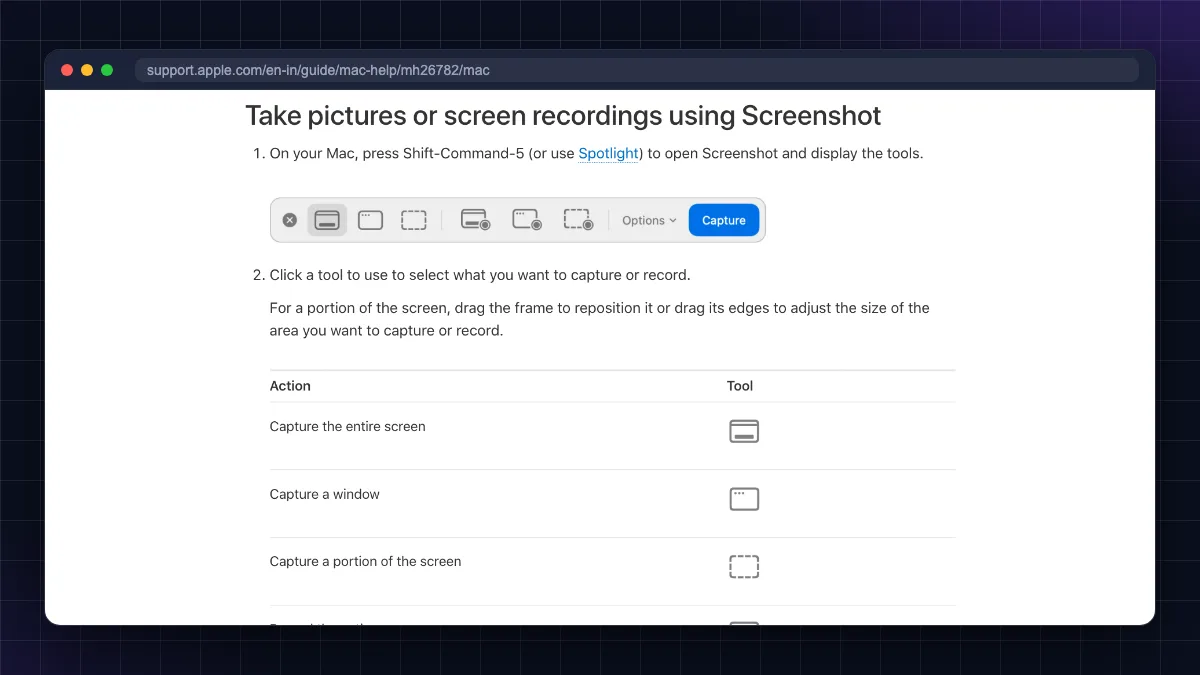
From Apple's screenshot support page (opens in new tab):
- Shift + Command + 3: captures the entire screen.
- Shift + Command + 4: drag the crosshair to capture an area. Press Esc to cancel.
- Shift + Command + 4, then Space bar: click a window or menu to capture just that. Hold Option while clicking to remove the window shadow.
- Shift + Command + 5: opens the Screenshot toolbar with options for screen recording, a timer, and where to save.
By default, screenshots are saved to the Desktop. A thumbnail appears in the corner; click it to mark up, or drag it straight into an email or chat.
Copy instead of save: add Control to any shortcut, for example Control + Shift + Command + 4, to copy the screenshot to the clipboard.
Change the save folder: press Shift + Command + 5, click Options, and choose Documents, Clipboard, Mail, Messages or another folder. This keeps your Desktop tidy.
How to take screenshot on a Chromebook
From Google's Chromebook help page (opens in new tab):
- Screenshot key: if your Chromebook keyboard has one, press it to open the capture menu.
- Shift + Ctrl + Show windows: opens the capture menu. Choose Full screen, Partial or Window. (The Show windows key looks like a rectangle with two lines, in the top row.)
- Ctrl + Show windows: quick full-screen screenshot.
- External keyboard without Show windows: press Ctrl + Shift + F5.
- Quick Settings: select the time at the bottom right and choose Screen capture.
Screenshots and screen recordings go to the Downloads folder by default. You can choose a different folder from the capture menu's Settings.
How to take a scrolling screenshot in laptop
Windows and macOS do not have a universal "scrolling screenshot" button like many Android phones. For web pages, use your browser. It is the easiest and cleanest method.
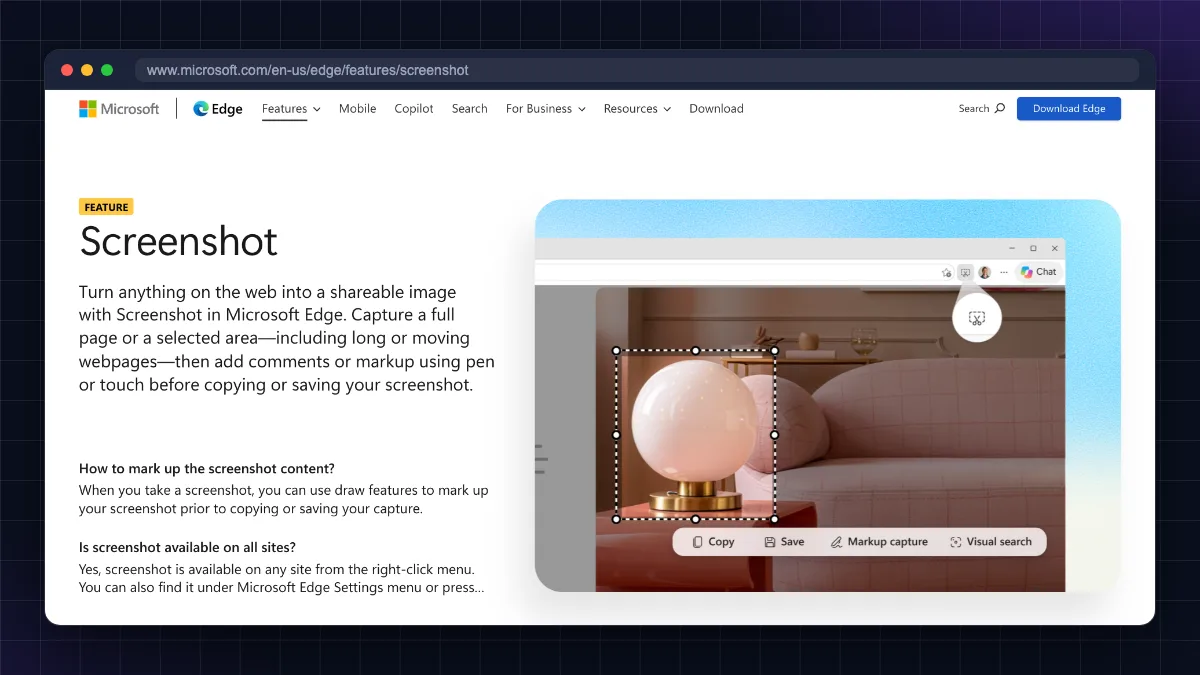
Microsoft Edge (Windows 11 and 10)
- Open the web page and press Ctrl + Shift + S (or choose Screenshot from the right-click or … menu).
- Choose Capture full page.
- Edit or draw if needed, then click Save.
Google Chrome
- Press Ctrl + Shift + I (Mac: Option + Command + I) to open Developer Tools.
- Press Ctrl + Shift + P (Mac: Command + Shift + P) to open the command menu.
- Type screenshot and choose Capture full size screenshot.
- The PNG of the whole page downloads automatically.
Mozilla Firefox
Right-click on the page, choose Take Screenshot, then Save full page. You can also press Ctrl + Shift + S.
Scrolling inside apps (not web pages)
For PDFs, Excel sheets or chat apps, use a free tool such as ShareX (open source, Windows), which has a scrolling capture mode. Another trick: print or export the document as a PDF instead of screenshotting it. For a locked PDF, see our guide to unlock a PDF password legally.
Where are screenshots saved?
| Method | Where it goes |
|---|---|
| Windows + PrtSc | This PC > Pictures > Screenshots |
| Windows + Shift + S / Snipping Tool (Windows 11) | Clipboard, plus auto-saved in Pictures > Screenshots |
| PrtSc alone (setting off) / Alt + PrtSc | Clipboard only (paste with Ctrl + V) |
| Xbox Game Bar (Windows + Alt + PrtSc) | Videos > Captures |
| MacBook shortcuts | Desktop (change via Shift + Command + 5 > Options) |
| Chromebook | Downloads folder |
| Edge "Capture full page" | Downloads folder (or where you choose) |
Tip: press Windows + V to open clipboard history and find earlier screenshots you copied but never pasted (turn on clipboard history the first time).
OneDrive note: if OneDrive is set to "Automatically save screenshots I capture to OneDrive", your screenshots may go to the OneDrive > Pictures > Screenshots folder instead. Screenshots fill up cloud storage quickly. Our guide to free up Google storage covers clean-up habits that also apply to OneDrive.
Print Screen not working? 9 fixes
Work through these in order:
- Try Fn + PrtSc. The most common fix on HP, Dell, Lenovo and Asus laptops.
- Toggle Fn Lock (often Fn + Esc) and test again.
- Check the Print Screen setting in Settings > Accessibility > Keyboard (Windows 11) or Settings > Ease of Access > Keyboard (Windows 10). If it opens Snipping Tool, look for the dimmed toolbar at the top. It is easy to miss.
- Close apps that take over PrtSc: OneDrive, Dropbox, Lightshot, Greenshot or Snagit can capture the key. Check their settings or quit them from the system tray.
- Turn on Snipping Tool notifications in Settings > System > Notifications so you can see when a snip is taken.
- Repair or reset Snipping Tool: Settings > Apps > Installed apps > Snipping Tool > Advanced options > Repair, then Reset.
- Update Windows and keyboard drivers from Windows Update and your laptop maker's support app (HP Support Assistant, Dell SupportAssist, Lenovo Vantage, MyASUS, Acer Care Center).
- Test with an external USB keyboard. If PrtSc works there, the laptop key or keyboard driver is the issue.
- Restart the laptop. Simple, but it clears stuck keyboard hooks and clipboard issues.
If nothing works, use Windows + Shift + S or the Snipping Tool app while you sort out the key.
Edit, extract text and share screenshots safely
- Crop and annotate in Snipping Tool (Windows 11), Markup (Mac) or the Chromebook Gallery app.
- Copy text from an image with Snipping Tool's Text actions on Windows 11, or Live Text on newer Macs, handy for copying a UPI transaction ID or an error code.
- Reduce file size before emailing by saving as JPG instead of PNG.
- Protect your privacy. Before sharing a screenshot on WhatsApp or social media, blur or crop out UPI IDs, bank account numbers, OTPs, Aadhaar numbers, addresses and email IDs. Snipping Tool's Quick redact can hide emails and phone numbers automatically. Never share a screenshot of an OTP with anyone. Banks and government agencies never ask for it.
The laptop screenshot keys worth memorising
- Windows + Shift + S captures any area on Windows 11 and 10, even on laptops with no PrtSc key.
- Windows + PrtSc saves full-screen screenshots directly to Pictures > Screenshots.
- On HP, Dell, Lenovo, Asus and Acer laptops, use Fn + PrtSc if PrtSc alone does nothing.
- MacBook: Shift + Command + 3, 4 or 5; Chromebook: Shift + Ctrl + Show windows.
- For scrolling screenshots of web pages, use Edge's Capture full page, Chrome DevTools or Firefox's Save full page.
- Crop or blur UPI IDs, OTPs, account numbers and Aadhaar details before you share a screenshot.
Which screenshot method should you start with?
On Windows, start with Windows + Shift + S: for most people, that is how to take screenshot in laptop every day. Keep Windows + PrtSc for quick full-screen files, Fn + PrtSc on many HP, Dell, Lenovo, Asus and Acer models, Shift + Command shortcuts on a MacBook and Shift + Ctrl + Show windows on a Chromebook. Use your browser for scrolling screenshots, check the Screenshots folder when you cannot find an image, and blur personal details before sharing. Want your laptop to feel faster while you work? Read our guide on fixing a slow Windows 11 laptop, or browse more How-To & Troubleshooting guides.
FAQ
Frequently Asked Questions
What is the shortcut key to take a screenshot in a laptop?
The most useful shortcut on Windows laptops is Windows + Shift + S, which lets you select any area and copies it to the clipboard. Windows + PrtSc saves the full screen to Pictures > Screenshots, and Alt + PrtSc captures the active window. On a MacBook use Shift + Command + 3 or 4, and on a Chromebook use Shift + Ctrl + Show windows.
How do I take a screenshot on an HP laptop?
Press Windows + Shift + S to capture an area, or Windows + PrtSc to save the full screen. If pressing PrtSc does nothing on your HP laptop, press Fn + PrtSc, because many HP models use the top row for brightness and volume by default. Screenshots saved with Windows + PrtSc appear in Pictures > Screenshots.
How do I take a screenshot on a Dell laptop?
Use Windows + Shift + S for an area or Windows + PrtSc for a full-screen file. On many Dell laptops, PrtSc shares a key with another function, so you may need Fn + PrtSc. You can also toggle Fn Lock, often with Fn + Esc, so the key works without holding Fn. Files go to Pictures > Screenshots.
How do I take a screenshot on a Lenovo laptop?
Press Windows + Shift + S or Windows + PrtSc. On IdeaPad models PrtSc is usually on the top row and may need Fn. Some ThinkPad models place PrtSc near the right Alt key. If the top row does not behave as expected, change the Fn Lock or hotkey mode in Lenovo Vantage or the BIOS settings.
Where do screenshots go on a Windows laptop?
Screenshots taken with Windows + PrtSc are saved in This PC > Pictures > Screenshots. On Windows 11, snips taken with Windows + Shift + S or the Snipping Tool are also auto-saved there. PrtSc alone and Alt + PrtSc only copy to the clipboard, and Xbox Game Bar captures go to Videos > Captures. OneDrive may redirect them to its own folder.
How do I take a scrolling screenshot on a laptop?
For web pages, open Microsoft Edge, press Ctrl + Shift + S and choose Capture full page. In Chrome, open Developer Tools, press Ctrl + Shift + P, type screenshot and choose Capture full size screenshot. In Firefox, right-click and choose Take Screenshot, then Save full page. For other apps, use a free tool like ShareX.
Why is my Print Screen key not working?
The usual reasons are that the key needs Fn on your laptop, Fn Lock is set the other way, another app such as OneDrive or Lightshot has taken over the key, or Windows is set to open Snipping Tool and you missed the toolbar. Try Fn + PrtSc, check Settings > Keyboard, close screenshot apps and update drivers.
How do I take a screenshot on a laptop without the PrtSc key?
Use Windows + Shift + S, which works on every Windows 10 and 11 laptop without needing PrtSc. You can also open the Snipping Tool from the Start menu, or use the On-Screen Keyboard (press Windows + R, type osk) and click its PrtScn key. Browsers like Edge also have built-in screenshot tools.
How do I take a screenshot on a MacBook?
Press Shift + Command + 3 for the whole screen, Shift + Command + 4 to select an area, or Shift + Command + 4 then Space to capture a window. Shift + Command + 5 opens a toolbar with recording, timer and save options. Screenshots save to the Desktop by default, and adding Control copies them to the clipboard instead.
How do I take a screenshot on a Chromebook?
Press Shift + Ctrl + Show windows to open the capture menu, then choose full screen, partial or window. Ctrl + Show windows takes a quick full-screen shot, and some Chromebooks have a dedicated Screenshot key. With an external keyboard, use Ctrl + Shift + F5. Screenshots are saved in the Downloads folder by default.