Linux Commands for Beginners PDF: 60 Commands That Cover Almost All VPS Work
Web Hosting & Servers 15 min read By Xavio Thomas
In this articleTable of contents15
Last updated: 10 October 2026
The black terminal window looks scary the first time you open it. But Linux is not about memorising hundreds of commands. Around 60 commands cover almost everything a beginner, a student or a new VPS owner does every day. This guide is a complete linux commands for beginners pdf-style reference: commands grouped by task (files, permissions, processes, networking, packages, users and disk), each with a real example and a one-line explanation. At the end you get a one-page cheat-sheet table and a downloadable PDF version to keep on your desk or phone.
Quick answer: The most important Linux commands for beginners are
pwd,ls,cd,mkdir,cp,mv,rm,cat,nano,grep,chmod,sudo,ps,kill,ping,ssh,apt,dfandfree. Learn them in groups (files, permissions, processes, network, packages, disk) and practise on Ubuntu using WSL, a Mac terminal or a cheap VPS.
Where to practise Linux commands (Windows, Mac, Android, VPS)
You do not need to wipe your laptop and install Linux. All examples in this guide were written for Ubuntu 24.04 LTS, the most common Linux on cloud servers, and they work the same on newer Ubuntu releases and most Debian-based systems.
On Windows: WSL
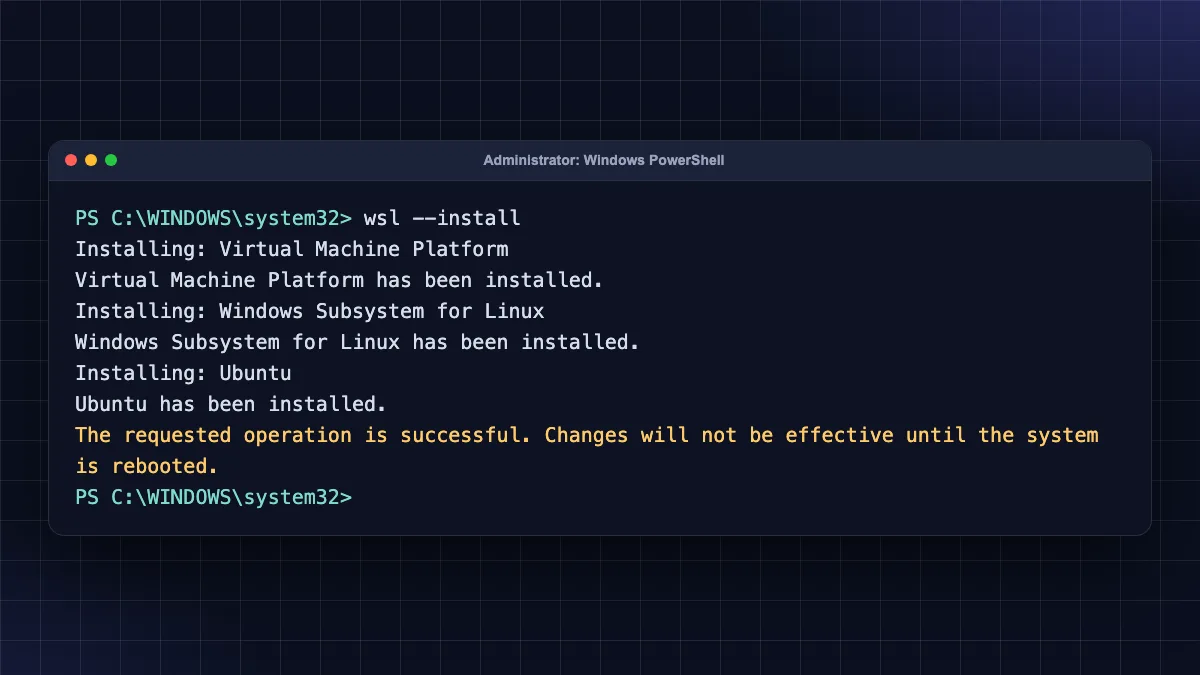
Windows 10 (version 2004 or later) and Windows 11 can run real Ubuntu inside Windows using WSL (Windows Subsystem for Linux). Open PowerShell as administrator and run:
wsl --install
This turns on WSL and installs Ubuntu by default, as explained in Microsoft's official WSL install guide (opens in new tab). Restart the PC, open Ubuntu from the Start menu and create a Linux username and password.
On Mac: Terminal
macOS already has a Unix terminal. Open Terminal (Spotlight > type "Terminal"). Most commands in this guide work as-is. A few Linux-only tools (apt, systemctl, ip, free) are not on macOS, so use a VPS or a virtual machine for those.
On Android: Termux
Install Termux from F-Droid or its GitHub releases page. The Termux project (opens in new tab) says its Google Play build is experimental, with missing features. In Termux, use pkg install <name> instead of sudo apt install.
On a real server: a cheap VPS
The best practice ground is a real Linux server. Oracle Cloud's free tier gives you one at no cost (see our Oracle Cloud free tier guide), or you can rent a low-cost VPS. Once you have one, follow our guide to connect to a VPS using SSH from Windows, Mac or Android.
If you want a paid VPS to practise on, compare options in our best VPS hosting in India guide. or. Contabo gives more RAM for the money, but it has fewer Indian-friendly support options; Hostinger is easier for first-timers and accepts UPI.
How a Linux command is written
Almost every command follows the same pattern:
command -options arguments
- command: the program, e.g.
ls. - options (flags): change behaviour, e.g.
-lfor a long list. Short flags can be combined:-la=-l+-a. - arguments: what the command works on, e.g. a file or folder name.
Three rules save beginners a lot of pain:
- Linux is case-sensitive.
File.txtandfile.txtare two different files. - Paths matter.
/is the root of the whole system,~is your home folder,.is the current folder and..is the parent folder. - Use Tab and arrow keys. Press Tab to auto-complete names and Up arrow to repeat previous commands.
Stuck? Every command has a manual page and a help flag:
man ls        # full manual for ls (press q to quit)
ls --help     # short help text
File and folder commands
These are the commands you will type most often.
| Command | What it does | Example |
|---|---|---|
pwd |
Shows the folder you are in | pwd |
ls |
Lists files | ls -la (all files, long format) |
cd |
Changes folder | cd /var/www |
mkdir |
Creates a folder | mkdir -p projects/site |
touch |
Creates an empty file / updates time | touch notes.txt |
cp |
Copies files or folders | cp -r site site-backup |
mv |
Moves or renames | mv old.txt new.txt |
rm |
Deletes files | rm notes.txt |
rmdir |
Deletes an empty folder | rmdir empty-folder |
ln |
Creates a link (shortcut) | ln -s /var/www/site ~/site |
find |
Searches for files | find . -name "*.log" |
tree |
Shows a folder tree | tree -L 2 (install first) |
Examples with explanation:
pwd
Prints your current location, such as /home/sanjeev.
ls -lah
Lists all files (including hidden ones starting with .) with sizes in KB/MB.
cd ~        # go to home folder
cd ..       # go up one folder
cd -        # go back to the previous folder
Three handy ways to move around.
mkdir -p projects/blog/images
Creates the whole folder path in one go; -p creates missing parent folders.
cp -r projects projects-backup
Copies a folder and everything inside it (-r = recursive).
mv report.txt reports/
Moves a file into the reports folder. To rename, give a new name instead of a folder.
rm -i old.txt
Deletes a file but asks for confirmation first (-i). Linux has no Recycle Bin, so deleted files are gone.
find /var/log -name "*.log" -mtime -1
Finds .log files changed in the last 24 hours.
Viewing and searching inside files
| Command | What it does | Example |
|---|---|---|
cat |
Prints a whole file | cat notes.txt |
less |
Scrolls through a long file | less /var/log/syslog |
head |
Shows the first lines | head -n 20 file.txt |
tail |
Shows the last lines / follows a log | tail -f /var/log/syslog |
nano |
Simple text editor | nano config.txt |
grep |
Searches text inside files | grep -i "error" app.log |
wc |
Counts lines, words, characters | wc -l users.csv |
diff |
Compares two files | diff old.conf new.conf |
echo |
Prints text or writes to a file | echo "hello" > hi.txt |
tail -f /var/log/syslog
Shows new log lines live as they are written. Press Ctrl + C to stop. Very useful when debugging a web server.
nano /etc/hosts
Opens a file in the nano editor. Save with Ctrl + O, Enter, and exit with Ctrl + X. System files need sudo nano.
grep -rn "DB_PASSWORD" /var/www/site
Searches every file in a folder (-r), showing line numbers (-n).
cat access.log | grep "404" | wc -l
Counts how many 404 errors are in a log. The | (pipe) sends the output of one command into the next.
Permission and ownership commands
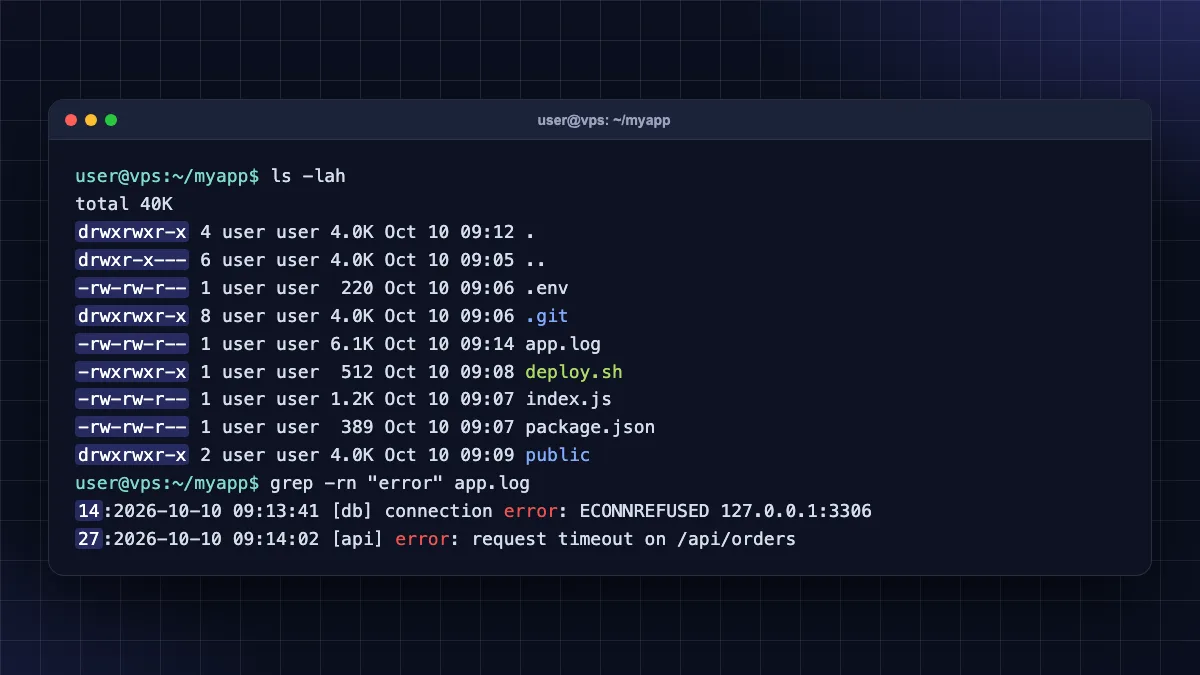
Every file in Linux has an owner, a group and permissions for three types of people: owner (u), group (g) and others (o). Each can have read (r=4), write (w=2) and execute (x=1).
When you run ls -l, you see something like -rwxr-xr--. That means the owner can read/write/execute, the group can read/execute and others can only read.
| Command | What it does | Example |
|---|---|---|
chmod |
Changes permissions | chmod 644 index.html |
chown |
Changes owner and group | sudo chown -R www-data:www-data /var/www/site |
chgrp |
Changes group only | sudo chgrp developers app.log |
sudo |
Runs a command as administrator | sudo apt update |
umask |
Shows default permission mask | umask |
Common permission numbers:
644: files on a website (owner can edit, everyone can read).755: folders and scripts (owner full, others read and enter/run).600: private files such as SSH keys.
chmod +x deploy.sh
Makes a script executable so you can run it with ./deploy.sh.
chmod 600 ~/.ssh/id_ed25519
Locks your private SSH key so only you can read it. SSH refuses keys with loose permissions.
Security warning: Never "fix" an error with chmod -R 777. It gives every user on the server full write access and is a common way WordPress sites get hacked. Use the correct owner with chown instead.
Process and service commands
A process is any running program. A service is a background process managed by systemd, such as nginx, MySQL or SSH.
| Command | What it does | Example |
|---|---|---|
ps |
Lists running processes | ps aux |
top |
Live CPU/RAM usage | top |
htop |
Friendlier live monitor | htop |
kill |
Stops a process by ID | kill 1234 |
pkill |
Stops a process by name | pkill node |
jobs, bg, fg |
Manage background jobs | fg %1 |
nohup |
Keeps a command running after logout | nohup python3 bot.py & |
systemctl |
Starts/stops/checks services | sudo systemctl status nginx |
journalctl |
Reads service logs | sudo journalctl -u nginx -n 50 |
ps aux | grep nginx
Finds nginx processes and their process IDs (PIDs).
kill 1234
kill -9 1234
The first politely asks process 1234 to stop. Use -9 (force kill) only if it refuses, because it does not let the program save data.
sudo systemctl restart nginx
sudo systemctl enable nginx
Restarts nginx now, and makes it start automatically at boot.
sudo journalctl -u ssh --since "1 hour ago"
Shows SSH service logs from the last hour, handy for spotting login problems. If your site shows a gateway error, our 502 Bad Gateway nginx fix guide uses these exact commands.
Networking commands
| Command | What it does | Example |
|---|---|---|
ip a |
Shows IP addresses | ip a |
ping |
Tests if a host is reachable | ping -c 4 google.com |
curl |
Fetches a URL / tests APIs | curl -I https://technicaladda.in |
wget |
Downloads a file | wget https://example.com/file.zip |
ss |
Shows open ports and connections | sudo ss -tulpn |
dig |
Looks up DNS records | dig example.com A |
ssh |
Logs in to a remote server | ssh [email protected] |
scp |
Copies files over SSH | scp site.zip user@server:/tmp/ |
rsync |
Syncs folders efficiently | rsync -avz site/ user@server:/var/www/site/ |
hostname |
Shows/sets the machine name | hostname -I |
traceroute |
Shows the path to a host | traceroute google.com (install first) |
ping -c 4 8.8.8.8
Sends four test packets to Google DNS. If this works but ping google.com fails, your DNS is broken.
curl -I https://example.com
Shows only the HTTP response headers, e.g. HTTP/2 200 or 301. Great for checking redirects and SSL.
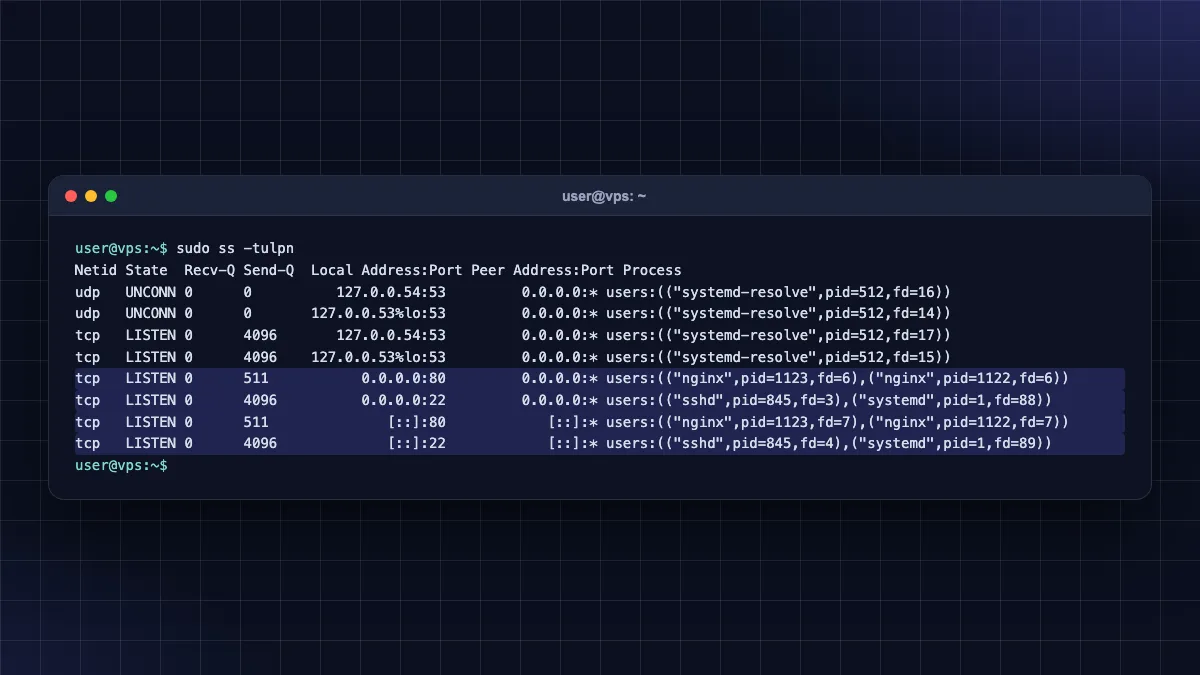
sudo ss -tulpn
Lists every listening port and which program owns it. Older guides use netstat and ifconfig; these come from the net-tools package, which is not installed by default on modern Ubuntu, so learn ss and ip instead.
ssh -p 22 [email protected]
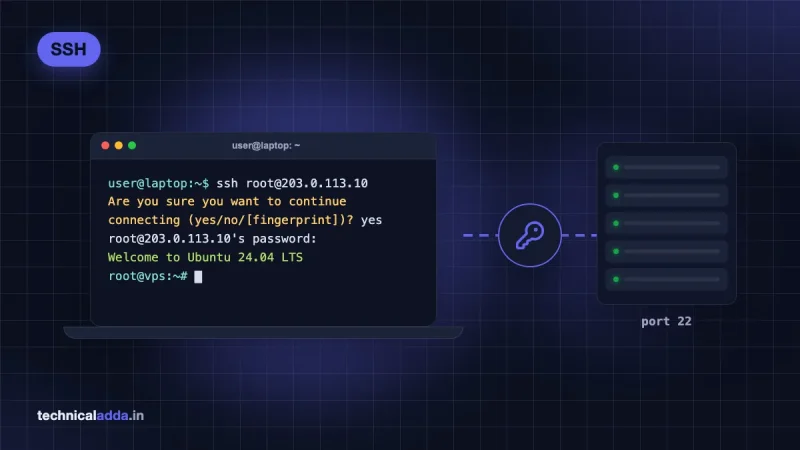
Connects to a server. Replace the IP and username with yours. Full steps for PuTTY, PowerShell, Mac and Termux are in our SSH guide.
Package management commands (apt)
On Ubuntu and Debian, software is installed with apt. Most need sudo.
| Command | What it does |
|---|---|
sudo apt update |
Refreshes the list of available packages |
sudo apt upgrade |
Installs available updates |
sudo apt install nginx |
Installs a package |
sudo apt remove nginx |
Removes a package (keeps config) |
sudo apt purge nginx |
Removes a package and its config |
sudo apt autoremove |
Cleans unused dependencies |
apt search htop |
Searches for a package |
apt list --installed |
Lists installed packages |
sudo snap install <name> |
Installs a Snap package |
dpkg -l |
Low-level list of installed .deb packages |
sudo apt update && sudo apt upgrade -y
The first thing to run on any new server. && runs the second command only if the first succeeds, and -y answers "yes" automatically.
sudo apt install htop tree unzip -y
Installs three useful tools at once.
Ubuntu's own command line for beginners tutorial (opens in new tab) is a good free companion to this list.
User management commands
| Command | What it does | Example |
|---|---|---|
whoami |
Shows your username | whoami |
id |
Shows your user ID and groups | id |
adduser |
Creates a user (interactive) | sudo adduser rahul |
usermod |
Changes a user, e.g. adds to a group | sudo usermod -aG sudo rahul |
passwd |
Changes a password | passwd |
deluser |
Deletes a user | sudo deluser rahul |
su |
Switches to another user | su - rahul |
groups |
Lists a user's groups | groups rahul |
w |
Shows who is logged in | w |
last |
Shows recent logins | last -n 10 |
sudo adduser deploy
sudo usermod -aG sudo deploy
Creates a new user and gives it admin (sudo) rights. On a fresh VPS you should do this and stop logging in as root. Our Ubuntu VPS initial server setup guide walks through it step by step.
Security warning: Always use -aG (append to group). Using -G alone replaces all of the user's groups and can lock them out of sudo.
Disk, memory and system info commands
| Command | What it does | Example |
|---|---|---|
df |
Free disk space per drive | df -h |
du |
Size of a folder | du -sh /var/log |
free |
RAM and swap usage | free -h |
lsblk |
Lists disks and partitions | lsblk |
mount |
Mounts a drive | sudo mount /dev/sdb1 /mnt |
uname |
Kernel and system info | uname -a |
uptime |
How long the system has run, load | uptime |
tar |
Creates/extracts archives | tar -czvf site.tar.gz site/ |
zip / unzip |
Zip archives | unzip theme.zip |
history |
Shows previous commands | history | tail -20 |
clear |
Clears the screen | clear |
which |
Shows where a program lives | which python3 |
alias |
Creates a shortcut command | alias ll='ls -lah' |
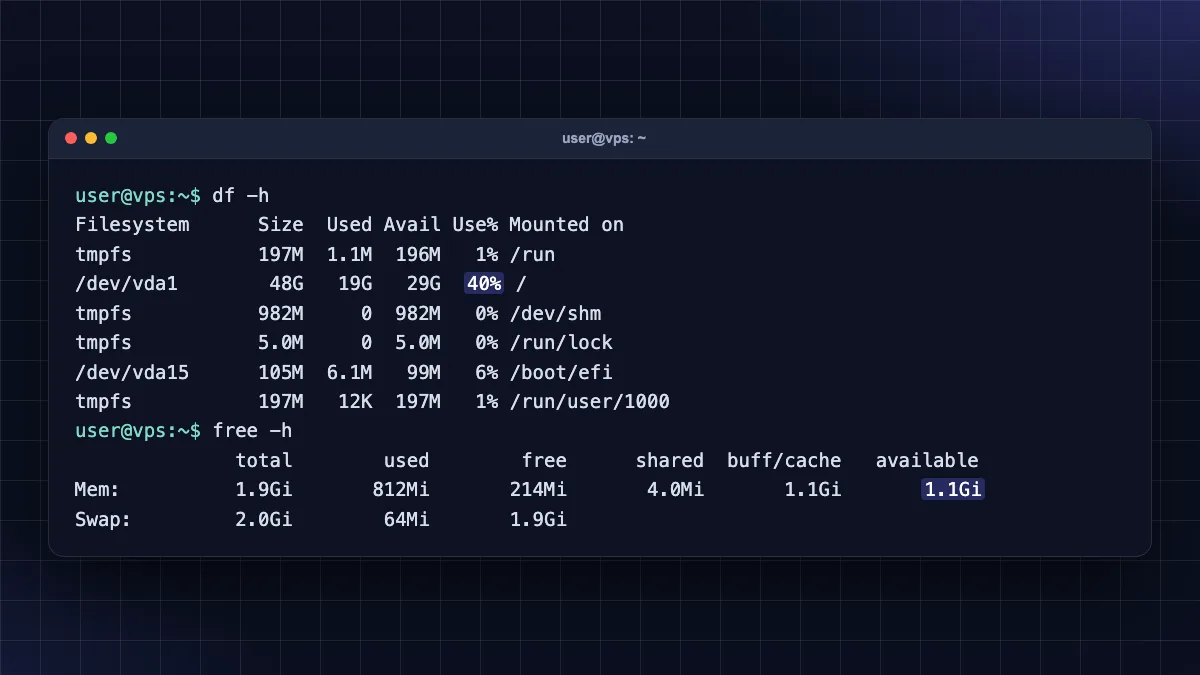
df -h
Shows disk usage in GB. If / is above 90%, clean up before your server stops writing logs or databases.
sudo du -sh /var/* | sort -h
Finds which folder is eating space, sorted from small to large.
tar -czvf backup-$(date +%F).tar.gz /var/www/site
Creates a compressed, dated backup such as backup-2026-10-10.tar.gz.
tar -xzvf backup-2026-10-10.tar.gz
Extracts it again. Remember: create vs extract.
The detailed behaviour of core tools like ls, cp and df is documented in the GNU Coreutils manual (opens in new tab).
Linux commands cheat sheet table (PDF)
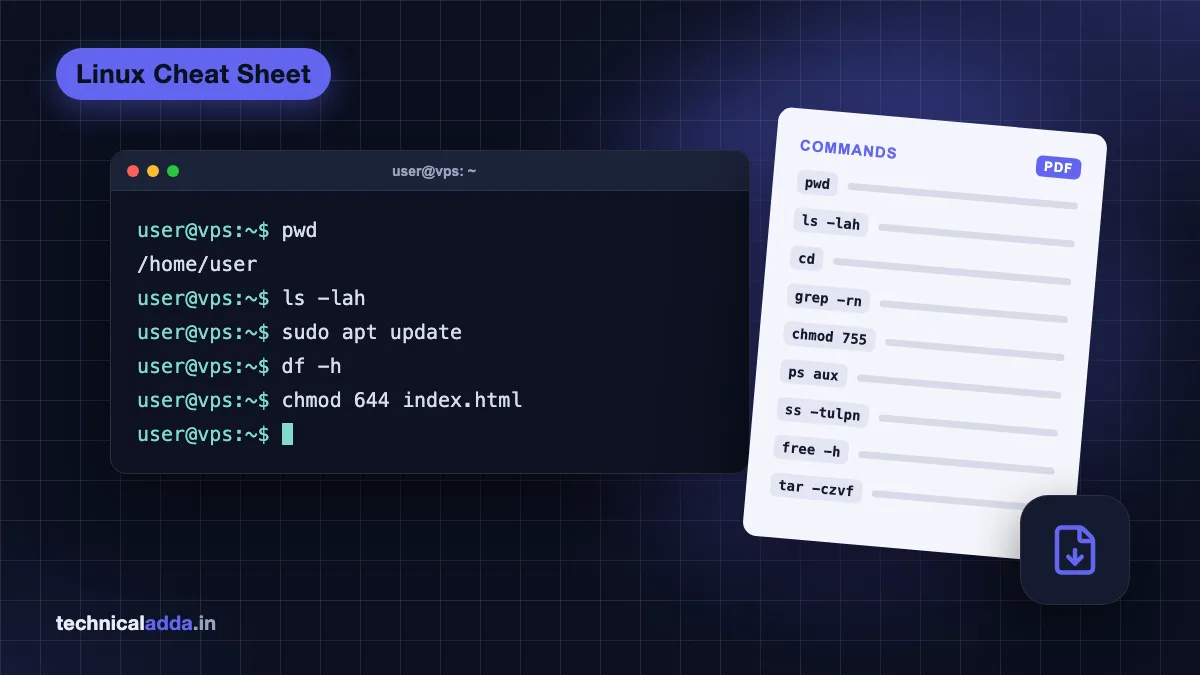
Here is the one-page summary of the most useful basic Linux commands. Bookmark this section or download the PDF.
| Category | Command | Use |
|---|---|---|
| Navigation | pwd, ls -lah, cd |
Where am I, what is here, move |
| Files | mkdir -p, touch, cp -r, mv, rm -i |
Create, copy, move, delete |
| Search | find . -name, grep -rn |
Find files, find text |
| View | cat, less, head, tail -f |
Read files and logs |
| Edit | nano |
Edit text files |
| Permissions | chmod 644/755, chown -R, sudo |
Control access |
| Processes | ps aux, top/htop, kill, pkill |
See and stop programs |
| Services | systemctl status/restart/enable |
Manage nginx, SSH, MySQL |
| Logs | journalctl -u <service> |
Service logs |
| Network | ip a, ping, curl -I, ss -tulpn, dig |
IP, reachability, ports, DNS |
| Remote | ssh, scp, rsync -avz |
Log in and copy files |
| Packages | apt update, apt upgrade, apt install |
Install software |
| Users | adduser, usermod -aG, passwd, id |
Manage accounts |
| Disk | df -h, du -sh, lsblk |
Storage |
| Memory | free -h, uptime |
RAM and load |
| Archives | tar -czvf, tar -xzvf, unzip |
Backup and extract |
| Help | man, --help, history |
Learn and repeat |
Download the Linux commands PDF
Download the Linux commands for beginners PDF cheat sheet: a printable one-page version of the table above. Keep it next to your keyboard until the commands become muscle memory.
Basic Linux commands asked in interviews
If you are preparing for a fresher, support or DevOps interview, these questions come up again and again:
- Difference between
rmandrmdir, and betweenkillandkill -9. - What
chmod 755means. - How to find which process uses port 80 (
sudo ss -tulpn | grep :80). - How to see the last 100 lines of a log (
tail -n 100 file.log). - How to check disk and RAM usage (
df -h,free -h). - Difference between
apt updateandapt upgrade. - What a pipe
|and redirection>/>>do (>overwrites,>>appends).
Dangerous commands beginners should avoid
Linux trusts you completely. A typo with sudo can destroy a server in seconds.
sudo rm -rf /orrm -rf *in the wrong folder: deletes everything. Always runpwdbeforerm -rf.chmod -R 777: opens your files to anyone on the system.dd if=... of=/dev/sda: overwrites a whole disk if you pick the wrong device.- Copy-pasting
curl ... | sudo bashfrom random websites: runs unknown code as root. Read the script first. - Editing
/etc/ssh/sshd_configand restarting SSH without testing can lock you out of your VPS.
Before risky changes on a server, take a snapshot or backup. Our guide on how to secure a Linux VPS server covers firewall, SSH keys and safe defaults.
Six Linux command habits to keep from this guide
- Learn commands by task (files, permissions, processes, network, packages, disk), not alphabetically.
- Practise on Ubuntu via WSL on Windows, Terminal on Mac, Termux on Android, or a free/cheap VPS.
- Use
manand--helpwhenever you forget a flag, and Tab to auto-complete. - Prefer
ipandssover the olderifconfigandnetstaton modern Ubuntu. - Never use
chmod 777or runrm -rfwithout checkingpwdfirst. - Keep the PDF cheat sheet next to your keyboard and type the commands; reading alone does not make them stick.
Linux commands for beginners PDF: what to practise next
You do not need to memorise every Linux command. Learn the 60 or so in this guide by task, practise them daily on WSL, a Mac terminal, Termux or a VPS, and keep the linux commands for beginners pdf cheat sheet nearby until the commands feel natural. Once you are comfortable, put them to real use: set up your own server with our Ubuntu VPS initial server setup guide, or browse more server tutorials in our Web Hosting & Servers section.
FAQ
Frequently Asked Questions
What are the basic Linux commands every beginner should know?
The basic Linux commands every beginner should know are pwd, ls, cd, mkdir, cp, mv, rm, cat, nano, grep, chmod, sudo, ps, kill, ping, ssh, apt, df and free. Together they let you move around folders, manage files, edit text, control permissions, stop programs, test the network, install software and check disk and memory.
Where can I download a Linux commands PDF for free?
You can download our free Linux commands for beginners PDF from the cheat-sheet section of this article. It is a one-page printable version of the command table, grouped by files, permissions, processes, networking, packages, users and disk. Ubuntu's official command-line tutorial and the GNU Coreutils manual are also free references for deeper learning.
How long does it take to learn Linux commands?
Most beginners become comfortable with everyday Linux commands in two to four weeks of short daily practice. Spend 20 to 30 minutes a day typing commands on Ubuntu (WSL, a VPS or an old laptop), not just reading. Server administration skills such as networking, services and security take a few months of hands-on use.
Can I practise Linux commands on Windows?
Yes. Windows 10 (version 2004 or later) and Windows 11 support WSL. Open PowerShell as administrator, run wsl --install, restart, and open Ubuntu from the Start menu. You get a real Ubuntu terminal inside Windows, so almost every command in this guide works exactly as it does on a Linux server.
Can I learn Linux commands on an Android phone?
Yes, using Termux, a free terminal app. Install it from F-Droid or its GitHub page, because the Google Play build is marked experimental. Termux uses pkg install instead of sudo apt install, and some system commands like systemctl do not work, but file, text, network and SSH commands are great for practice.
What is the difference between apt update and apt upgrade?
sudo apt update only refreshes the list of available packages and versions from Ubuntu's servers; it installs nothing. sudo apt upgrade then downloads and installs newer versions of the packages you already have. Always run update first, then upgrade, usually together as sudo apt update && sudo apt upgrade -y.
What does chmod 755 mean in Linux?
chmod 755 gives the owner read, write and execute permission (7 = 4+2+1), and gives the group and everyone else read and execute permission (5 = 4+1). It is the normal setting for folders and scripts. Website files usually use 644, and private keys use 600.
Is Linux command line used in jobs in India?
Yes. Linux command-line skills are expected in DevOps, cloud, backend development, cybersecurity, data engineering and technical support roles in India, because most servers on AWS, Azure, Google Cloud and Indian hosting companies run Linux. Interviewers commonly ask about file permissions, processes, logs, disk usage and SSH.
Are Linux commands the same on Ubuntu, Debian and CentOS?
Most Linux commands are the same on every distribution, because tools like ls, cp, grep, chmod, ps and ssh are shared. The main difference is package management: Ubuntu and Debian use apt, while Red Hat-based systems such as Rocky Linux, AlmaLinux and Fedora use dnf. Some default file paths and service names also differ.
Which Linux commands are dangerous for beginners?
The most dangerous commands are rm -rf in the wrong folder (especially with sudo), chmod -R 777, dd pointed at the wrong disk, and piping unknown scripts into sudo bash. They can delete data, expose files or run malicious code. Check pwd, read scripts first and take backups before risky changes.
Where to buy
-
Visit official site (opens in new tab)
On a real server: a cheap VPS
-
Visit official site (opens in new tab)
On a real server: a cheap VPS