Install WordPress on a VPS: Ubuntu 24.04, Nginx and Free SSL in 45 Minutes
Web Hosting & Servers 15 min read By Xavio Thomas
In this articleTable of contents18
Last updated: 10 October 2026
Shared hosting is easy, but sooner or later you want more speed, more control and no noisy neighbours. This guide shows you how to install WordPress on VPS hosting from a blank Ubuntu 24.04 LTS server. The same steps work on Hostinger, Contabo, DigitalOcean, AWS Lightsail, Oracle Cloud and any other provider. You will set up nginx, PHP-FPM, MariaDB, a free Let's Encrypt SSL certificate, a firewall and safe file permissions. Every command below was checked against the official Ubuntu package lists, WordPress.org and Certbot documentation. Prefer clicks over commands? We also cover one-click panels at the end.
Quick answer: To install WordPress on a VPS, point your domain to the server IP, SSH in, install nginx, MariaDB and PHP-FPM with apt, create a database and user, download WordPress to /var/www, set wp-config.php, add an nginx server block, get free SSL with Certbot, and finish the five-minute installer in your browser. It takes about 30 to 45 minutes.
What you need before you start
- A VPS running Ubuntu 24.04 LTS with root or sudo access. 1 GB RAM works for a small blog (add swap, shown later); 2 GB or more is more comfortable. If you have not bought one yet, compare options in our best VPS hosting in India guide, or start free with the Oracle Cloud Always Free tier.
- A domain name with access to its DNS settings.
- An SSH client on your computer or phone:
- Windows 10/11: PowerShell or Windows Terminal has
sshbuilt in. PuTTY also works. - Mac and Linux: the built-in Terminal app.
- Android: install Termux, then run
pkg install openssh.
- Windows 10/11: PowerShell or Windows Terminal has
- About 45 minutes and a notepad to save passwords.
This is a self-managed setup. You are responsible for updates, backups and security. If that sounds like too much, skip to the one-click panels section or consider managed hosting.
| Component | What it does | Version on Ubuntu 24.04 (Oct 2026) |
|---|---|---|
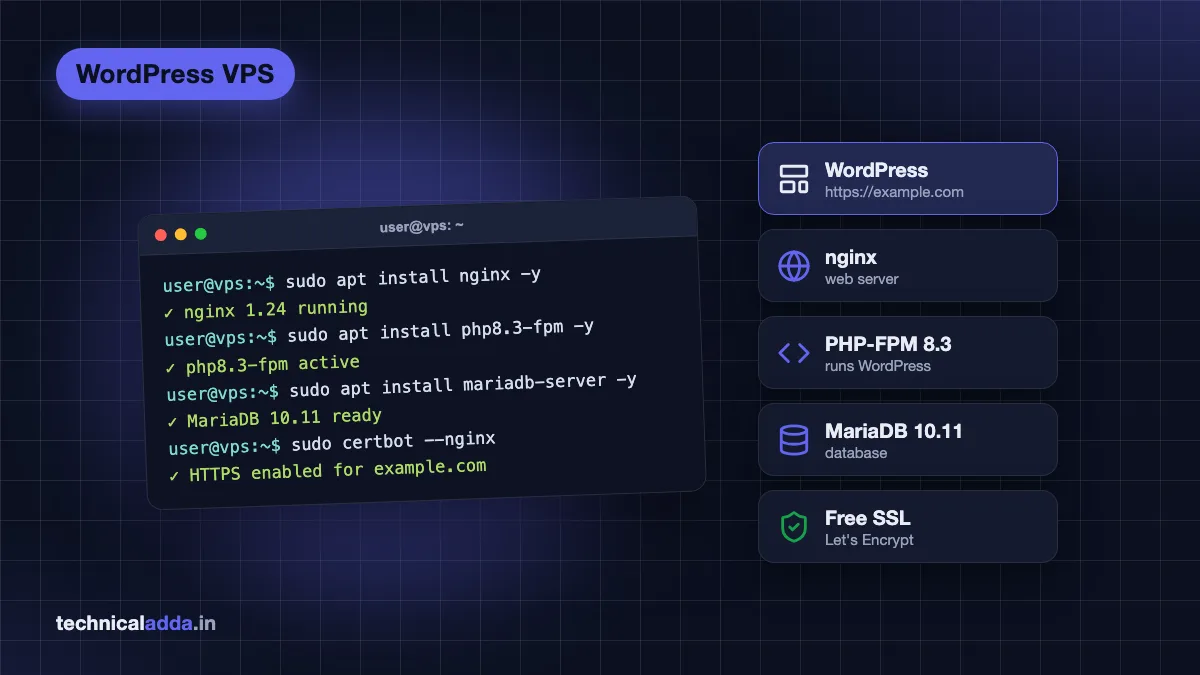
| nginx | Web server that receives visitor requests | 1.24.x (Ubuntu package) |
| PHP-FPM | Runs WordPress PHP code | 8.3.x |
| MariaDB | Database for posts, users and settings | 10.11.x |
| Certbot | Gets and renews free Let's Encrypt SSL | Latest snap |
| UFW | Simple firewall | Ubuntu default |
These versions meet the official WordPress requirements (opens in new tab), which recommend PHP 8.3 or newer and MariaDB 10.11 or newer (or MySQL 8.0+), plus HTTPS support.
Step 1: Point your domain to the VPS
Do this first, because DNS can take a while to update and Certbot needs it working.
- Copy your VPS public IPv4 address from your provider's dashboard.
- In your domain registrar's DNS panel, create:
- An A record with host
@pointing to your VPS IP. - An A record (or CNAME) with host
wwwpointing to the same IP (or toexample.com).
- An A record with host
- If your VPS has IPv6, also add AAAA records; otherwise skip them.
Check it from your computer:
ping example.com
The reply should show your VPS IP. Replace example.com with your real domain everywhere in this guide.
Step 2: Connect to the server and update it
Log in over SSH (replace the IP and username your provider gave you):
ssh [email protected]
Need help with keys, PuTTY or "connection refused" errors? See our guide on how to connect to a VPS using SSH.
Update the package list and installed packages:
sudo apt update && sudo apt upgrade -y
If you are logged in as root, create a normal user with sudo rights and use it from now on (replace deploy with your own name):
adduser deploy
usermod -aG sudo deploy
Our initial Ubuntu server setup guide covers SSH keys and disabling root login in detail. Security warning: do not run a public website on a server where root can log in with a password.
Step 3: Set up the firewall
Ubuntu includes UFW. Allow SSH before enabling the firewall, or you will lock yourself out:
sudo ufw allow OpenSSH
sudo ufw enable
sudo ufw status
The first line keeps port 22 open, the second turns the firewall on, and the third confirms the rules. We will open web ports after installing nginx.
Provider firewalls: many providers have a second firewall in their dashboard (Oracle Cloud security lists, AWS Lightsail networking tab, Hostinger's firewall manager). Ports 80 and 443 must be open there too. On Oracle Cloud Ubuntu images, the server's own iptables rules may also block port 80/443. See our Oracle guide for the fix.
Step 4: Install nginx
sudo apt install nginx -y
This installs the web server and starts it automatically. Now open HTTP and HTTPS in the firewall using nginx's built-in UFW profile:
sudo ufw allow 'Nginx Full'
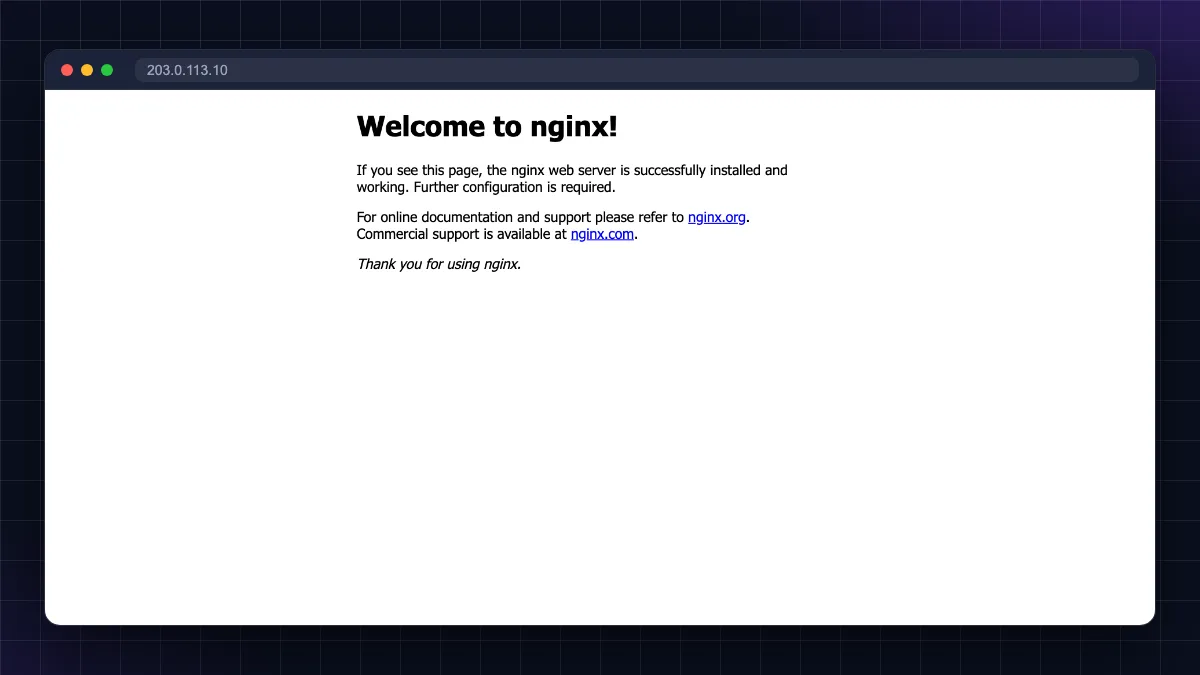
Visit http://your-server-ip in a browser. You should see the "Welcome to nginx!" page. If not, check the provider firewall.
Step 5: Install MariaDB and create the WordPress database
Install the database server:
sudo apt install mariadb-server -y
Run the security script, which lets you remove anonymous users, disable remote root login and delete the test database:
sudo mariadb-secure-installation
Press Enter for the current root password (none). On Ubuntu, root uses socket authentication, so you can answer n to switching to unix_socket and n to changing the root password, then Y to the remaining questions.
Open the MariaDB prompt:
sudo mariadb
Create the database and a dedicated user. Use your own strong password (16+ characters, no quotes):
CREATE DATABASE wordpress DEFAULT CHARACTER SET utf8mb4 COLLATE utf8mb4_unicode_ci;
CREATE USER 'wpuser'@'localhost' IDENTIFIED BY 'Use-A-Long-Random-Password-Here';
GRANT ALL PRIVILEGES ON wordpress.* TO 'wpuser'@'localhost';
FLUSH PRIVILEGES;
EXIT;
These lines create a UTF-8 database (emoji and Hindi text safe), a user that can only connect from the server itself, and give that user rights on this one database only. Never use the database root account in WordPress.
Step 6: Install PHP-FPM and extensions
WordPress needs PHP plus several extensions for images, HTTPS requests, XML and ZIP files:
sudo apt install php-fpm php-mysql php-curl php-gd php-imagick php-intl php-mbstring php-xml php-zip -y
Check the version:
php -v
On Ubuntu 24.04 it shows PHP 8.3.x. The PHP-FPM service is called php8.3-fpm and listens on the socket /run/php/php8.3-fpm.sock.
Raise the upload limits so you can upload themes and large images. Open the PHP-FPM config:
sudo nano /etc/php/8.3/fpm/php.ini
Find and change these lines (press Ctrl+W in nano to search):
upload_max_filesize = 64M
post_max_size = 64M
memory_limit = 256M
max_execution_time = 120
Save with Ctrl+O, Enter, then exit with Ctrl+X, and restart PHP-FPM:
sudo systemctl restart php8.3-fpm
Step 7: Download WordPress and set file permissions
Download the latest release from WordPress.org into a temporary folder:
cd /tmp
curl -LO https://wordpress.org/latest.tar.gz
Optionally confirm the file is not corrupted. The two outputs must match:
curl -s https://wordpress.org/latest.tar.gz.sha1; echo
sha1sum latest.tar.gz
Extract it and copy it to your site folder:
tar xzf latest.tar.gz
sudo mkdir -p /var/www/example.com
sudo cp -a /tmp/wordpress/. /var/www/example.com/
Now set ownership and permissions. On a single-site VPS, the simplest setup that lets WordPress install updates and plugins itself is to let the web server user (www-data) own the files:
sudo chown -R www-data:www-data /var/www/example.com
sudo find /var/www/example.com -type d -exec chmod 755 {} \;
sudo find /var/www/example.com -type f -exec chmod 644 {} \;
The first command sets the owner, the second gives folders 755 and the third gives files 644, the same values the WordPress hardening guide (opens in new tab) uses. Never use 777 permissions; it lets any process on the server change your files.
Trade-off to know: the hardening guide prefers files owned by your own user, with only wp-content writable by the web server. That is more secure but means updates need SFTP or WP-CLI. For a first VPS, www-data ownership plus the steps in this guide is a reasonable balance.
Step 8: Configure wp-config.php
Create the config file from the sample:
cd /var/www/example.com
sudo cp wp-config-sample.php wp-config.php
Get fresh, unique security keys from WordPress.org's official generator:
curl -s https://api.wordpress.org/secret-key/1.1/salt/
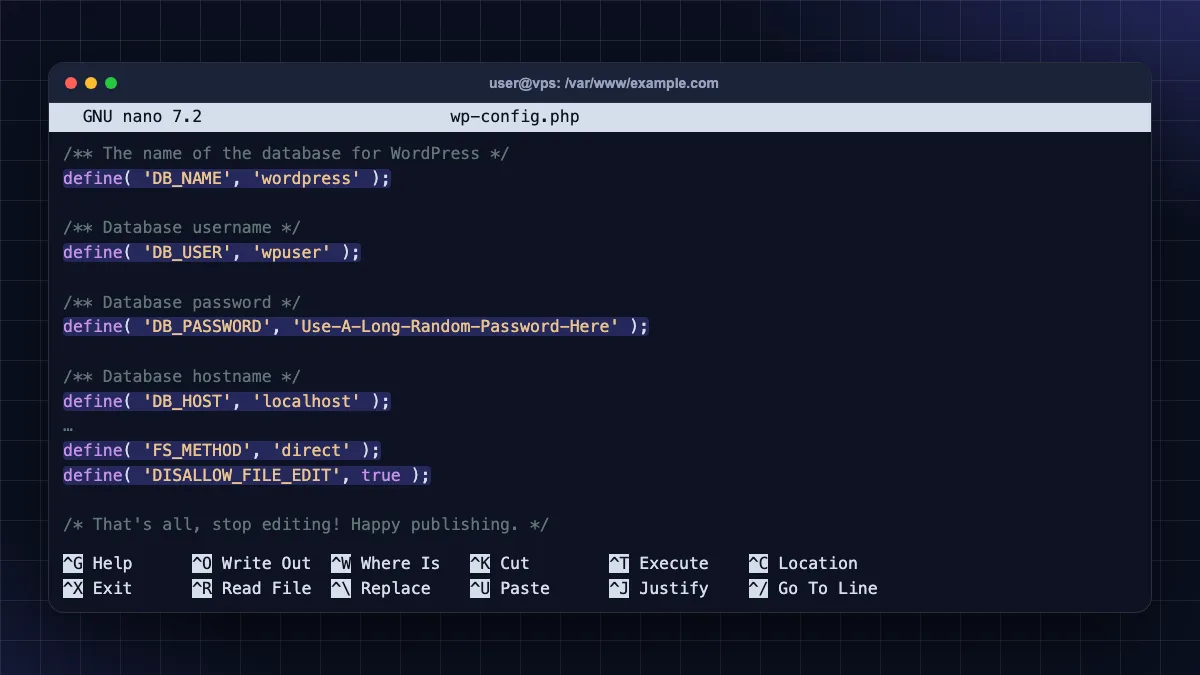
Copy the eight lines it prints. Then edit the config:
sudo nano wp-config.php
Make these changes:
define( 'DB_NAME', 'wordpress' );
define( 'DB_USER', 'wpuser' );
define( 'DB_PASSWORD', 'Use-A-Long-Random-Password-Here' );
define( 'DB_HOST', 'localhost' );
Delete the eight placeholder lines that say put your unique phrase here and paste the keys you copied. Then add these lines just above the line /* That's all, stop editing! Happy publishing. */:
define( 'FS_METHOD', 'direct' );
define( 'DISALLOW_FILE_EDIT', true );
FS_METHOD lets WordPress install plugins and updates without asking for FTP details, and DISALLOW_FILE_EDIT removes the theme and plugin code editors from the dashboard, a common target for attackers.
Lock down the config file, as recommended by WordPress (400 or 440):
sudo chown www-data:www-data wp-config.php
sudo chmod 440 wp-config.php
Step 9: Create the nginx server block for WordPress
Create a new site config:
sudo nano /etc/nginx/sites-available/example.com
Paste this, replacing example.com with your domain. It is based on the rules in the WordPress nginx documentation (opens in new tab), adapted for Ubuntu's PHP 8.3 socket:
server {
    listen 80;
    listen [::]:80;
    server_name example.com www.example.com;

    root /var/www/example.com;
    index index.php index.html;
    client_max_body_size 64M;

    location = /favicon.ico { log_not_found off; access_log off; }
    location = /robots.txt  { allow all; log_not_found off; access_log off; }

    location / {
        try_files $uri $uri/ /index.php?$args;
    }

    # Block hidden files (.git, .env) but allow Let's Encrypt checks
    location ~ /\.(?!well-known) {
        deny all;
    }

    # Never run PHP files from the uploads folder
    location ~* /(?:uploads|files)/.*\.php$ {
        deny all;
    }

    location ~ \.php$ {
        include snippets/fastcgi-php.conf;
        fastcgi_pass unix:/run/php/php8.3-fpm.sock;
    }

    location ~* \.(js|css|png|jpg|jpeg|gif|ico|svg|webp|woff2)$ {
        expires max;
        log_not_found off;
    }
}
Why the order matters: nginx checks regex locations from top to bottom and uses the first match, so the uploads block must sit above the PHP block. try_files sends pretty permalinks to index.php, so you do not need .htaccess (nginx ignores it).
Enable the site, disable the default page, test the config and reload:
sudo ln -s /etc/nginx/sites-available/example.com /etc/nginx/sites-enabled/
sudo unlink /etc/nginx/sites-enabled/default
sudo nginx -t
sudo systemctl reload nginx
nginx -t must say "syntax is ok" and "test is successful". If it shows an error, it prints the file and line number. Fix it before reloading.
Step 10: Install a free SSL certificate with Certbot
The official Certbot instructions for nginx (opens in new tab) recommend installing Certbot as a snap. Snap is preinstalled on Ubuntu 24.04 server images.
Remove any old apt version, then install Certbot:
sudo apt remove certbot -y
sudo snap install --classic certbot
sudo ln -s /snap/bin/certbot /usr/local/bin/certbot
Get the certificate and let Certbot edit your nginx config automatically:
sudo certbot --nginx -d example.com -d www.example.com
Enter your email, accept the terms and choose whether to share your email with EFF. Certbot adds the HTTPS settings and a redirect from HTTP to HTTPS. Let's Encrypt certificates are valid for 90 days today (Let's Encrypt plans to shorten this to 64 days from February 2027), and the snap renews them automatically, so the shorter lifetime needs no action from you. Test renewal:
sudo certbot renew --dry-run
If Certbot fails, the usual reasons are: DNS not yet pointing to this server, port 80 blocked in the provider firewall, or a typo in server_name.
Step 11: Finish the WordPress installer
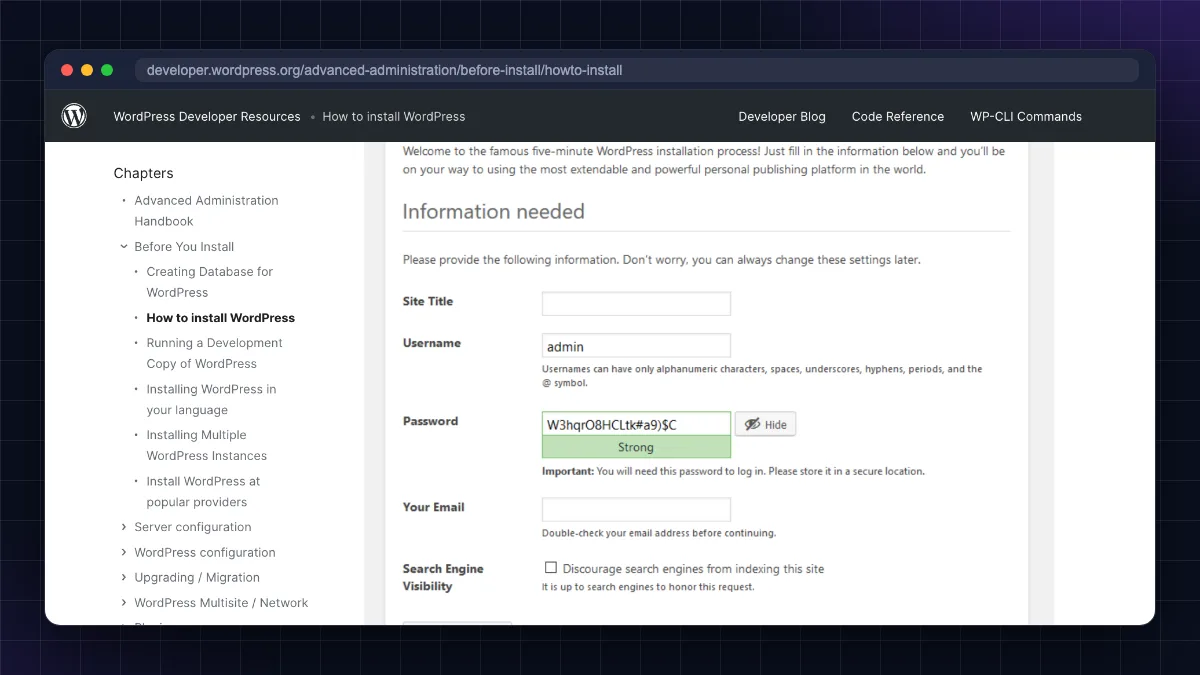
Open https://example.com in your browser. You will see the WordPress setup screen.
- Choose your language (English or हिन्दी and others).
- Enter the site title, an admin username (not "admin"), a strong password and your email.
- Leave "Discourage search engines" unticked unless the site is not ready.
- Click Install WordPress and log in at
https://example.com/wp-admin.
Then go to Settings > Permalinks, choose Post name and save. Open a post to confirm pretty URLs work. If they return 404, recheck the try_files line.
After you install WordPress on VPS: essential tuning
Add swap on 1 GB servers
Small VPS plans can run out of memory during updates. A 2 GB swap file prevents crashes:
sudo fallocate -l 2G /swapfile
sudo chmod 600 /swapfile
sudo mkswap /swapfile
sudo swapon /swapfile
echo '/swapfile none swap sw 0 0' | sudo tee -a /etc/fstab
These lines create the file, restrict it to root, format it as swap, turn it on and make it permanent after reboots.
Turn on automatic security updates
sudo apt install unattended-upgrades -y
sudo dpkg-reconfigure --priority=low unattended-upgrades
This installs Ubuntu security patches automatically. WordPress core also auto-installs minor security releases.
Caching and performance
- PHP's OPcache is enabled by default with Ubuntu's PHP packages.
- Add a page-cache plugin, or configure nginx FastCGI cache if you are comfortable with nginx.
- Use a CDN such as Cloudflare's free plan for images and global visitors.
Backups
Your provider's snapshots are useful but not enough. Use a backup plugin that copies files and the database to off-server storage (Google Drive, S3-compatible storage), and test a restore once.
Security hardening
Install fail2ban, use SSH keys only, keep plugins few and updated, and use strong, unique passwords. Our step-by-step VPS security checklist walks through each one.
Common errors and fixes
| Error | Likely cause | Fix |
|---|---|---|
| 502 Bad Gateway | PHP-FPM stopped or wrong socket path | sudo systemctl status php8.3-fpm; check fastcgi_pass path |
| Error establishing a database connection | Wrong DB name, user or password in wp-config.php | Re-check values; test with sudo mariadb -u wpuser -p |
| 413 Request Entity Too Large | Upload larger than nginx allows | Raise client_max_body_size and reload nginx |
| WordPress asks for FTP details | WordPress cannot write files | Add FS_METHOD direct; check www-data ownership |
| Permalinks give 404 | Missing try_files rule |
Add the location / block from Step 9 |
| Site not loading at all | Firewall or DNS | Check UFW, provider firewall and A records |
For a deeper walkthrough of the most common one, read our 502 Bad Gateway nginx fix guide. Logs live in /var/log/nginx/error.log, so check them first:
sudo tail -n 50 /var/log/nginx/error.log
Easier option: one-click panels
Not everyone wants to manage nginx by hand. These options install a similar stack for you.
CloudPanel (free control panel)
CloudPanel is a free, lightweight panel built on nginx, PHP-FPM and MySQL/MariaDB with a web dashboard for sites, databases, SSL and backups. Its requirements page (October 2026) lists Ubuntu 26.04, 24.04 and 22.04 and Debian 12/13 as supported, with a minimum of 1 CPU core, 2 GB RAM and 10 GB disk. It must be installed on a fresh, empty server.
The installer is a single command that downloads a script, checks its SHA-256 checksum and runs it with your chosen database engine. Copy the exact current command from CloudPanel's "Other" installation docs, because the checksum changes with each release. After installing, open https://your-server-ip:8443 and create the admin user immediately, because the docs warn bots can grab an unclaimed panel. Then restrict port 8443 to your own IP.
Hostinger VPS WordPress template
Hostinger offers an "Ubuntu 24.04 with WordPress" OS template for its KVM VPS plans. According to Hostinger's support article, this template uses CloudPanel with an nginx web server and installs WordPress for you; you log in at your VPS hostname's /wp-admin. Warning: changing the OS template on an existing VPS wipes all its data, so back up first. If you want this route, or read our Hostinger review.
Which route should you choose?
| Route | Skill needed | Control | Best for |
|---|---|---|---|
| Manual (this guide) | Intermediate | Full | Learning, custom setups, lowest resource use |
| CloudPanel | Beginner to Intermediate | High | Several WordPress sites on one VPS |
| Provider WordPress template | Beginner | Medium | Quick start on Hostinger |
| Managed hosting (e.g. Cloudways) | Beginner | Medium | No server management at all |
Contabo is popular for cheap high-RAM VPS plans if you want room for several sites and weigh the trade-offs first.
Six rules for a safe WordPress VPS setup
- You can install WordPress on any Ubuntu 24.04 VPS with nginx, PHP 8.3-FPM and MariaDB 10.11 from the default repositories.
- Point DNS first, open ports 80/443 in both UFW and your provider's firewall, and allow OpenSSH before you enable UFW.
- Use a dedicated database user, unique salts, 755/644 permissions and a locked-down wp-config.php.
- Certbot (snap) gives free SSL with automatic renewal; always run
certbot renew --dry-run. - Add swap on small servers, enable automatic security updates and set up off-server backups.
- If you prefer clicks, CloudPanel or a provider's WordPress template gives a similar stack in minutes.
Your site is live: what to do this week
You now know how to install WordPress on VPS hosting with a modern stack: Ubuntu 24.04, nginx, PHP 8.3-FPM, MariaDB, free SSL and a firewall. Once you have done it once, a new site takes 15 minutes. Keep the server updated, take off-server backups and add security hardening before you start driving traffic. Still choosing a server? Compare plans in our best VPS hosting in India guide, or explore more tutorials in Web Hosting & Servers.
FAQ
Frequently Asked Questions
Can I install WordPress on a VPS?
Yes. Any VPS running Linux can host WordPress. You install a web server (nginx or Apache), PHP and a database such as MariaDB, then upload WordPress and connect it to the database. The process takes 30 to 45 minutes manually, or a few minutes with a control panel such as CloudPanel or a provider's ready-made WordPress template.
How much RAM do I need to run WordPress on a VPS?
A small blog runs on 1 GB RAM with swap enabled, but 2 GB is more comfortable and is the minimum CloudPanel lists. WooCommerce stores, page builders or several sites on one server work better with 4 GB or more. Traffic, plugins and caching matter more than raw RAM, so add page caching early.
Is nginx or Apache better for WordPress on a VPS?
Both run WordPress well. Nginx uses less memory and handles many visitors efficiently, which suits small VPS plans. Apache supports .htaccess files, which some plugins rely on for rules. With nginx, permalinks work through a try_files rule instead. For a new VPS with limited RAM, nginx with PHP-FPM is the common choice.
How do I install WordPress on a Hostinger VPS?
You can install WordPress manually using the Ubuntu 24.04 steps in this guide, or choose Hostinger's Ubuntu 24.04 with WordPress OS template in the VPS panel. Hostinger says the template uses CloudPanel with nginx and preinstalls WordPress. Changing the OS template erases existing data, so take a backup before you switch.
How do I install WordPress on a Contabo VPS?
Order a Contabo VPS with Ubuntu 24.04, point your domain's A record to its IP, SSH in as root and follow the same steps: install nginx, MariaDB and PHP-FPM, create a database, download WordPress, configure wp-config.php and the nginx server block, then run Certbot. Contabo does not include a managed WordPress installer on basic plans.
How do I get free SSL for WordPress on a VPS?
Install Certbot as a snap, then run sudo certbot –nginx with your domain names. Certbot verifies that you control the domain, installs a free Let's Encrypt certificate, configures HTTPS in nginx and sets up automatic renewal. Make sure your DNS points to the server and port 80 is open before running it.
What file permissions should WordPress use?
Use 755 for folders and 644 for files, which matches what WordPress sets during automatic updates. Protect wp-config.php with 440 or 400 so only the owner and web server can read it. Never use 777. Files can be owned by your user or by www-data, depending on whether you want WordPress to update itself directly.
Why does WordPress ask for FTP details on my VPS?
WordPress asks for FTP credentials when it cannot write to its own files, usually because the files are owned by a different user than the web server. Fix it by setting ownership to www-data for the site folder or adding define( 'FS_METHOD', 'direct' ) in wp-config.php, and make sure folders are 755 and files 644.
Is a VPS faster than shared hosting for WordPress?
Usually yes, because a VPS gives you dedicated RAM and CPU allocation and you control caching and PHP settings. But a badly configured VPS can be slower than good shared hosting. Speed comes from enough resources, page caching, a CDN and lightweight themes and plugins, not just from moving to a VPS.
Do I need a control panel to run WordPress on a VPS?
No. A control panel is optional. You can run WordPress with only nginx, PHP-FPM and MariaDB configured from the command line, which uses the least memory. Panels like CloudPanel make it easier to add sites, SSL and backups through a browser, at the cost of slightly more RAM and a panel login to secure.
Where to buy
-
Visit official site (opens in new tab)
Warning:
-
Visit official site (opens in new tab)
Which route should you choose?