Deploy Node.js App on a VPS: 10 Steps to Free SSL and No 15-Minute Cold Starts
Web Hosting & Servers 16 min read By Sanjeev Pratap Singh
In this articleTable of contents16
Last updated: 26 October 2026
The cheapest reliable way to deploy a Node.js app in India is a small Ubuntu VPS running Node.js 24 LTS, PM2 to keep the process alive, and Nginx in front with a free Let's Encrypt certificate. Free platforms are fine for demos, but they sleep. A $6.49 a month server does not.
Most "deploy nodejs app" tutorials that rank today were written for Ubuntu 16.04 or 20.04 and Node 6 to 14, and they skip the parts that break in real life: PM2 not starting after a reboot, a 502 from Nginx, and missing environment variables. This one uses Ubuntu 24.04 and the current Node LTS, and covers those fixes.
Quick answer: To deploy a Node.js app, rent an Ubuntu VPS, install Node.js 24 LTS, clone your code with Git, run
npm ci --omit=dev, start the app with PM2 and save it withpm2 startupandpm2 save. Then put Nginx in front as a reverse proxy to port 3000, point your domain's A record to the server and runcertbot --nginxfor free HTTPS.
Where to deploy a Node.js app in India
For an app that real users hit every day, pick a VPS. For a college project or a portfolio demo, a free platform is enough. The difference is control and whether the app is awake when someone opens it.
A VPS (virtual private server) is a small Linux machine you rent by the month with full root access. A PaaS (platform as a service) like Render or Railway takes your Git repo and runs it for you, with less control and usage-based limits.
| Option | Price in US dollars (checked 20 Oct 2026) | Always on? | Best for |
|---|---|---|---|
| Hostinger KVM 1 VPS (1 vCPU, 4 GB RAM, 50 GB NVMe) | $6.49/month on a 24-month term, renews at $11.99/month | Yes | Production apps, India location |
| DigitalOcean Basic Droplet | $4/month (512 MB) or $6/month (1 GB), plus tax | Yes | Developers who like hourly billing, Bangalore region |
| Oracle Cloud Always Free | $0 | Yes, if you get capacity | Learning, side projects |
| Render free web service | $0, 750 instance hours a month | No, sleeps after 15 minutes idle | Demos, college projects |
| Railway Hobby | $5/month including $5 of usage | Yes | Quick Git deploys without server admin |
What is the cost in Indian rupees? Hostinger KVM 1 costs ₹599 a month on hostinger.in (24-month term, renews at ₹999), plus 18% GST, and you can pay by UPI. DigitalOcean and Railway bill in dollars: at ₹95 per dollar a $4 Droplet is about ₹380, a $6 Droplet about ₹570 and Railway Hobby about ₹475 a month, plus 18% GST on DigitalOcean for Indian accounts and your card's forex markup. Oracle and Render free stay ₹0.
Render's free tier documentation (opens in new tab) says a free web service spins down after 15 minutes without traffic and takes about a minute to wake up. That first-visit delay is fine for a demo and bad for a client's site.
On a VPS you pay a fixed price and can run several apps, a database and a cron job on the same box. The 4 GB of RAM on Hostinger's entry plan is enough for two or three small Express or Fastify apps. If you want a free server to practise on first, follow our Oracle Cloud free tier VPS guide, and every step below works the same there.
or if you want more RAM per dollar.
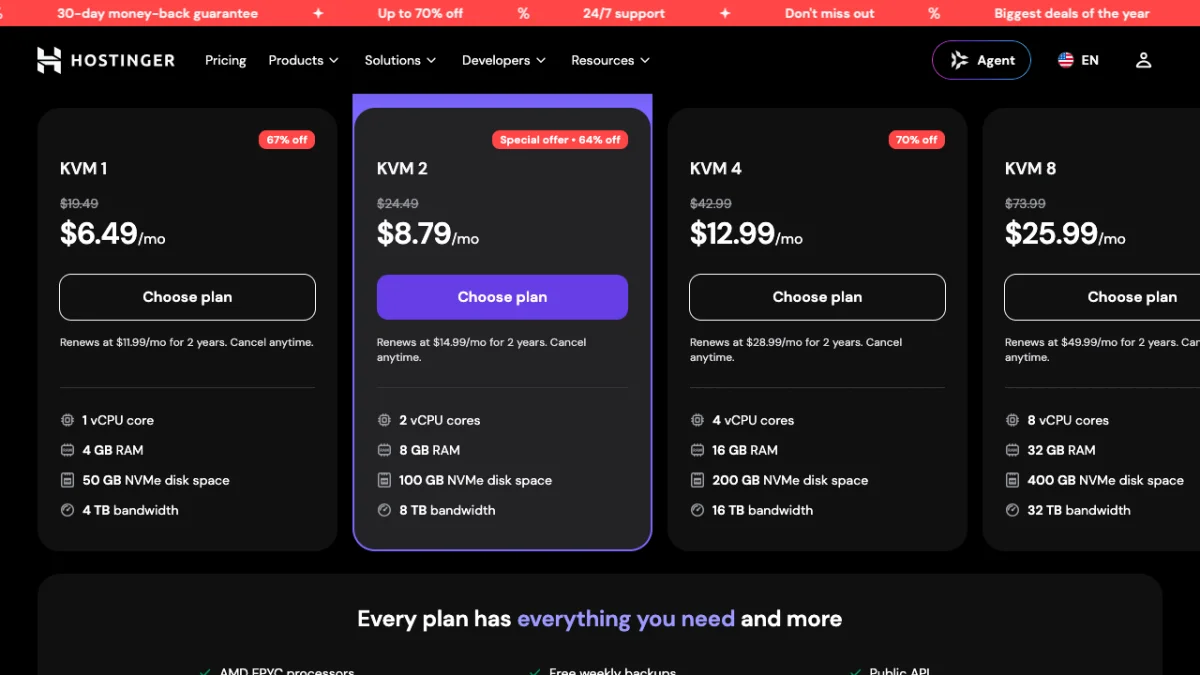
Hostinger's US pricing page on 20 October 2026: KVM 1 is enough for two or three small Node.js apps, and the renewal price under each button is what you pay after the first term.
What is the cost in Indian rupees? On hostinger.in the same plans cost ₹599 (KVM 1), ₹779 (KVM 2), ₹1,099 (KVM 4) and ₹2,199 (KVM 8) a month on the 24-month promo, plus 18% GST.

Your code travels from the laptop to a rented Ubuntu VPS, which keeps the app running even after you close the laptop.
What you need before you start
You need four things, and the domain is optional until Step 8.
- An Ubuntu 24.04 VPS with at least 1 GB RAM. 2 GB or more if your app has a build step (TypeScript, Next.js, Nest).
- Your app in a Git repository (GitHub, GitLab or Bitbucket), with a
package.jsonthat has a workingstartscript. - SSH access from your laptop. New to this? Our guide on how to connect to a VPS using SSH covers Windows, Mac and phone.
- A domain name for HTTPS. You can test on the server IP first and add the domain later. See how to buy a domain name if you don't have one yet.
One rule for the app itself: read the port from the environment. Write app.listen(process.env.PORT || 3000) instead of a hard-coded number, so the same code runs on your laptop and the server.
Step 1: Log in and prepare the server
Start by logging in, updating packages and creating a normal user. Running your app as root means one bug in an npm package can take over the whole server.
ssh [email protected]
apt update && apt upgrade -y
adduser deploy
usermod -aG sudo deploy
Copy your SSH key to the new user, then log in as deploy for everything that follows:
rsync --archive --chown=deploy:deploy ~/.ssh /home/deploy
exit
ssh [email protected]
Now turn on the firewall. Allow SSH first, or you will lock yourself out:
sudo ufw allow OpenSSH
sudo ufw enable
sudo ufw status
Notice that port 3000 is not opened. Your Node.js app will only be reachable through Nginx on ports 80 and 443, which you open in Step 7. If commands like rsync or ufw are new to you, keep our Linux commands for beginners cheat sheet open in another tab.
Step 2: Install Node.js 24 LTS
Install Node.js 24 LTS (codename Krypton) from the NodeSource repository. Ubuntu 24.04's own apt install nodejs gives you the much older Node 18, which reached end of life in 2025.
curl -fsSL https://deb.nodesource.com/setup_24.x | sudo -E bash -
sudo apt install -y nodejs
node -v
npm -v
According to the official Node.js release schedule (opens in new tab), Node 24 moved to maintenance LTS on 20 October 2026 and gets security fixes until 30 April 2028. Node 26 becomes Active LTS on 28 October 2026, two days after this guide goes live. For a new production server either is fine; Node 24 has had a full year of fixes.
Prefer to switch versions per project? Use nvm instead:
curl -o- https://raw.githubusercontent.com/nvm-sh/nvm/v0.40.8/install.sh | bash
source ~/.bashrc
nvm install 24
| Method | Pros | Cons | Use it when |
|---|---|---|---|
| NodeSource (apt) | System-wide, updates with apt upgrade, simple PM2 startup |
One Node version at a time | One app or all apps on the same version |
| nvm | Many versions side by side, no sudo for global packages | PM2 startup path breaks when you change versions | Several apps on different Node versions |
Step 3: Get your code onto the server
Clone the repo with Git rather than copying files with FileZilla. Git makes every later update a one-line command.
For a private GitHub repo, create a deploy key on the server and add it to the repo as a read-only key:
ssh-keygen -t ed25519 -C "deploy@vps"
cat ~/.ssh/id_ed25519.pub
Paste that key in GitHub under your repo's Settings > Deploy keys, leave write access off, then clone and install:
mkdir -p ~/apps && cd ~/apps
git clone [email protected]:yourname/myapp.git
cd myapp
npm ci --omit=dev
Use npm ci, not npm install. It installs exactly what package-lock.json says, so the server gets the same versions you tested. If your app needs a build step (TypeScript or a frontend bundle), run plain npm ci, then npm run build, then npm prune --omit=dev to drop the dev tools.
Quick test before going further:
PORT=3000 node server.js
curl -I http://127.0.0.1:3000
An HTTP/1.1 200 OK line means the app works. Press Ctrl+C to stop it.
Step 4: Set environment variables safely
Keep secrets like database passwords and API keys in a .env file on the server, never in Git. Create it with nano .env:
NODE_ENV=production
PORT=3000
DATABASE_URL=postgres://user:[email protected]:5432/mydb
Then lock it down so other users on the server can't read it:
chmod 600 .env
Node.js 20.6 and later can read this file without the dotenv package, using node --env-file=.env server.js. If your code already calls require('dotenv').config(), that keeps working too. Check that .env is listed in your .gitignore before your next commit.
Step 5: Run the app with a PM2 ecosystem file
PM2 is a process manager for Node.js. It restarts your app when it crashes, keeps logs, and brings it back after a reboot (Step 6). Install it globally:
sudo npm install -g pm2
You can start an app with pm2 start server.js, but a PM2 ecosystem file is better because your settings live in the repo and every deploy uses the same command. Create ecosystem.config.js in the project folder:
module.exports = {
  apps: [{
    name: "myapp",
    script: "server.js",
    node_args: "--env-file=.env",
    instances: 1,
    exec_mode: "fork",
    max_memory_restart: "400M",
    env: { NODE_ENV: "production", PORT: 3000 }
  }]
};
If your package.json has "type": "module", name the file ecosystem.config.cjs instead, or PM2 will fail to load it. On a 2 vCPU or bigger server, set instances: "max" and exec_mode: "cluster" to use every core.
Start it and check the status:
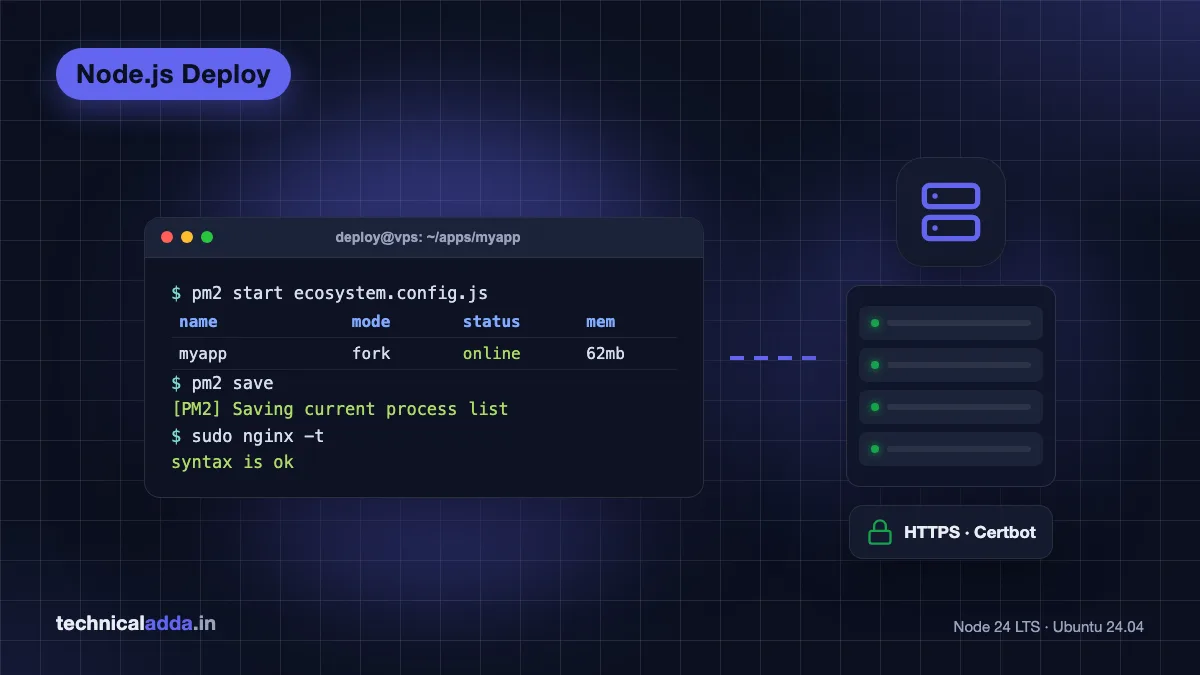
pm2 start ecosystem.config.js
pm2 status
pm2 logs myapp --lines 50
The status column should say online. If it says errored or the restart count keeps climbing, the logs show why.

PM2 restarts the app on its own after a crash or a reboot, so a power cut at the data centre doesn't leave your site down until you notice.
Step 6: Make PM2 start after reboot
"PM2 not starting after reboot" is one of the most common complaints in Node.js forums, and the cause is almost always a skipped step. PM2 needs two commands: one to register itself with systemd, and one to save the list of running apps.
pm2 startup systemd
PM2 prints a line that starts with sudo env PATH=.... Copy that exact line and run it. Then save the current process list:
pm2 save
Test it properly with sudo reboot, wait a minute, SSH back in and run pm2 status. Your app should be online without you doing anything.
If it still doesn't come back, check these in order:
- You never ran
pm2 saveafter starting or changing apps. The startup service restores the saved list, so an unsaved app is forgotten. - You ran
pm2 startupas root but started the app asdeploy(or the other way round). Each user has a separate PM2 list. Use the same user for both. - You upgraded Node.js or switched versions with nvm. The PM2 startup docs (opens in new tab) say to run
pm2 unstartup, thenpm2 startupagain, so the service points at the new Node binary. - The service failed. Run
systemctl status pm2-deploy(replacedeploywith your username) to see the error.
Step 7: Set up Nginx as a reverse proxy for Node.js
A reverse proxy is a web server that takes requests from the internet and passes them to your app running on a private port. Nginx handles HTTPS, compression and slow clients, so your Node process only deals with app logic.
Install Nginx and open the web ports:
sudo apt install -y nginx
sudo ufw allow 'Nginx Full'
Create a site config with sudo nano /etc/nginx/sites-available/myapp:
server {
    listen 80;
    server_name example.com www.example.com;

    location / {
        proxy_pass http://127.0.0.1:3000;
        proxy_http_version 1.1;
        proxy_set_header Upgrade $http_upgrade;
        proxy_set_header Connection "upgrade";
        proxy_set_header Host $host;
        proxy_set_header X-Real-IP $remote_addr;
        proxy_set_header X-Forwarded-For $proxy_add_x_forwarded_for;
        proxy_set_header X-Forwarded-Proto $scheme;
    }
}
The Upgrade and Connection lines make WebSockets (Socket.IO, live chat, notifications) work through the proxy. Without them, WebSocket connections fail and fall back to slow polling.
Enable the site, remove the default page, test and reload:
sudo ln -s /etc/nginx/sites-available/myapp /etc/nginx/sites-enabled/
sudo rm /etc/nginx/sites-enabled/default
sudo nginx -t
sudo systemctl reload nginx
Always run sudo nginx -t first. A typo in the config plus a reload is the fastest way to take every site on the server offline. If you see a 502 page now, the app isn't running on port 3000; our 502 Bad Gateway Nginx fix guide walks through every cause.
In Express, add app.set('trust proxy', 1) so req.ip and secure cookies read the forwarded headers correctly.

Nginx takes every visitor's request first and passes it to the Node.js app on port 3000, which never faces the internet directly.
Step 8: Point your domain and add free SSL with Certbot
In your domain registrar's DNS panel, add two A records pointing to your server's public IP:
| Type | Name / Host | Value | TTL |
|---|---|---|---|
| A | @ | 203.0.113.10 | Default or 3600 |
| A | www | 203.0.113.10 | Default or 3600 |
Check that DNS has updated with ping example.com from your laptop. It usually takes a few minutes, sometimes a few hours.
Now the Nginx and Certbot part. Install Certbot with snap, which is the method the Certbot instructions (opens in new tab) recommend for Ubuntu:
sudo snap install --classic certbot
sudo ln -s /snap/bin/certbot /usr/local/bin/certbot
sudo certbot --nginx -d example.com -d www.example.com
Certbot reads your server_name line, gets a free Let's Encrypt certificate, edits the Nginx config to serve HTTPS and sets up an HTTP to HTTPS redirect. Confirm that auto-renewal works:
sudo certbot renew --dry-run
Open https://example.com. You should see the padlock and your app.
Step 9: Deploy updates without downtime
Every update is the same four commands. Put them in a deploy.sh file in the project:
#!/bin/bash
set -e
cd ~/apps/myapp
git pull origin main
npm ci --omit=dev
pm2 reload ecosystem.config.js --update-env
Make it executable with chmod +x deploy.sh and run ./deploy.sh after each push. set -e stops the script at the first error, so a failed install never restarts the app with broken code.
pm2 reload restarts cluster-mode instances one at a time, so users don't see an error. In fork mode with one instance it behaves like a restart, which takes a second or two. For most small apps that is acceptable.
Once this works by hand, you can trigger the same script from GitHub Actions over SSH on every push to main. Want a dashboard that does Git deploys for you on your own VPS? Our Coolify install guide sets that up.
Step 10: Logs, memory and basic monitoring
PM2 logs grow forever unless you rotate them. On a 50 GB disk that becomes a problem after a few months of busy traffic. Install the rotation module once:
pm2 install pm2-logrotate
Useful commands for daily checks:
pm2 monitshows live CPU and memory per app.pm2 logs myapp --errshows only errors.free -hshows RAM use for the whole server.sudo tail -f /var/log/nginx/error.logshows proxy errors.
On a 1 GB server, add 2 GB of swap so npm ci or a build doesn't get killed for lack of memory:
sudo fallocate -l 2G /swapfile
sudo chmod 600 /swapfile
sudo mkswap /swapfile
sudo swapon /swapfile
echo '/swapfile none swap sw 0 0' | sudo tee -a /etc/fstab
Add a /health route to your app that returns 200, and point a free uptime monitor at it. You'll hear about downtime before your users do.
Common Node.js deployment errors and fixes
Most failed deployments come down to the same handful of errors. Match the symptom, then apply the fix.
| Symptom | Likely cause | Fix |
|---|---|---|
| 502 Bad Gateway from Nginx | App crashed or listens on a different port | pm2 status, pm2 logs, match the port in proxy_pass |
Error: listen EADDRINUSE :::3000 |
Another process already uses port 3000 | sudo lsof -i :3000, stop the old process or change PORT |
| Works on IP:3000 locally but not on the domain | DNS not updated or Nginx site not enabled | ping the domain, check sites-enabled, run nginx -t |
| App gone after reboot | pm2 save skipped or wrong user |
Run pm2 startup, its printed command, then pm2 save |
process.env.X is undefined |
.env not loaded under PM2 |
Add node_args: "--env-file=.env" or the env block, then pm2 reload --update-env |
JavaScript heap out of memory during build |
1 GB RAM, no swap | Add swap or build on your laptop or in CI |
EACCES when binding port 80 |
Non-root user can't use ports below 1024 | Keep the app on 3000 and let Nginx use 80/443 |
| Socket.IO keeps reconnecting | WebSocket headers missing in Nginx | Add the Upgrade and Connection lines from Step 7 |
Before you send anyone the URL
- A small Ubuntu VPS with Node.js 24 LTS, PM2 and Nginx is the cheapest setup that stays awake for real users.
- Render's free tier sleeps after 15 minutes without traffic. Fine for demos, not for paying users.
- Run
pm2 startup, then the command it prints, thenpm2 save. Skip one and the app vanishes after a reboot. - Keep port 3000 closed in the firewall. Only Nginx talks to the internet.
certbot --nginxadds free HTTPS that renews itself.- Put updates in one
deploy.shwithset -e, so a failed install never restarts broken code.
Your next step: run the reboot test, then go live
To deploy a Node.js app that stays up, you need only a small VPS, Node.js 24 LTS, a PM2 ecosystem file, an Nginx reverse proxy and a free Certbot certificate. Do the reboot test in Step 6 before you share the link with anyone. It catches the most common failure while nobody is watching.
If you hit a 502 after going live, start with our 502 Bad Gateway Nginx fix guide, and browse more server tutorials in Web Hosting & Servers.
FAQ
Frequently Asked Questions
How do I deploy a Node.js app on a VPS?
Log in to an Ubuntu VPS over SSH, install Node.js 24 LTS from NodeSource, clone your repo and run npm ci --omit=dev. Start the app with PM2, run pm2 startup and pm2 save so it survives reboots, then configure Nginx as a reverse proxy to your app's port and run Certbot for free HTTPS on your domain.
Can I deploy a Node.js app for free?
Yes. Render's free web service and Oracle Cloud's Always Free VPS both cost nothing. Render's free tier sleeps after 15 minutes without traffic and takes about a minute to wake, so the first visitor waits. Oracle's free VPS stays on, but sign-up needs a card for verification and free capacity in Indian regions is not always available.
Which Node.js version should I use in production in 2026?
Use an LTS version. As of late October 2026, Node.js 24 is in maintenance LTS with security fixes until April 2028, and Node.js 26 becomes Active LTS on 28 October 2026. Node 22 is in maintenance until April 2027. Avoid odd-numbered versions in production because they never get long-term support.
Why is my PM2 app not starting after reboot?
Usually because pm2 save was never run after starting the app, or because pm2 startup was set up under a different user than the one running the app. Run pm2 startup, execute the exact command it prints, start your apps and run pm2 save. After a Node.js upgrade, run pm2 unstartup and set it up again.
What is a PM2 ecosystem file?
A PM2 ecosystem file is a JavaScript config file, usually ecosystem.config.js, that lists your apps with their script, environment variables, instance count and memory limit. Keeping it in the repo means every server starts the app the same way with pm2 start ecosystem.config.js. Name it .cjs if your project uses ES modules.
Do I need Nginx in front of Node.js?
Not strictly, but you should use it. Nginx handles HTTPS certificates, serves on ports 80 and 443 without root, compresses responses, buffers slow mobile clients and lets you host several apps on one server by domain name. Your Node app then runs on a private port like 3000 that the firewall keeps closed to the internet.
How do I get free SSL for a Node.js app?
Point your domain's A record to the server, set up Nginx as a reverse proxy with the correct server_name, then install Certbot with sudo snap install --classic certbot and run sudo certbot --nginx -d example.com. Certbot fetches a free Let's Encrypt certificate, configures HTTPS and renews it automatically through a systemd timer.
How much RAM do I need to host a Node.js app?
A simple Express or Fastify API runs comfortably on 1 GB of RAM. If your app has a build step such as TypeScript, Next.js or a React bundle, use 2 GB or add swap, because builds use far more memory than the running app. For several apps plus a database on one server, 4 GB is a safe starting point.
Should I use Docker to deploy a Node.js app?
Docker helps when you run many services or want identical environments on every machine, but it adds a layer to learn. For a single Node.js app, PM2 and Nginx are simpler and use less RAM. If you later want Git-based deploys with containers on your own VPS, a self-hosted platform like Coolify gives you that without writing Dockerfiles by hand.
Where to buy
-
Visit official site (opens in new tab)
Hostinger
-
Visit official site (opens in new tab)
Contabo