Coolify Install on a VPS: One Command, 2 GB RAM, Then Close Port 8000
Web Hosting & Servers 14 min read By Xavio Thomas
In this articleTable of contents13
Last updated: 22 October 2026
A Coolify install takes one command on a fresh Ubuntu 24.04 VPS with at least 2 vCPU and 2 GB RAM, and in our view a 4 GB server is the smarter starting point. You get your own Vercel or Heroku style dashboard: push code to GitHub, Coolify builds it, puts it behind HTTPS and keeps it running. The software is free and open source. You only pay for the server.
This guide walks through the official install script, the firewall ports that trip up most beginners, setting a domain with free HTTPS, the Hostinger one-click template, and an honest Coolify vs Dokploy vs Vercel comparison with US dollar prices (and the rupee cost) checked in October 2026.
Quick answer: To install Coolify, SSH into a fresh Ubuntu 24.04 LTS VPS (2 vCPU, 2 GB RAM, 10 GB disk minimum) as root and run
curl -fsSL https://cdn.coollabs.io/coolify/install.sh | bash. Openhttp://your-server-ip:8000and create the admin account immediately. Then point a subdomain at the server, set it in Settings, and close port 8000.
What Coolify is and why people self-host it
Coolify is an open-source, self-hosted platform for deploying apps, databases and services on servers you control. The project's GitHub page (opens in new tab) describes it as an alternative to Vercel, Heroku and Netlify, and it is released under the Apache 2.0 licence.
In plain terms, it gives you a web dashboard on top of Docker. You connect a Git repository, pick a branch, and Coolify builds a container, attaches a domain, gets an HTTPS certificate and redeploys on every push. It also runs databases like PostgreSQL, MySQL, MongoDB and Redis, and offers 360+ one-click services (n8n, Supabase, Umami, Uptime Kuma, WordPress and many more).
Why Indian developers and freelancers like it:
- One small server bill. Five client sites and a staging API can live on one $6.49 to $8.79 a month VPS instead of five separate paid plans.
- No per-seat pricing. Coolify self-hosted is "free forever" with no feature limits, per its pricing page (opens in new tab).
- Your data stays on your server. Useful for client work where you don't want a US platform holding the database.
The trade-off is real: you are now the ops team. If the server runs out of RAM at 2 am, nobody else fixes it.

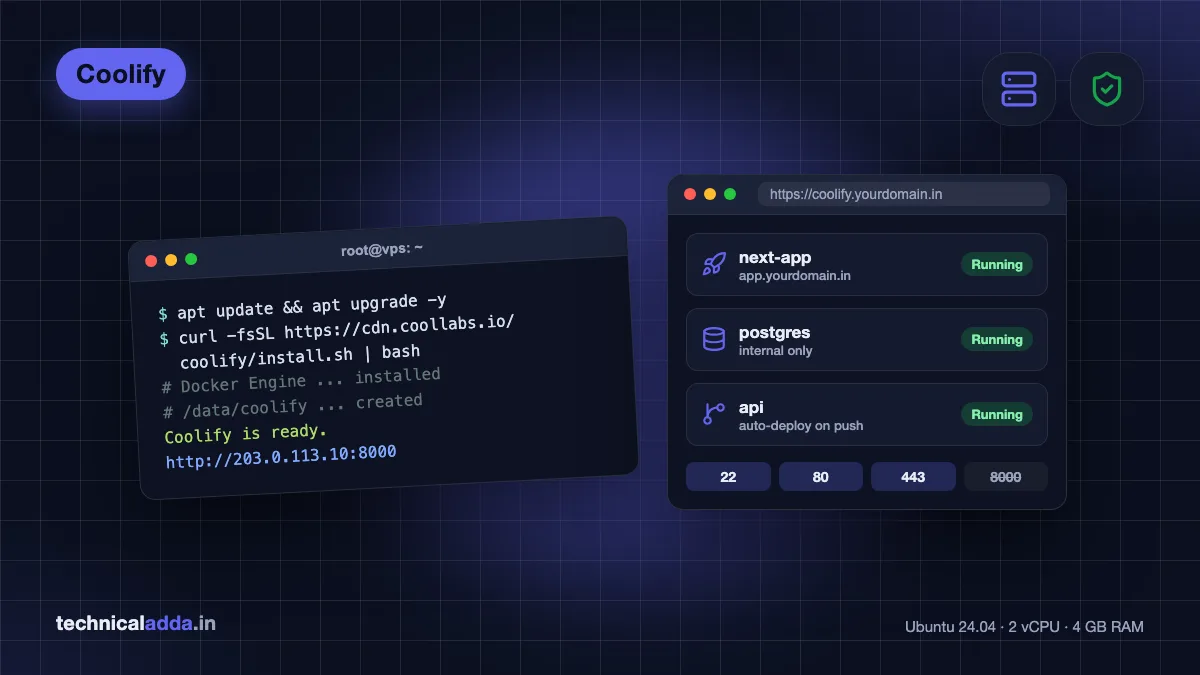
Coolify turns one rented server into your own deploy dashboard: you push code from the laptop and the apps go live from that one box.
Coolify requirements: what the docs say vs what works
The official installation docs (opens in new tab) list 2 CPU cores, 2 GB RAM and 10 GB of free disk as the minimum, on a 64-bit (amd64 or arm64) Linux server with SSH access as root or a sudo user. They also say a fresh server is recommended to avoid conflicts.
Here is where the docs and real use part ways. Coolify itself sits comfortably in 2 GB. Building a Next.js or Vite app on the same machine is what eats memory, and Coolify's own troubleshooting page (opens in new tab) warns that builds can overload the server and make it unresponsive.
| What you plan to run | RAM | vCPU | Disk | Notes |
|---|---|---|---|---|
| Coolify only, testing | 2 GB | 2 | 10 GB+ | Official minimum. Add swap. |
| 1 to 3 small apps + 1 database | 4 GB | 2 | 40 GB+ | Our suggested starting point |
| Next.js builds, several databases, n8n | 8 GB | 2 to 4 | 80 GB+ | Builds stop crashing here |
| Agency setup, many client sites | 16 GB | 4+ | 150 GB+ | Or move builds to a separate server |
Supported operating systems include Ubuntu, Debian, CentOS, Fedora, AlmaLinux, Rocky, openSUSE, Arch, Alpine and Raspberry Pi OS (64-bit). Stick to an Ubuntu LTS release (22.04 or 24.04). The docs say non-LTS Ubuntu needs the manual install.
Which VPS to use for Coolify in India
Any KVM VPS with root access works. What matters for Indian users is RAM per rupee, rupee or UPI billing, and a data centre close to your visitors. Prices below are the US dollar list prices, checked on 20 October 2026, and exclude tax.
| Option | Specs | Price | Good for |
|---|---|---|---|
| Hostinger KVM 1 | 1 vCPU, 4 GB RAM, 50 GB NVMe | $6.49/mo promo, renews $11.99/mo | Testing; 1 vCPU is below Coolify's 2-core minimum |
| Hostinger KVM 2 | 2 vCPU, 8 GB RAM, 100 GB NVMe | $8.79/mo promo, renews $14.99/mo | Next.js builds, n8n, several databases |
| Contabo Cloud VPS 4 | 4 vCPU, 8 GB RAM, billed in USD | $5.28/mo for the first 24 months, then $6.60/mo | Heavy workloads on a tight budget |
| Oracle Cloud Always Free | Arm instance, card needed for signup | $0 | Learning and side projects |
What is the cost in Indian rupees? On hostinger.in, KVM 1 is ₹599 a month promo (renews ₹999) and KVM 2 is ₹779 a month promo (renews ₹1,199), plus 18% GST. Contabo bills in dollars, so Cloud VPS 4 works out to about ₹500 a month at ₹95 per dollar, plus your card's forex markup. Oracle's free tier stays ₹0.
Hostinger's promo prices need a long upfront term and are listed on its VPS hosting page (opens in new tab). It also offers a ready-made Coolify template, covered below.
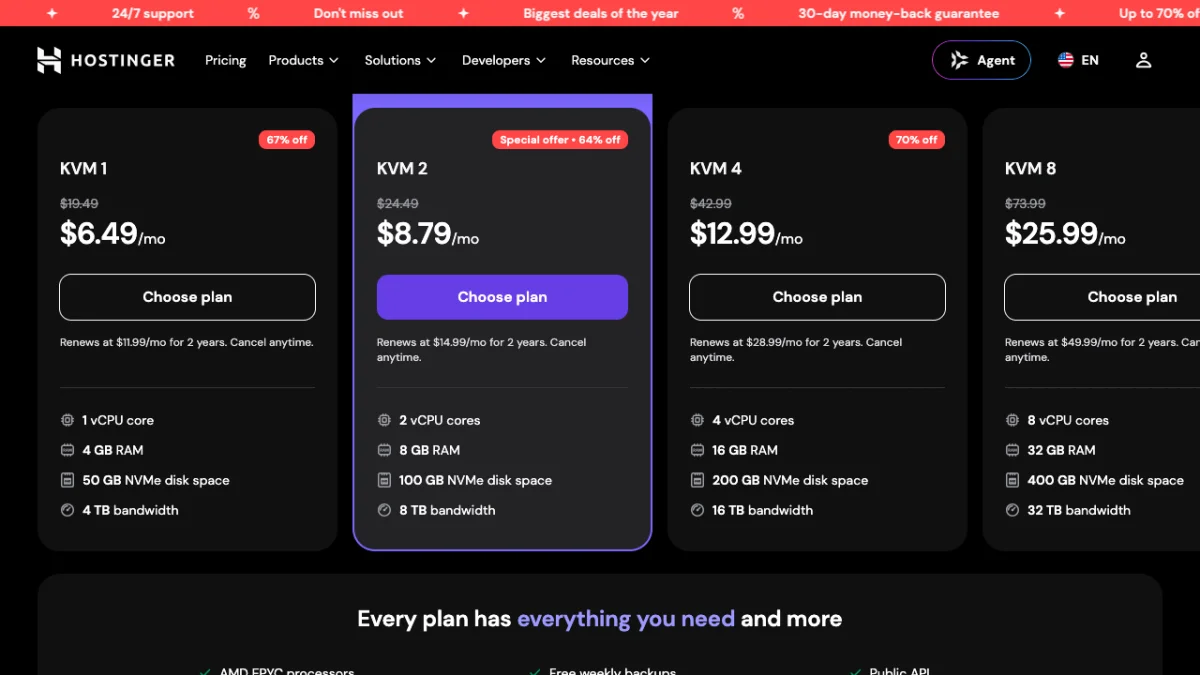
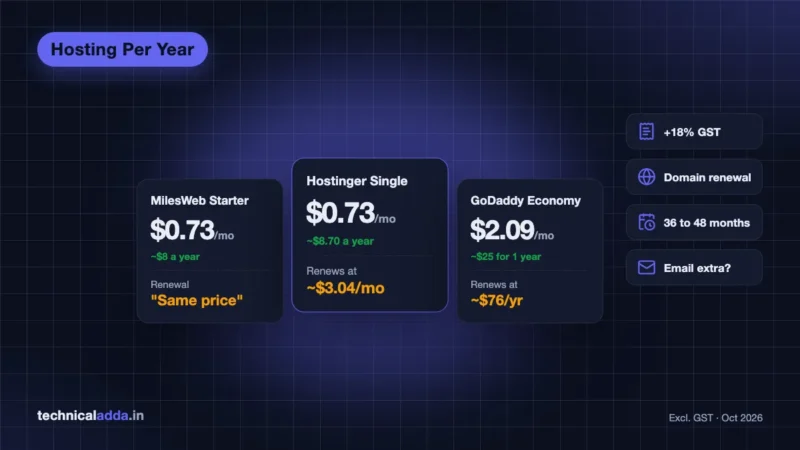
Hostinger's US pricing page on 20 October 2026: the promo price is paid upfront for the full term, and the renewal line under each button is the price you pay after that.
What is the cost in Indian rupees? On hostinger.in the same plans cost ₹599 (KVM 1), ₹779 (KVM 2), ₹1,099 (KVM 4) and ₹2,199 (KVM 8) a month on the promo term, plus 18% GST.
Contabo gives the most RAM for the money but bills in US dollars; read our Contabo VPS review for the India region charge.. If you want to learn without paying, our Oracle Cloud free tier VPS guide shows how to get a free Arm server that runs Coolify fine. Want the cheapest regular hosting instead of a VPS? See cheapest web hosting per year in India.

RAM decides how much one Coolify server can build and run, so the middle size (4 GB) is the sensible first server for most people.
Before you start
Have these ready. It saves you from half-finished installs.
- A fresh VPS running Ubuntu 24.04 LTS, with its public IP address and root password or SSH key.
- An SSH client. Windows 11 has one built into Terminal. New to this? Our guide on how to connect to a VPS using SSH covers PuTTY, Terminal and keys.
- A domain or subdomain where you can edit DNS, for example
coolify.yourdomain.infor the dashboard and*.yourdomain.infor apps. - A strong password for the Coolify admin account, saved in a password manager.
- Basic Linux comfort. Keep our Linux commands for beginners cheat sheet open in another tab.
Do not install Coolify on a server that already runs cPanel, Plesk or another web server on ports 80 and 443. Coolify's proxy needs those ports.
How to install Coolify on Ubuntu (step by step)
These steps follow the official install docs. Run them as root (or prefix with sudo).
Step 1: Log in and update the server
ssh root@your-server-ip
apt update && apt upgrade -y
Reboot if a kernel update was installed (reboot), then log back in.
Step 2: Add swap on small servers
On a 2 GB or 4 GB server, swap stops builds from getting killed when RAM runs out. This adds 2 GB:
fallocate -l 2G /swapfile
chmod 600 /swapfile
mkswap /swapfile
swapon /swapfile
echo '/swapfile none swap sw 0 0' >> /etc/fstab
Check it with free -h. Skip this step on 8 GB servers if you prefer.
Step 3: Open the right firewall ports
Coolify's firewall guide (opens in new tab) lists these inbound TCP ports:
| Port | Used for | Keep open after setup? |
|---|---|---|
| 22 | SSH | Yes (or your custom SSH port) |
| 80 | HTTP and certificate generation | Yes |
| 443 | HTTPS for the dashboard and apps | Yes |
| 8000 | Dashboard by IP address | No, close after domain is set |
| 6001 | Real-time updates by IP | No |
| 6002 | Web terminal by IP | No |
Open them in your provider's firewall panel (Hostinger, Contabo and Oracle all have one). A cloud firewall is safer than ufw here, because Docker writes its own iptables rules and can expose container ports even when ufw says they are closed. Never remove the SSH rule while editing, or you lock yourself out.
Step 4: Run the Coolify install script
curl -fsSL https://cdn.coollabs.io/coolify/install.sh | bash
The script installs Docker Engine if it isn't present, pulls the Coolify containers and stores everything under /data/coolify. On a fresh server it usually finishes in a few minutes. If Docker was installed through snap earlier, remove it first; the docs say the snap version causes problems.
Step 5: Create the admin account right away
Open http://your-server-ip:8000 in your browser and register. Do this immediately. The docs warn that anyone who reaches the registration page first becomes the instance admin and gets root access to your server.
If you can't register at once, pre-create the admin during install with ROOT_USERNAME, ROOT_USER_EMAIL and ROOT_USER_PASSWORD environment variables, as shown in the installation docs.
Step 6: Back up the secrets file
Your instance secrets live in /data/coolify/source/.env. It holds APP_KEY, which encrypts values in Coolify's database. Copy it somewhere safe off the server:
scp root@your-server-ip:/data/coolify/source/.env ./coolify-env-backup
Lose this file and a restore from backup won't decrypt your saved secrets.
Step 7: Choose localhost in onboarding
The onboarding wizard asks where to deploy. Pick Localhost if this one VPS will run both Coolify and your apps. Pick a remote server only if you have a second machine for workloads.
Step 8: Put the dashboard on a domain with HTTPS
- In your DNS panel, add an A record for
coolify.yourdomain.inpointing to the server IP. - Add a wildcard A record
*.yourdomain.into the same IP, so each app can get its own subdomain. - In Coolify, go to Settings, then General, and enter
https://coolify.yourdomain.inin the URL field. Save. - Wait a minute for the proxy (Traefik by default) to fetch a Let's Encrypt certificate, then open the new URL.
- Close ports 8000, 6001 and 6002 in your firewall. The dashboard now runs over 443.
If the domain shows a 502 error after this step, our 502 Bad Gateway fix guide explains how proxies fail and what to check first.
Shortcut: the Hostinger Coolify template
Hostinger VPS plans offer an Ubuntu 24.04 with Coolify template that comes with Coolify preinstalled, so you skip Steps 1 to 4. According to Hostinger's support guide (opens in new tab), the dashboard on this template opens at http://your-vps-ip:3000, not 8000.
The rest is the same: register the admin account straight away, choose Localhost, add a domain and lock down the firewall. The template saves you the install steps. It doesn't save you from learning the server, so still read the security section below.
Deploy your first app
Once Coolify runs on a domain, a first deploy takes a few clicks:
- Go to Projects, click + Add, and open the Production environment.
- Click + Add New Resource and choose a public repository, or connect GitHub through a GitHub App for private repos.
- Pick a build pack. Coolify offers Nixpacks (auto-detects Node, Python, PHP and others), Railpack (beta), Static, Dockerfile and Docker Compose.
- Set the domain, for example
https://app.yourdomain.in, and add environment variables. - Click Deploy and watch the build log. With auto-deploy on, every push to the branch redeploys.
Databases work the same way: + Add New Resource, pick PostgreSQL or MySQL, and copy the internal connection string into your app's variables. Keep database ports private unless you have a reason to expose them.
Built something with an AI app builder? Coolify is a common next step for people moving off hosted platforms after vibe coding a prototype.
Coolify vs Dokploy vs Vercel
All three deploy apps from Git. They differ in who runs the server and how the bill grows.
| Point | Coolify (self-hosted) | Dokploy (self-hosted) | Vercel |
|---|---|---|---|
| Software cost | Free, Apache 2.0 | Free self-hosted | Hobby free (non-commercial), Pro $20/month per seat |
| Server cost | Your VPS ($6.49+/month) | Your VPS | Included, usage-based beyond limits |
| Minimum RAM | 2 GB | 2 GB, 30 GB disk | Not applicable |
| Managed cloud option | Coolify Cloud, $5/month for 2 servers, +$3 per extra server | Dokploy Cloud, from $4.50/month per server | It is the cloud |
| One-click services | 360+ | Templates available | Marketplace integrations |
| Multi-server | Yes | Yes, Docker Swarm built in | Not applicable |
| Best for | Many small apps and databases on one bill | Swarm clusters, simpler UI | Next.js frontends, zero ops |
Sources: Coolify pricing (opens in new tab), Dokploy installation docs (opens in new tab), Vercel pricing (opens in new tab), checked 20 October 2026.
What is the cost in Indian rupees? At ₹95 per dollar, Vercel Pro is about ₹1,900 per seat a month, Coolify Cloud about ₹475 a month for two servers plus about ₹285 per extra server, and Dokploy Cloud about ₹430 per server, all charged in dollars to an international card. The server under self-hosted Coolify starts at ₹599 a month on hostinger.in, plus GST.
Our take: pick Coolify if you want the biggest library of one-click services and a large community. Pick Dokploy if you plan to cluster servers with Docker Swarm. Stay on Vercel for a Next.js frontend where you never want to touch a server, but remember the Hobby plan is for personal, non-commercial use only. Client work belongs on Pro.
Updates, backups and security
Updates. Self-hosted instances update from Settings, then Updates. You can enable automatic updates with a schedule (the default cron is 0 0 * * *, daily at midnight). Before any update, check the release notes and make sure no deployment is running. If the dashboard doesn't come back, the upgrade logs sit in /data/coolify/source/.
Backups. Coolify can schedule database backups and send them to S3-compatible storage. Set this up on day one. Also keep your copy of /data/coolify/source/.env and take provider-level snapshots before big changes.
Security checklist:
- Admin account created right after install, with a long unique password and 2FA turned on in your profile.
- Ports 8000, 6001 and 6002 closed once the domain works.
- SSH key login, password login disabled.
- Database ports not exposed to the internet.
- Separate build server or CI builds if the main server keeps freezing during deploys.

After setup only SSH and web traffic should get in; the Coolify setup ports get closed once the dashboard runs on your domain.
Common Coolify install problems and fixes
Dashboard not loading on port 8000. The port is blocked in the provider firewall, or you are on the Hostinger template, which uses port 3000. Check the panel firewall first, then run docker ps to confirm the coolify container is up.
Server freezes during a build. RAM ran out. Add swap (Step 2), upgrade to a bigger plan, or build images in GitHub Actions and let Coolify pull the finished image. Coolify's docs recommend htop over SSH to spot the culprit.
Certificate not issued for a domain. DNS isn't pointing to the server yet, or port 80 is closed. Let's Encrypt needs port 80 for validation. Check the record with nslookup app.yourdomain.in and wait for DNS to update.
"Port already in use" on 80 or 443. Something else (Apache, Nginx, a control panel) holds the port. Coolify works best on a fresh server, so reinstalling the OS is often faster than untangling it.
Docker errors right after install. You probably had Docker from snap. Remove it with snap remove docker, then run the install script again.
Coolify setup checklist before you go live
- A Coolify install is one command:
curl -fsSL https://cdn.coollabs.io/coolify/install.sh | bashon a fresh Ubuntu LTS server. - The official minimum is 2 vCPU, 2 GB RAM and 10 GB disk; 4 GB RAM or more avoids build crashes.
- Register the admin account the moment the dashboard opens, then back up
/data/coolify/source/.env. - Open ports 22, 80, 443, 8000, 6001 and 6002 for setup, and close the last three once the dashboard runs on a domain.
- Hostinger's Coolify template skips the install and opens on port 3000.
- Coolify self-hosted is free; Coolify Cloud costs $5 a month for two of your own servers.
Your next step: a fresh VPS and one command
If you want Vercel-style deploys on a server you own for one flat monthly bill, Coolify is worth the hour it takes. Start with a fresh Ubuntu 24.04 VPS with 2 vCPU and 4 GB RAM or more, run the one-line script, register the admin account immediately, move the dashboard to a domain and close the setup ports. After that, every new app is a few clicks.
If SSH is still new to you, start with our guide to connect to a VPS using SSH, then come back and install Coolify. More server and hosting guides live in our hosting category.
FAQ
Frequently Asked Questions
Is Coolify free to use?
Yes. Coolify self-hosted is free and open source under the Apache 2.0 licence, with no feature limits. You only pay for the VPS it runs on. Coolify Cloud, the managed dashboard, costs $5 a month for two connected servers plus $3 for each extra server, and you still bring your own servers.
What are the minimum requirements for Coolify?
Coolify's docs list 2 CPU cores, 2 GB RAM and 10 GB free disk on a 64-bit Linux server with root SSH access. That is enough for Coolify itself. If you build Node or Next.js apps on the same server, plan for 4 GB to 8 GB RAM, or add swap to avoid crashes during builds.
Which Ubuntu version is best for a Coolify install?
Use Ubuntu 24.04 LTS or 22.04 LTS. The official install script supports these directly, and Coolify's docs say non-LTS Ubuntu releases need the manual install method. Start with a fresh server so no existing web server or control panel is holding ports 80 and 443.
Which port does Coolify use?
A fresh Coolify install serves the dashboard on port 8000, with 6001 for real-time updates and 6002 for the web terminal. Apps use ports 80 and 443 through the proxy. Hostinger's preinstalled Coolify template is different and opens the dashboard on port 3000. Close the dashboard ports after you move it to a domain.
Can I install Coolify on Hostinger VPS?
Yes. You can run the official script on any Hostinger KVM plan, or pick the "Ubuntu 24.04 with Coolify" template, which comes preinstalled. With the template, open the dashboard at port 3000 and register the admin account straight away. KVM 2 (2 vCPU, 8 GB) meets Coolify's 2-core minimum and handles builds; KVM 1 has only 1 vCPU, so keep it for testing.
Is Coolify better than Dokploy?
Neither is better for everyone. Coolify has a larger library of one-click services (360+) and a bigger community. Dokploy has Docker Swarm built in for multi-node clusters and a simpler interface. Both are free to self-host and need about 2 GB RAM. Try both on a cheap VPS before moving production apps.
Can Coolify replace Vercel?
For many projects, yes. Coolify deploys from Git, adds HTTPS and redeploys on push, much like Vercel. You lose Vercel's global edge network and zero-maintenance setup, and you take on server updates and backups. It suits agencies and freelancers hosting many apps, especially commercial ones that Vercel's free Hobby plan does not allow.
How do I update Coolify?
Open Settings, then Updates in the Coolify dashboard. You can update manually or enable automatic updates on a schedule such as daily. Before updating, read the release notes, wait for running deployments to finish, and back up your instance. If the dashboard fails to return, check the upgrade logs in /data/coolify/source/.
Can I run Coolify on Oracle Cloud free tier?
Yes. Coolify supports arm64, so an Oracle Cloud Always Free Arm instance can run it. Open ports 22, 80, 443 and 8000 in both Oracle's security list and the instance's own firewall, since Oracle images block ports by default. It works well for learning, though free capacity in Indian regions is sometimes unavailable.
Where to buy
-
Visit official site (opens in new tab)
Hostinger
-
Visit official site (opens in new tab)
Contabo