Transfer Website and Email to New Host: Free Migrations Leave Your Email Behind
Web Hosting & Servers 17 min read By Xavio Thomas
In this articleTable of contents16
Last updated: 29 October 2026
To transfer website and email to new host safely, copy everything first and switch DNS last. Build the site on the new server, copy every mailbox over IMAP, test both, and only then point your domain at the new host. Keep the old plan running for a week after the switch.
Most migration disasters in Indian small businesses come from doing it the other way round: changing nameservers on day one, then discovering that the client's invoices from the last two years were sitting in a cPanel mailbox that nobody copied. This guide gives you the order that avoids that, the exact checks to run, and what a migration costs in India in 2026.
Quick answer: To transfer a website and email to a new host, lower your DNS TTL a day early, create the site and the same mailboxes on the new host, copy files, database and mail (most hosts do the site free), test using a preview link, then change nameservers or A and MX records. Run a final mail sync and keep the old host for 7 days.
What moves and what doesn't
A website migration moves four separate things, and each one has its own method. Hosts that offer "free migration" usually move only the first two.
| Item | Where it lives | How it moves | Included in free host migration? |
|---|---|---|---|
| Website files (themes, uploads, code) | public_html or /var/www | Host migration, plugin, FTP or rsync | Yes |
| Database (posts, orders, users) | MySQL or MariaDB | Host migration, plugin, phpMyAdmin or mysqldump | Yes |
| Email (mailboxes and old mail) | Old host's mail server | IMAP copy tool, imapsync, or a mail app | Usually no |
| DNS records (A, MX, TXT, CNAME) | Wherever your nameservers point | You recreate them by hand | No |
Two things do not need to move at all. Your domain registration can stay with the same registrar; you only change where it points. And if your email is already on a separate service like Zoho Mail or Google Workspace, leave the MX records alone and move only the website.
Hostinger's own documentation is clear on this: email is "not part of website migration", and you set up mailboxes separately and import mail over IMAP, according to its website migration guide (opens in new tab).

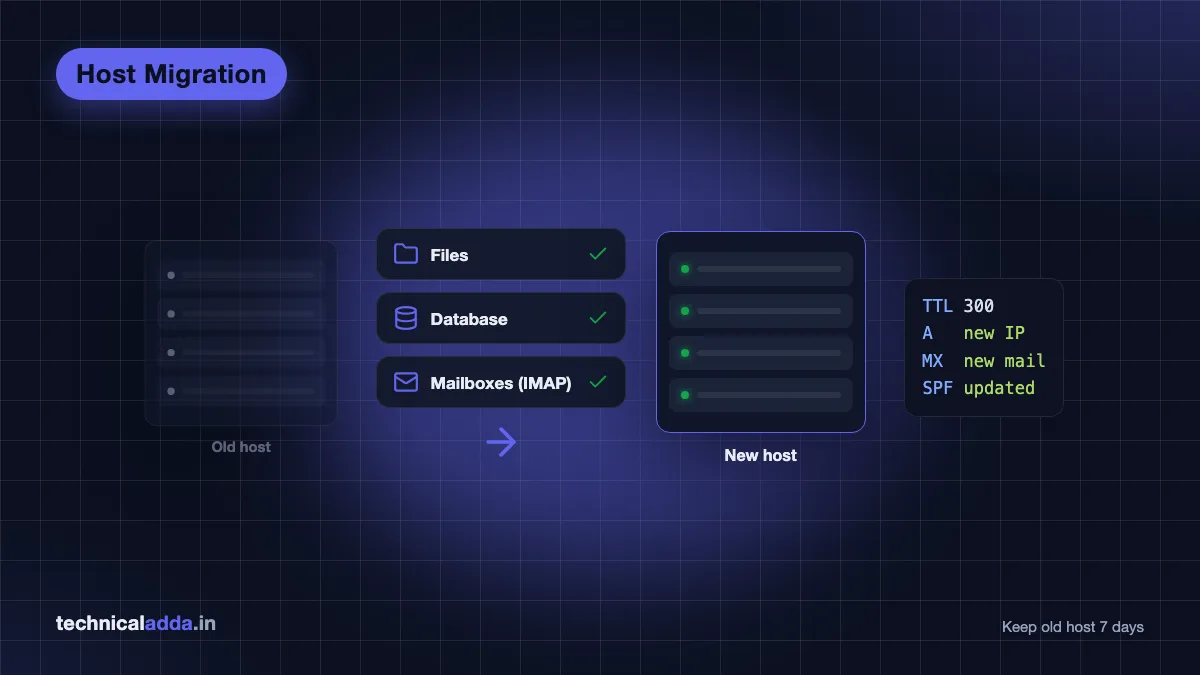
A migration copies both the website files and every mailbox from the old server to the new one before anything else changes.
Website migration checklist: the safe order
Here is the whole job on one timeline. Day 0 is the day you change DNS.
| When | Task | Why |
|---|---|---|
| Day -2 | List mailboxes, sizes and every DNS record | Nothing gets forgotten |
| Day -1 | Lower TTL on A and MX records to 300 seconds | The switch spreads in minutes, not hours |
| Day -1 | Buy the new plan, add the domain, create the same mailboxes | Mail has a home before it arrives |
| Day -1 | Migrate the site (host team, plugin or manual) | Site is ready before DNS moves |
| Day -1 | Test on a preview URL or hosts file | Catch broken pages while the old site is still live |
| Day -1 | First IMAP copy of all mail | The big copy finishes before cut-over |
| Day 0 | Change nameservers, or A and MX records | Visitors and new mail go to the new host |
| Day 0 | Issue SSL, run a second IMAP sync | Picks up mail that landed on the old server |
| Day 0 to 7 | Keep old host active, watch both inboxes | Late mail and cached DNS still reach you |
| Day 7+ | Final backup, then cancel old host | Nothing is lost if you need to roll back |
Pick a quiet time for Day 0. For most Indian business sites, that's late night or a Sunday morning.
Step 1: Take stock of the old host
Write down everything you'll need before you change anything. Ten minutes here saves a lost mailbox later.
- List every mailbox and its size. In cPanel, open Email Accounts; the list shows each address and its disk usage. Include forwarders and catch-all settings.
- Find out who runs your DNS. Look up your nameservers at your registrar. If they say something like
ns1.oldhost.com, your old host runs DNS and its records will vanish when you cancel. If they point to the registrar or Cloudflare, DNS stays where it is. - Export or screenshot every DNS record. Copy A, CNAME, MX, TXT (SPF, DKIM, DMARC, Google or Zoho verification) and any SRV records into a text file.
- Note the PHP version and database size. A site built on PHP 8.1 can break on a host that defaults to an older or newer version.
- Take a full backup and download it. In cPanel, the Backup Wizard creates a full account backup that includes the home directory and mail. Keep a copy on your laptop, not only on the old server.
If cPanel is new to you, our explainer on what cPanel is and where these menus live shows the layout.
Step 2: Lower the DNS TTL a day early
TTL (time to live) tells resolvers how long to cache a DNS answer. Many hosts set it to 14,400 seconds (4 hours) or more. Lower the TTL on your A and MX records to 300 seconds (5 minutes) at least 24 hours before the switch, without changing the values yet.
When you later change the records, most of the internet picks up the new address within minutes instead of hours. Hostinger's help centre still warns that a nameserver change can take up to 24 hours to work everywhere, and some ISPs ignore short TTLs. That's why the old host must stay alive for a week.
Step 3: Set up the new host and create the same mailboxes
Buy the new plan and add your domain to it, but don't change nameservers yet. Most panels let you add a domain without it pointing there.
Then create the same mailboxes on the new host, with identical addresses. Use a strong temporary password for each one and write them down; you'll need both old and new passwords for the copy in Step 6.
Planning to move from shared hosting to a server you control? Compare options in our best VPS hosting in India guide first, or check the cheapest web hosting per year if renewal price is why you're moving.
Step 4: Migrate the website to the new host
Choose the easiest method your new host supports. There are three.
Option A: let the new host do it (free on most plans)
Hostinger advertises unlimited free website migrations on its hosting plans. In hPanel, go to Websites > Add Website > Migrate Website (or open the Websites menu on the Home page and choose Migrations), pick WordPress admin login, a backup upload, or cPanel/WHM details as the source, and submit. Its team copies the site, and you switch DNS once the copy is done. Before you submit, turn off two-factor login and any anti-bot check on the old site, because the team can't get past them.
Cloudways offers a free WordPress Migrator plugin for unlimited WordPress sites, plus one free migration handled by its team on request, according to its migration page (opens in new tab). Its FAQ says a plugin migration typically takes less than an hour, depending on site size.
Option B: WordPress migration to another server with a plugin
For a WordPress site under a few GB, a migration plugin is the fastest DIY route:
- Install a fresh WordPress on the new host for the same domain.
- Install the migration plugin on both sites (the old and the new).
- Export a package from the old site and import it on the new one, or use the plugin's direct transfer.
- Log in on the new site with your old admin username and password.
Large WooCommerce stores with years of orders often exceed free plugin limits. For those, Option A or C is safer.
Option C: manual move (any site, any host)
Manual migration works for WordPress, Laravel, plain PHP or static sites:
- Download the site files from
public_htmlusing File Manager or FTP. - Export the database from phpMyAdmin as a
.sqlfile. - On the new host, create a new database and user, then import the
.sqlfile in phpMyAdmin. - Upload the files to the new
public_html. - Update the database name, user, password and host in your config file (for WordPress,
wp-config.php).
Moving to a VPS? Do it over SSH, which is faster and avoids upload limits. On the old server, export the database, then pull files and the dump from the new server:
On the old server:
mysqldump -u olddbuser -p olddb > site.sql
On the new server:
rsync -avz -e ssh user@OLD_SERVER_IP:/home/user/public_html/ /var/www/example.com/
rsync -avz -e ssh user@OLD_SERVER_IP:~/site.sql ~/
mysql -u newdbuser -p newdb < ~/site.sql
If you haven't set up the server yet, follow our guides to connect to a VPS using SSH and install WordPress on a VPS first.
Step 5: Test the site before you touch DNS
Test the copy while your real visitors still see the old site. Two ways:
- Preview link. Most hosts give a temporary address. On Hostinger, open Websites, click the three dots next to the site, then Website Details to find its preview domain.
- Hosts file. Point only your own computer at the new server. Add a line like
203.0.113.10 example.com www.example.com(use the new server IP) toC:\Windows\System32\drivers\etc\hostson Windows or/etc/hostson Mac and Linux, then open your site.
Check the homepage, two or three inner pages, a contact form, login, search and, for shops, a test order with your cheapest product or cash on delivery. Then remove the hosts file line.

Check the site through a preview link or hosts file and confirm test mail arrives before you point the domain at the new host.
Step 6: Copy your email over IMAP
Copy mail before you change MX records, while the old server is still the live one. IMAP copy tools log in to the old mailbox and the new mailbox and copy every folder across.
Pick the tool that matches your new email service:
| New email service | Copy tool | Where to find it | Note |
|---|---|---|---|
| Hostinger Email | Email Import | hPanel, under your domain's email | Keep the old mailbox active until import finishes |
| Zoho Mail | Data Migration | Zoho Mail Admin Console | IMAP on port 993 (SSL) or 143 |
| Another cPanel host | Full account restore or imapsync | Host support, or a VPS | cPanel backups include mail |
| Any IMAP server | imapsync | Linux or a VPS | Free, open source, scriptable |
| A handful of mailboxes | Thunderbird | Your laptop | Add both accounts, drag folders across |
Hostinger: its Email Import guide (opens in new tab) asks for the old address, password and IMAP server, and copies into a mailbox you created in Step 3. Some providers, Gmail among them, need an app password instead of your normal one. Keep the old mailbox active until the import finishes, and make sure the new mailbox has enough storage for everything coming in.
Zoho Mail: create users first, then open Admin Console > Data Migration, add the old server with IMAP as the protocol, and map each mailbox, as described in Zoho's IMAP migration help (opens in new tab). If you're moving to Zoho's free plan, read our Zoho Mail free custom domain guide first: Zoho's pricing page says the Forever Free plan has no IMAP or POP access and lists the migration tool only on paid plans, so confirm your plan includes it before you switch MX.
imapsync (one mailbox per command, run on a VPS or Linux machine):
imapsync --host1 mail.oldhost.com --user1 [email protected] --password1 'OLD_PASSWORD' \
         --host2 mail.newhost.com --user2 [email protected] --password2 'NEW_PASSWORD'
imapsync skips messages it has already copied, so you can run it again after the DNS switch to pick up new mail.
Step 7: Switch DNS: nameservers or A and MX records
You have two ways to point the domain at the new host. Pick one.
- Change nameservers if the new host will run DNS for you, and both the website and email move there. This replaces every record at once, so recreate all the records from Step 1 on the new host's DNS zone before you switch.
- Change only the records if DNS stays at your registrar or Cloudflare. Update the A record (and
wwwCNAME) to the new server IP, and the MX records to the new mail server.
Then fix email authentication, which most guides forget:
- SPF: replace the old host in your SPF TXT record with the new one. Keep only one SPF record per domain.
- DKIM: add the new host's DKIM record. The old one stops working once the old server stops signing mail.
- DMARC: keep your existing DMARC record; it doesn't need to change.
Check the result from your laptop:
dig +short A example.com
dig +short MX example.com
On Windows, use nslookup -type=mx example.com in Command Prompt.
When both commands show the new values, you're switched for most visitors.

Changing nameservers or the A and MX records is the signpost that sends visitors and email to the new host, so it happens last.
Step 8: SSL, final mail sync and devices
Three jobs on switch day:
- Issue the SSL certificate. Free Let's Encrypt certificates can only be issued once the domain points to the new server, so do it right after DNS updates. Most panels have a one-click button; on a VPS, Certbot does it.
- Run the mail copy again. Some mail will have landed on the old server during propagation. A second Email Import or imapsync run picks it up.
- Update phones and laptops. Change the incoming and outgoing server names and passwords in Gmail app, Outlook or Apple Mail on every device. Old settings fail silently and people think email is down.
Step 9: Wait a week, then cancel the old host
Keep the old hosting account active for at least 7 days after the switch. Some ISPs cache DNS longer than the TTL, and a few senders retry delivery to old MX servers for days.
During that week, log in to the old webmail once a day. If new mail still arrives there, run another sync. After 7 quiet days, take one last full backup of the old account, download it, and then cancel. If the old host also registered your domain, renew or transfer the domain separately; cancelling hosting should not touch the domain, but confirm that with them.
Website migration cost in India
A website migration costs $0 extra in most cases, because hosts now include it with a plan. You pay for the new hosting and your own time. Here's how the options compare as of October 2026:
| Method | Cost | Moves email? | Best for |
|---|---|---|---|
| DIY (plugin, manual or SSH) | $0 | Yes, if you run the IMAP copy | Anyone comfortable with cPanel or SSH |
| Hostinger migration team | Free with a hosting plan (plans from $2.49/mo on a 48-month term) | No, you use Email Import | Shared hosting buyers |
| Cloudways | Free plugin (unlimited WordPress), one free expert migration; Premium DigitalOcean servers from $14/mo | No | Managed cloud WordPress |
| Freelancer or agency | Quote-based | Ask; insist on it | Large shops, custom code |
What is the cost in Indian rupees? DIY and host-run migrations cost ₹0. You only pay for the new plan: Hostinger's India site starts at ₹69 a month (Single, 48 months) on hostinger.com/in, and Cloudways bills only in dollars, so its $14 Premium server is about ₹1,330 a month at ₹95 per dollar. Add 18% GST to the Hostinger price, and check the Cloudways invoice for GST too.
If you hire someone, ask for a fixed price that includes email, DNS records, SSL and a rollback plan in writing. "Website migration" quotes often skip the mail.
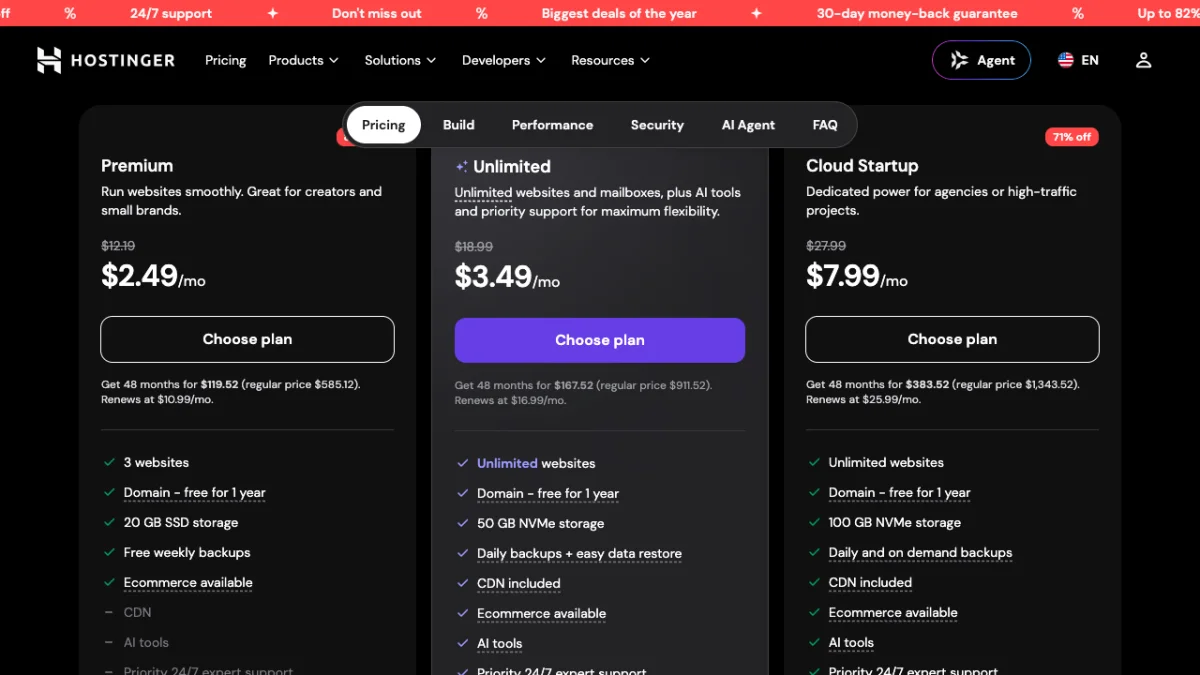
Hostinger's US dollar plan cards: free website migration comes with each plan, and the renewal price sits in small print under the button.
What is the cost in Indian rupees? On hostinger.com/in the same plans cost ₹139 (Premium), ₹199 (Unlimited) and ₹599 (Cloud Startup) a month on 48-month terms, plus 18% GST, and the India-only Single plan is ₹69.
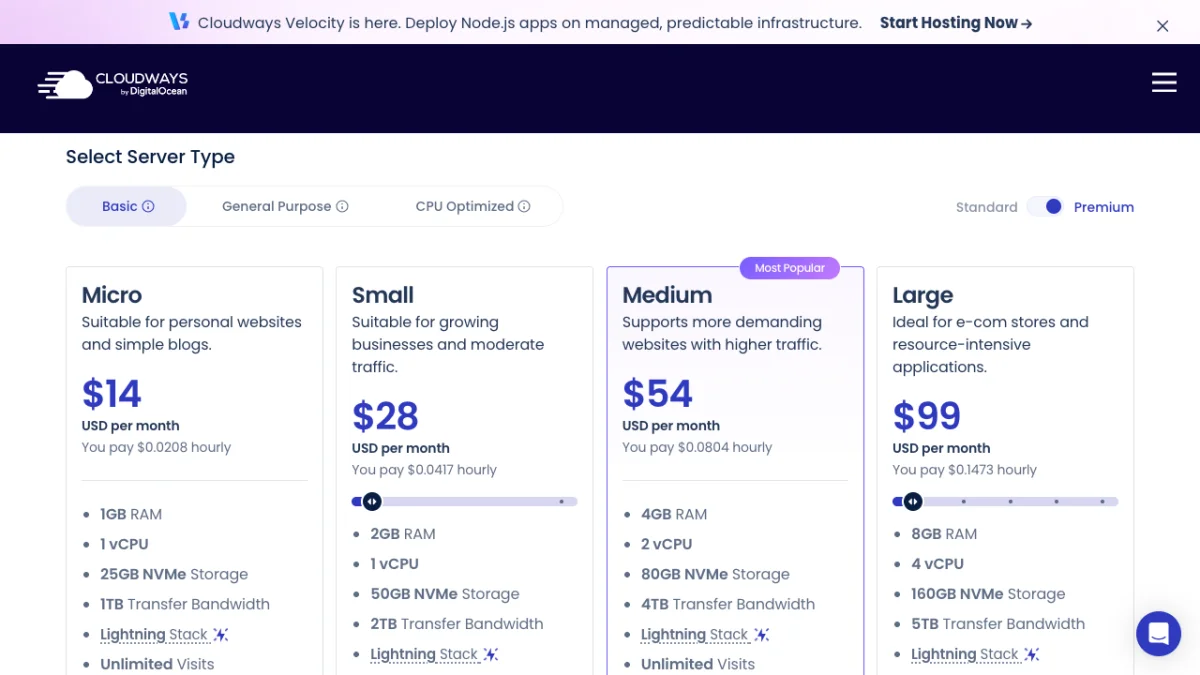
Cloudways charges per server by the month; with the Premium toggle on, a 1 GB DigitalOcean server is $14, and its migration plugin is free on every plan.
What is the cost in Indian rupees? Cloudways bills in US dollars only. At ₹95 per dollar the $14, $28, $54 and $99 Premium servers come to about ₹1,330, ₹2,660, ₹5,130 and ₹9,405 a month, plus any GST on the invoice and your card's foreign currency markup.
If email is the real reason you're moving, compare Google Workspace prices in India with Zoho before you pick a new mail home.
Common problems after a migration
- Site still shows the old version: your own ISP or browser is caching. Check with
digor an online DNS checker; clear the browser cache; wait out the TTL. - "Error establishing a database connection": wrong database name, user, password or host in
wp-config.php. Re-check all four. - 502 or 504 errors on a VPS: PHP-FPM or the app isn't running. Our 502 Bad Gateway Nginx fix walks through it.
- Mail lands in spam after the move: SPF still names the old host, or DKIM isn't set. Fix both records from Step 7.
- Mail stopped arriving completely: MX records point to the wrong server, or you changed nameservers without recreating MX on the new DNS. Compare against your Step 1 list.
- Mixed content or SSL warnings: the certificate isn't issued yet, or hard-coded
http://links remain. Issue SSL and update the site URL.
Transfer website and email to new host: six things to confirm before DNS day
- The site and every mailbox already work on the new host. DNS changes last, never first.
- TTL on A and MX records is down to 300 seconds, set at least a day earlier, and the old plan stays paid for 7 more days.
- Mail has its own copy job. Hostinger and Cloudways move the website free, not the inboxes.
- If you're changing nameservers, A, MX, SPF, DKIM and every verification TXT record already exist in the new zone.
- The first IMAP copy is done, and a second run is planned for after the switch.
- SPF names the new host and its DKIM record is published, so mail doesn't drop into spam.
Ready to move? Lower the TTL tonight
The safe way to transfer website and email to new host comes down to one rule: copy first, switch DNS last, cancel late. Your first job is small: drop the TTL to 300 seconds today, a day before anything else. Then follow the nine steps in order, run the mail copy twice, and keep the old account for a week, and nobody on your team will notice the move.
Moving to a server you manage yourself? Start with our guide to install WordPress on a VPS, or browse more guides in Hosting.
FAQ
Frequently Asked Questions
How do I transfer my website and email to a new host without downtime?
Build the website and create the same mailboxes on the new host while the old one stays live. Copy files, database and mail, test the site with a preview URL, and lower TTL a day early. Then switch nameservers or A and MX records, run a second mail sync, and keep the old host active for a week.
How long does it take to migrate a website to a new host?
A small WordPress site takes one to three hours to copy and test yourself. Cloudways says its free plugin typically finishes in under an hour, while host-run migrations depend on the support team's queue. DNS changes then take a few minutes to a few hours, and up to 48 hours for some networks.
Will I lose my emails when I change hosting?
You won't lose emails if you copy them before cancelling the old host. Website migrations usually don't include email, so create the same mailboxes on the new host and copy old mail using an IMAP tool like Hostinger Email Import, Zoho Data Migration or imapsync. Run the copy again after switching MX records.
Should I change nameservers or only the A and MX records?
Change nameservers if the new host will manage all your DNS and both website and email are moving there. Change only the A and MX records if your DNS is at the registrar or Cloudflare, or if email is moving somewhere different from the website. Either way, recreate every existing record first.
Do I need to transfer my domain to the new hosting company?
No. A domain registration and hosting are separate. You can keep the domain at its current registrar and simply point it to the new host by changing nameservers or DNS records. Transferring the registration is optional and is usually done only to manage domain and hosting in one account.
How much does website migration cost in India?
Website migration is usually free ($0) in India when you buy a new hosting plan. Hostinger includes free website migration with its hosting plans (from $2.49 a month on a 48-month term), and Cloudways offers a free WordPress migration plugin plus one free expert migration on Premium servers from $14 a month. Freelancers and agencies charge quote-based fees, so ask for a fixed price that includes email and DNS.
What is a website migration checklist?
A website migration checklist is the ordered list of tasks for moving a site: list mailboxes and DNS records, lower TTL, set up the new host, copy files and database, test on a preview link, copy email over IMAP, switch DNS, issue SSL, sync mail again and keep the old host for a week before cancelling.
Why are my emails not arriving after changing hosts?
Emails stop arriving when MX records still point to the old server, point to the wrong new server, or were not recreated after a nameserver change. Check with dig +short MX yourdomain.com and compare with your new host's mail settings. Also update phones and mail apps with the new server names and passwords.
Can I move only my email and keep the website on the old host?
Yes. Create the mailboxes on the new email service, copy old mail over IMAP, then change only the MX records and update SPF and DKIM. Leave the A record alone so the website stays where it is. This is common when moving business email to Zoho Mail or Google Workspace.
Where to buy
-
Visit official site (opens in new tab)
Hostinger
-
Visit official site (opens in new tab)
Cloudways
-
Visit official site (opens in new tab)
Zoho Mail